> ## Documentation Index
> Fetch the complete documentation index at: https://docs.clearspend.ai/llms.txt
> Use this file to discover all available pages before exploring further.
# Adding a data source
> Upload a document, forward an invoice by email, or open integrations to get spend data into ClearSpend.
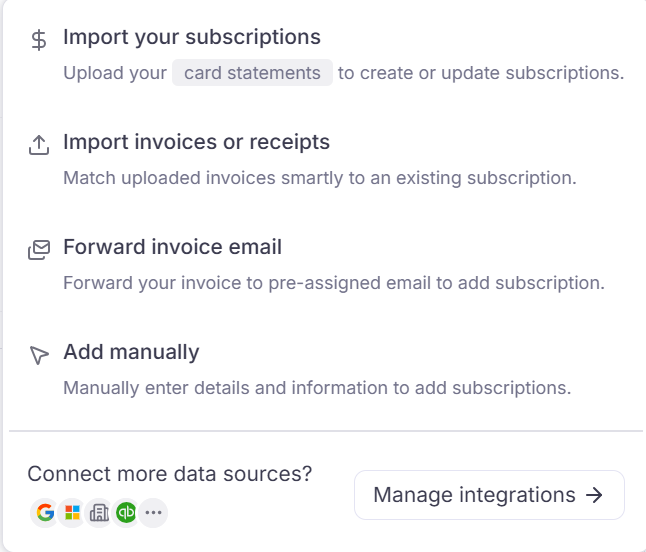
The **+ Add Data Source** button in the top-right is your shortcut for getting data into ClearSpend.
**Only charges from card statements (CSV import) or Plaid count toward KPI cards and charts.** Invoices and receipts are supporting documents. Uploading an invoice alone creates a temporary subscription in **Needs review** — its amount is excluded from dashboard totals until a matching charge arrives. See [How data enters ClearSpend](/connect/how-data-enters).
## When to use each option
| Menu item | Use when | Counts in KPIs? |
| ----------------------------- | --------------------------------------------------- | ----------------------------- |
| **Import your Subscriptions** | Bulk backfill from card CSV | ✅ Yes (charges) |
| **Upload Invoices/Receipts** | Attach PDF/JPG proof to existing subscriptions | ❌ No (supporting doc) |
| **Forward invoice email** | Copy your workspace `@clearspend.cc` address | ❌ No (supporting doc) |
| **Add Manually** | Vendor never sends invoices; enter details yourself | ❌ No until charge arrives |
| **Connect more data sources** | Open [Integrations](/connect/integrations) | ✅ Plaid yes; invoice syncs no |
 File size limits vary by flow — see [Limits and formats](/reference/limits-and-formats).
## Import subscriptions
Choose **Import your Subscriptions** to upload **card statements** (CSV) and create or update subscriptions in bulk. This is the fastest way to backfill **verified spend** and populate KPI cards and charts when you don't have individual invoices.
Statement imports create **charges** — the data layer ClearSpend uses for dashboard totals and spending trends.
## Upload invoices and receipts
Choose **Upload Invoices/Receipts** to upload individual vendor files. Supported types:
* **Invoices**: individual vendor invoices in PDF or JPG format
* **Receipts**: payment receipts in PDF or JPG format
Files must be **PDF or JPG**, up to **10 MB each**, and you can upload up to **20 files at once**. ClearSpend extracts the vendor, amount, and date, and routes each file to the matching subscription when the vendor is recognized.
Invoices are **supporting documents**. They help reconciliation and audit trails but **do not add amounts to KPIs or charts** on their own. If no matching charge exists, ClearSpend creates a temporary subscription in [Needs review](/features/subscriptions#needs-review).
If the vendor is new and no charge confirms the spend, the subscription stays in **Needs review** until you import a statement, connect Plaid, or manually approve (approval moves it to Overview but still excludes the amount from KPIs until a charge arrives).
Privacy protected: ClearSpend extracts only transaction data and does not store sensitive information from your documents.
Need KPI totals? Use **Import your Subscriptions** for CSV statements, or connect [Plaid](/connect/connect-your-bank) — not invoice upload alone.
## Add manually
Choose **Add Manually** to create a subscription by entering vendor name, amount, billing cycle, and owner yourself — useful for tools that never send email invoices.
Manual rows appear on **Overview** but **do not contribute to KPI cards or charts** until ClearSpend receives a charge from a statement import or Plaid sync for that vendor.
## Forward an invoice email
Your workspace has a unique ClearSpend email address (e.g. `bear.077@clearspend.cc`). **Forward any invoice or billing email** to that address. ClearSpend reads it and adds it as a **supporting document** within a few minutes.
Forwarded invoices follow the same rules as uploads: they create or update subscription metadata but **do not count in KPIs** without a matching charge.
Set up an auto-forward rule in your inbox to send all billing emails to your ClearSpend address. Pair this with [Plaid](/connect/connect-your-bank) or periodic statement imports so charges confirm the spend.
## Link a card (Coming soon)
Connect your credit card via [Plaid](/connect/connect-your-bank) from **Integrations**, or use **Connect more data sources → Manage integrations** at the bottom of the **+ Add Data Source** menu. Plaid syncs **charges** in the background — these are what populate KPI cards and dashboard charts.
## Send from the Chrome extension
If you have the [Chrome extension](/connect/chrome-extension) installed and signed in, open the toolbar popup and **drop files or browse** to upload PDF, CSV, JPG, or PNG files without opening the webapp. CSV uploads behave like statement imports (charges); PDF/JPG uploads are treated as invoices (supporting documents).
## Connect an integration
Opens the [Integrations](/connect/integrations) page where you can connect [Google Workspace](/connect/google-workspace), [Gmail](/connect/gmail), [Google Drive](/connect/google-drive), or [Plaid card linking](/connect/connect-your-bank).
* **Plaid** → verified charges → KPIs and charts
* **Gmail / Drive** → invoice discovery → supporting documents
## Something wrong?
| Symptom | What to do |
| ---------------------------------- | --------------------------------------------------------------------------------------------------------------------------------------------- |
| KPIs show \$0 after invoice upload | Expected — import a statement or connect Plaid. See [Troubleshooting](/reference/troubleshooting#kpis-and-charts-show-0-after-invoice-upload) |
| Subscription stuck in Needs review | Approve manually or wait for a charge — [Needs review](/features/subscriptions#needs-review) |
| Upload failed | [Limits and formats](/reference/limits-and-formats) |
See also [Troubleshooting — Uploads](/reference/troubleshooting#uploads-and-documents).
File size limits vary by flow — see [Limits and formats](/reference/limits-and-formats).
## Import subscriptions
Choose **Import your Subscriptions** to upload **card statements** (CSV) and create or update subscriptions in bulk. This is the fastest way to backfill **verified spend** and populate KPI cards and charts when you don't have individual invoices.
Statement imports create **charges** — the data layer ClearSpend uses for dashboard totals and spending trends.
## Upload invoices and receipts
Choose **Upload Invoices/Receipts** to upload individual vendor files. Supported types:
* **Invoices**: individual vendor invoices in PDF or JPG format
* **Receipts**: payment receipts in PDF or JPG format
Files must be **PDF or JPG**, up to **10 MB each**, and you can upload up to **20 files at once**. ClearSpend extracts the vendor, amount, and date, and routes each file to the matching subscription when the vendor is recognized.
Invoices are **supporting documents**. They help reconciliation and audit trails but **do not add amounts to KPIs or charts** on their own. If no matching charge exists, ClearSpend creates a temporary subscription in [Needs review](/features/subscriptions#needs-review).
If the vendor is new and no charge confirms the spend, the subscription stays in **Needs review** until you import a statement, connect Plaid, or manually approve (approval moves it to Overview but still excludes the amount from KPIs until a charge arrives).
Privacy protected: ClearSpend extracts only transaction data and does not store sensitive information from your documents.
Need KPI totals? Use **Import your Subscriptions** for CSV statements, or connect [Plaid](/connect/connect-your-bank) — not invoice upload alone.
## Add manually
Choose **Add Manually** to create a subscription by entering vendor name, amount, billing cycle, and owner yourself — useful for tools that never send email invoices.
Manual rows appear on **Overview** but **do not contribute to KPI cards or charts** until ClearSpend receives a charge from a statement import or Plaid sync for that vendor.
## Forward an invoice email
Your workspace has a unique ClearSpend email address (e.g. `bear.077@clearspend.cc`). **Forward any invoice or billing email** to that address. ClearSpend reads it and adds it as a **supporting document** within a few minutes.
Forwarded invoices follow the same rules as uploads: they create or update subscription metadata but **do not count in KPIs** without a matching charge.
Set up an auto-forward rule in your inbox to send all billing emails to your ClearSpend address. Pair this with [Plaid](/connect/connect-your-bank) or periodic statement imports so charges confirm the spend.
## Link a card (Coming soon)
Connect your credit card via [Plaid](/connect/connect-your-bank) from **Integrations**, or use **Connect more data sources → Manage integrations** at the bottom of the **+ Add Data Source** menu. Plaid syncs **charges** in the background — these are what populate KPI cards and dashboard charts.
## Send from the Chrome extension
If you have the [Chrome extension](/connect/chrome-extension) installed and signed in, open the toolbar popup and **drop files or browse** to upload PDF, CSV, JPG, or PNG files without opening the webapp. CSV uploads behave like statement imports (charges); PDF/JPG uploads are treated as invoices (supporting documents).
## Connect an integration
Opens the [Integrations](/connect/integrations) page where you can connect [Google Workspace](/connect/google-workspace), [Gmail](/connect/gmail), [Google Drive](/connect/google-drive), or [Plaid card linking](/connect/connect-your-bank).
* **Plaid** → verified charges → KPIs and charts
* **Gmail / Drive** → invoice discovery → supporting documents
## Something wrong?
| Symptom | What to do |
| ---------------------------------- | --------------------------------------------------------------------------------------------------------------------------------------------- |
| KPIs show \$0 after invoice upload | Expected — import a statement or connect Plaid. See [Troubleshooting](/reference/troubleshooting#kpis-and-charts-show-0-after-invoice-upload) |
| Subscription stuck in Needs review | Approve manually or wait for a charge — [Needs review](/features/subscriptions#needs-review) |
| Upload failed | [Limits and formats](/reference/limits-and-formats) |
See also [Troubleshooting — Uploads](/reference/troubleshooting#uploads-and-documents).