> ## Documentation Index
> Fetch the complete documentation index at: https://docs.clearspend.ai/llms.txt
> Use this file to discover all available pages before exploring further.
# Integrations
> Connect Google Workspace, Gmail/Drive, Plaid, and Slack.
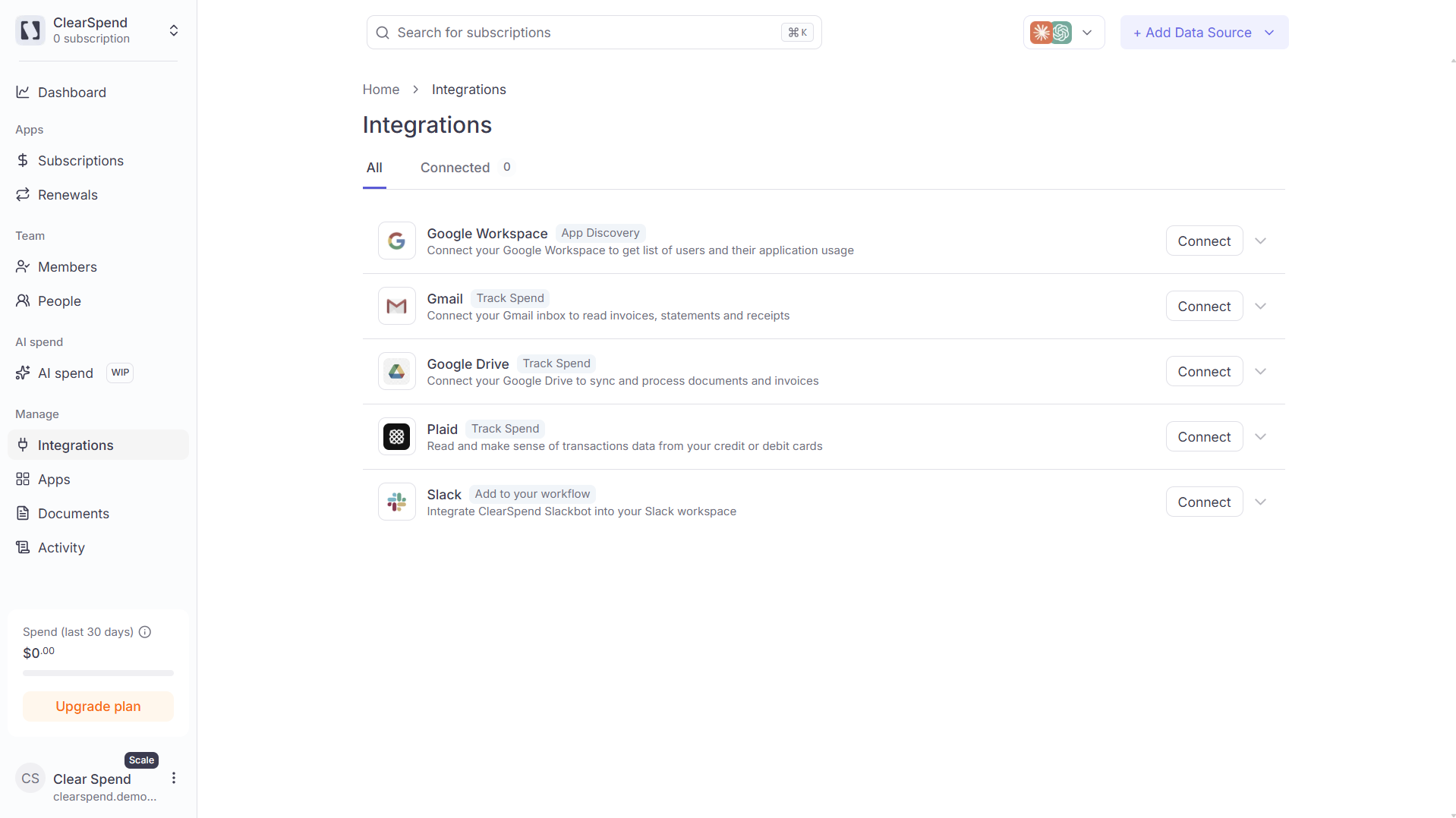
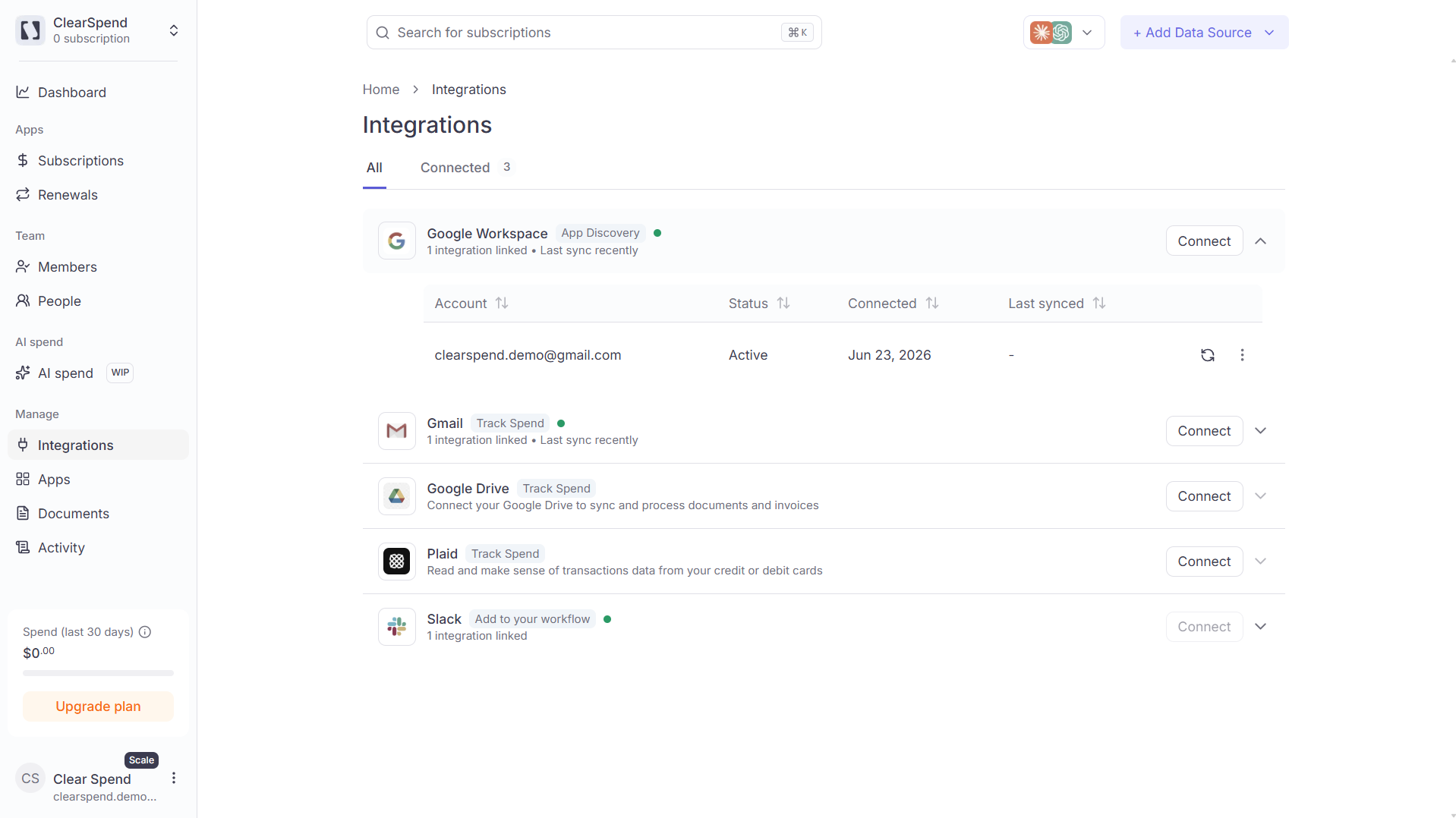
Open **Manage → Integrations** in the sidebar to connect data sources. Each card shows linked accounts and **last sync** time.
 ## When to use integrations
* **Ongoing** invoice import (Gmail, Drive) instead of manual uploads
* **App and people discovery** (Google Workspace)
* **Card charge detection** (Plaid)
* **Slack alerts** for renewals (Owner only)
Not sure which to pick? See [Choosing integrations](/connect/choosing-integrations).
***
## Available integrations
| Integration | Tag | What it does |
| --------------------------------------------------- | ------------- | ------------------------------------------------------------- |
| **[Google Workspace](/connect/google-workspace)** | App Discovery | Apps and people from your Google directory |
| **[Gmail](/connect/gmail)** | Track Spend | Invoice emails and attachments from Gmail |
| **[Google Drive](/connect/google-drive)** | Track Spend | PDF sync from a Drive folder |
| **[Connect your card](/connect/connect-your-bank)** | Track Spend | SaaS charges via Plaid |
| **Slack** | Notifications | Renewal alerts to Owner — [Slack](/connect/slack-integration) |
Link **multiple** Gmail or Drive accounts to one workspace.
***
## Connected state
Active integrations show a green indicator, linked account, and last sync.
## When to use integrations
* **Ongoing** invoice import (Gmail, Drive) instead of manual uploads
* **App and people discovery** (Google Workspace)
* **Card charge detection** (Plaid)
* **Slack alerts** for renewals (Owner only)
Not sure which to pick? See [Choosing integrations](/connect/choosing-integrations).
***
## Available integrations
| Integration | Tag | What it does |
| --------------------------------------------------- | ------------- | ------------------------------------------------------------- |
| **[Google Workspace](/connect/google-workspace)** | App Discovery | Apps and people from your Google directory |
| **[Gmail](/connect/gmail)** | Track Spend | Invoice emails and attachments from Gmail |
| **[Google Drive](/connect/google-drive)** | Track Spend | PDF sync from a Drive folder |
| **[Connect your card](/connect/connect-your-bank)** | Track Spend | SaaS charges via Plaid |
| **Slack** | Notifications | Renewal alerts to Owner — [Slack](/connect/slack-integration) |
Link **multiple** Gmail or Drive accounts to one workspace.
***
## Connected state
Active integrations show a green indicator, linked account, and last sync.
 ***
## Managing connected integrations
After you connect, use the actions on each integration card or row:
| Action | When to use |
| ------------- | -------------------------------------------------------------------------------------------- |
| **Sync now** | Pull latest data immediately (after connect, or when last sync is stale) |
| **Configure** | Change settings (e.g. Google Drive folder path or date range) before syncing |
| **Reconnect** | OAuth token expired or Google access was revoked |
| **Delete** | Remove the connection (Owner/Admin). Historical data already imported stays in the workspace |
### Sync now
1. Expand the integration card on **Integrations**
2. Click **Sync now** on the linked account row
3. Watch progress in the [Activity log](/features/activity)
First sync after connect can take several minutes for large mailboxes or directories.
### Reconnect
If you see a reconnect prompt or sync failures:
1. Click **Reconnect** on the affected account
2. Complete the OAuth flow again
3. Run **Sync now** to backfill missed data
### Plan limits
Each plan caps how many integrations you can connect. When at capacity, **Connect** is disabled — check **Settings → Billing** usage meters or [Limits and formats](/reference/limits-and-formats#integration-limits-by-plan).
**Viewers** cannot connect, sync, or delete integrations.
***
## AI assistants (MCP)
Query subscriptions from Claude or ChatGPT via the MCP server — separate from integration cards. See [AI assistants](/connect/ai-assistants).
***
## Something wrong?
See [Troubleshooting — Integrations](/reference/troubleshooting#integrations) or [Choosing integrations](/connect/choosing-integrations).
***
## Managing connected integrations
After you connect, use the actions on each integration card or row:
| Action | When to use |
| ------------- | -------------------------------------------------------------------------------------------- |
| **Sync now** | Pull latest data immediately (after connect, or when last sync is stale) |
| **Configure** | Change settings (e.g. Google Drive folder path or date range) before syncing |
| **Reconnect** | OAuth token expired or Google access was revoked |
| **Delete** | Remove the connection (Owner/Admin). Historical data already imported stays in the workspace |
### Sync now
1. Expand the integration card on **Integrations**
2. Click **Sync now** on the linked account row
3. Watch progress in the [Activity log](/features/activity)
First sync after connect can take several minutes for large mailboxes or directories.
### Reconnect
If you see a reconnect prompt or sync failures:
1. Click **Reconnect** on the affected account
2. Complete the OAuth flow again
3. Run **Sync now** to backfill missed data
### Plan limits
Each plan caps how many integrations you can connect. When at capacity, **Connect** is disabled — check **Settings → Billing** usage meters or [Limits and formats](/reference/limits-and-formats#integration-limits-by-plan).
**Viewers** cannot connect, sync, or delete integrations.
***
## AI assistants (MCP)
Query subscriptions from Claude or ChatGPT via the MCP server — separate from integration cards. See [AI assistants](/connect/ai-assistants).
***
## Something wrong?
See [Troubleshooting — Integrations](/reference/troubleshooting#integrations) or [Choosing integrations](/connect/choosing-integrations).