> ## Documentation Index
> Fetch the complete documentation index at: https://docs.clearspend.ai/llms.txt
> Use this file to discover all available pages before exploring further.
# Apps
> View all detected apps, distinguish tracked from untracked, and convert untracked apps into subscriptions.
The Apps page lists every third-party tool detected in your environment, including ones without a subscription record. Use it to spot shadow IT, track usage, and decide which apps to formally track.
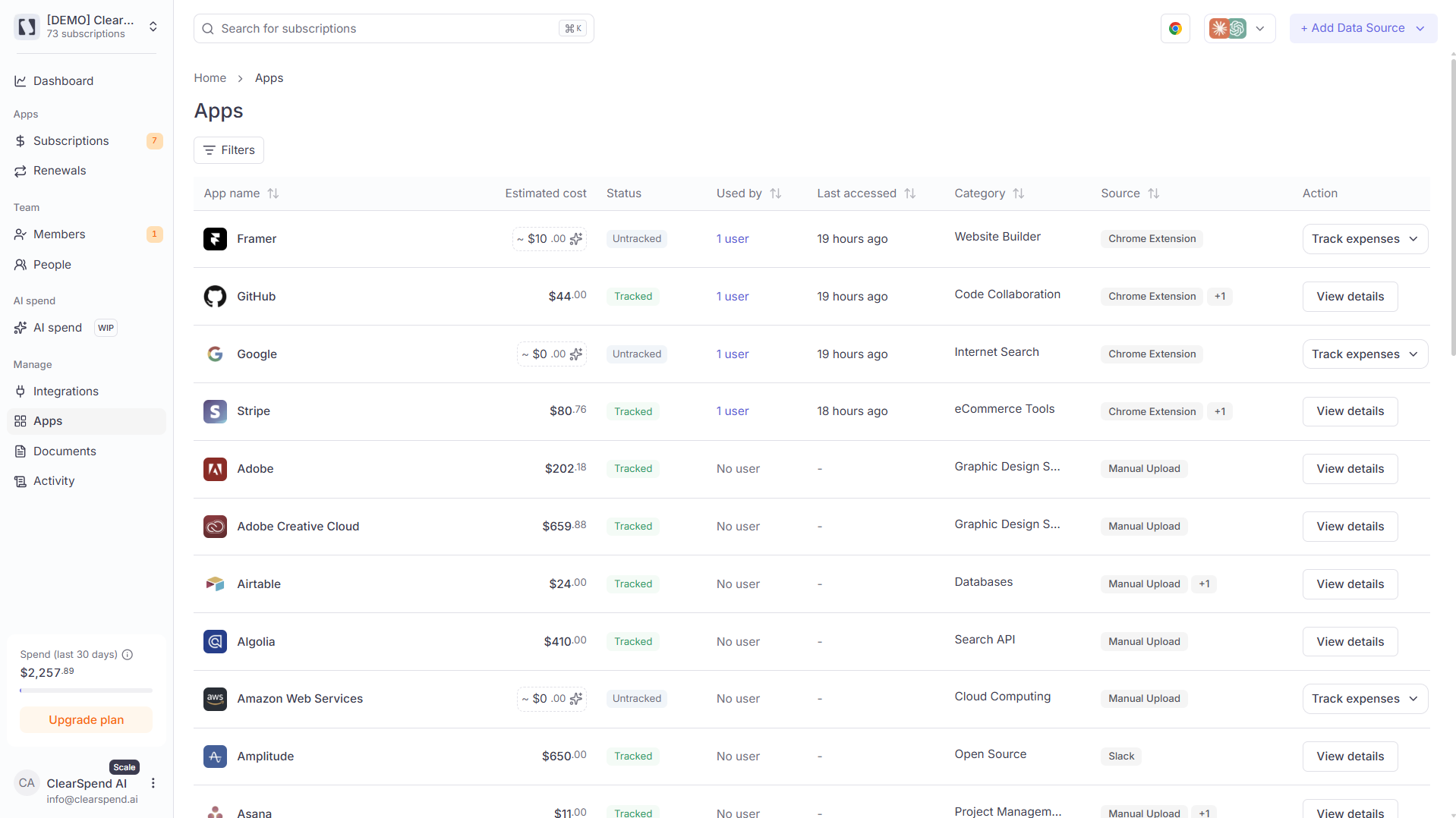 ## What each row tells you
| Column | Meaning |
| ------------------ | ---------------------------------------------------------------------------------------------- |
| **App name** | Detected vendor name with logo. |
| **Estimated cost** | Inferred monthly spend when known (shown as `~$X.XX`). |
| **Status** | **Tracked** (linked to a subscription) or **Untracked** (detected but not yet a subscription). |
| **Used by** | Number of unique users; click to see the list. |
| **Last accessed** | Most recent activity signal. |
| **Category** | Software category: e.g. Design, Account, Software, Design Tool. |
| **Source** | Where the signal came from: Google Workspace, Email forwarding, Chrome extension, etc. |
| **Action** | **Track expenses** for untracked apps, or **View details →** for tracked ones. |
## Tracked vs. Untracked
* **Untracked** apps have been detected (via Google Workspace or another integration) but don't yet have a subscription record. Click **Track expenses** to convert one into a tracked subscription.
* **Tracked** apps are linked to a subscription with spend data. Click **View details** to open the subscription detail page.
## Filters
Use the **Category** and **Status** dropdowns at the top to filter by category or tracking status.
Apps detected only by signal (without a matching invoice) appear here but not in the [Subscriptions](/features/subscriptions) table. Upload an invoice or click **Track expenses** to add one.
## What each row tells you
| Column | Meaning |
| ------------------ | ---------------------------------------------------------------------------------------------- |
| **App name** | Detected vendor name with logo. |
| **Estimated cost** | Inferred monthly spend when known (shown as `~$X.XX`). |
| **Status** | **Tracked** (linked to a subscription) or **Untracked** (detected but not yet a subscription). |
| **Used by** | Number of unique users; click to see the list. |
| **Last accessed** | Most recent activity signal. |
| **Category** | Software category: e.g. Design, Account, Software, Design Tool. |
| **Source** | Where the signal came from: Google Workspace, Email forwarding, Chrome extension, etc. |
| **Action** | **Track expenses** for untracked apps, or **View details →** for tracked ones. |
## Tracked vs. Untracked
* **Untracked** apps have been detected (via Google Workspace or another integration) but don't yet have a subscription record. Click **Track expenses** to convert one into a tracked subscription.
* **Tracked** apps are linked to a subscription with spend data. Click **View details** to open the subscription detail page.
## Filters
Use the **Category** and **Status** dropdowns at the top to filter by category or tracking status.
Apps detected only by signal (without a matching invoice) appear here but not in the [Subscriptions](/features/subscriptions) table. Upload an invoice or click **Track expenses** to add one.