> ## Documentation Index
> Fetch the complete documentation index at: https://docs.clearspend.ai/llms.txt
> Use this file to discover all available pages before exploring further.
# Dashboard widgets
> Explore every widget on the ClearSpend dashboard — what each one shows and how to customize your layout.
Below the KPIs and spending trend chart you'll find dashboard widgets. Click **Customize charts** in the top-right to show, hide, or drag-and-drop widgets into the order you prefer. Your layout is saved per workspace.
## Widget overview
| Widget | What it shows |
| ------------------------- | ----------------------------------------------------------------- |
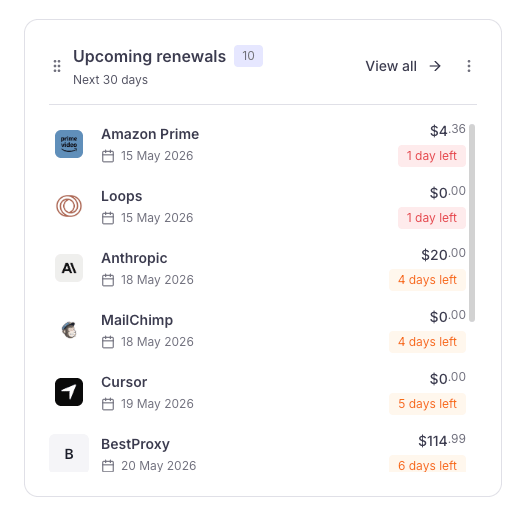
| **Upcoming renewals** | Subscriptions renewing within the next 30 days, sorted by urgency |
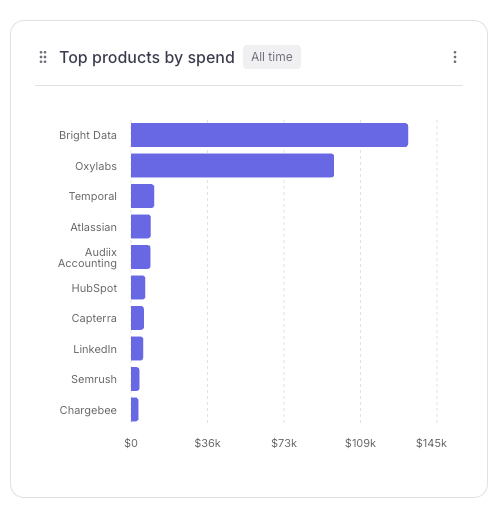
| **Top products by spend** | Horizontal bar chart of highest-cost vendors |
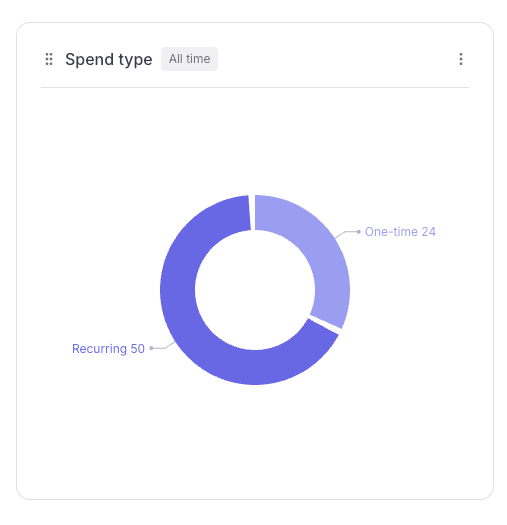
| **Spend type** | Donut chart of recurring vs one-time subscriptions |
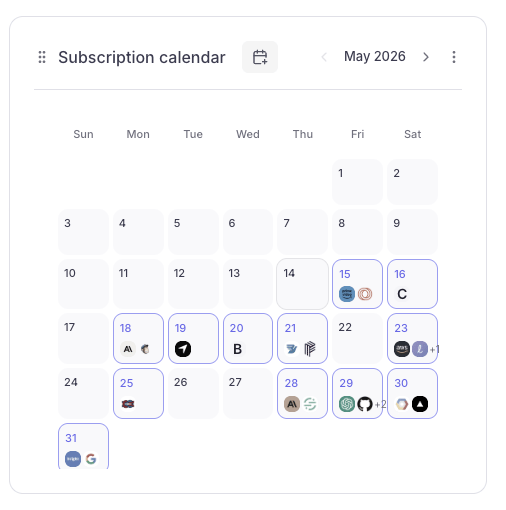
| **Subscription calendar** | Month view with vendor logos on renewal dates |
Some widgets are hidden by default on first visit — enable them from **Customize charts**.
## Widget details
### Upcoming renewals
Lists every subscription renewing within the next 30 days, sorted by urgency. Each row shows the vendor logo, name, renewal date, amount due, and a color-coded days-remaining badge (red for 1–3 days, orange for 4–7 days). Click **View all** to open the full [Renewals](/features/renewals) page.
 ### Top products by spend
Horizontal bar chart ranking your vendors by total spend over the selected date window. Spot which tools absorb the most budget and whether the distribution looks as expected.
### Top products by spend
Horizontal bar chart ranking your vendors by total spend over the selected date window. Spot which tools absorb the most budget and whether the distribution looks as expected.
 ### Spend type
Donut chart breaking your active subscriptions into **Recurring** and **One-time** segments. The number shown on each label is the count of subscriptions in that segment, not the dollar amount. Hover over a segment to see the spend total.
### Spend type
Donut chart breaking your active subscriptions into **Recurring** and **One-time** segments. The number shown on each label is the count of subscriptions in that segment, not the dollar amount. Hover over a segment to see the spend total.
 ### Subscription calendar
Month view with vendor logos plotted on each renewal date. Days with more subscriptions than fit show a **+N** badge. Use the arrows to step forward or backward through months.
### Subscription calendar
Month view with vendor logos plotted on each renewal date. Days with more subscriptions than fit show a **+N** badge. Use the arrows to step forward or backward through months.
 ## Customizing your layout
1. Click **Customize charts** in the top-right of the dashboard.
2. Toggle widgets on or off using their switches.
3. Drag widget cards to reorder them.
4. Your layout is saved automatically per workspace.
## Date filter
The date filter in the top-right scopes every widget simultaneously:
| Option | Date range |
| ------------- | ------------------------------------------- |
| This month | First day of the current month to today |
| Last month | Full prior calendar month |
| Last 3 months | First day 3 months ago to end of last month |
| Last quarter | Full prior calendar quarter |
| Last 6 months | Six full calendar months ending last month |
| Year to date | Jan 1 to today |
| All time | All available data |
## Related
* [Dashboard](/features/dashboard)
* [Dashboard KPIs](/features/dashboard-kpis)
* [Spending trend](/features/dashboard-spending-trend)
* [Renewals](/features/renewals)
## Customizing your layout
1. Click **Customize charts** in the top-right of the dashboard.
2. Toggle widgets on or off using their switches.
3. Drag widget cards to reorder them.
4. Your layout is saved automatically per workspace.
## Date filter
The date filter in the top-right scopes every widget simultaneously:
| Option | Date range |
| ------------- | ------------------------------------------- |
| This month | First day of the current month to today |
| Last month | Full prior calendar month |
| Last 3 months | First day 3 months ago to end of last month |
| Last quarter | Full prior calendar quarter |
| Last 6 months | Six full calendar months ending last month |
| Year to date | Jan 1 to today |
| All time | All available data |
## Related
* [Dashboard](/features/dashboard)
* [Dashboard KPIs](/features/dashboard-kpis)
* [Spending trend](/features/dashboard-spending-trend)
* [Renewals](/features/renewals)