> ## Documentation Index
> Fetch the complete documentation index at: https://docs.clearspend.ai/llms.txt
> Use this file to discover all available pages before exploring further.
# Dashboard
> Overview of the ClearSpend dashboard — KPIs, spending trend, and widgets.
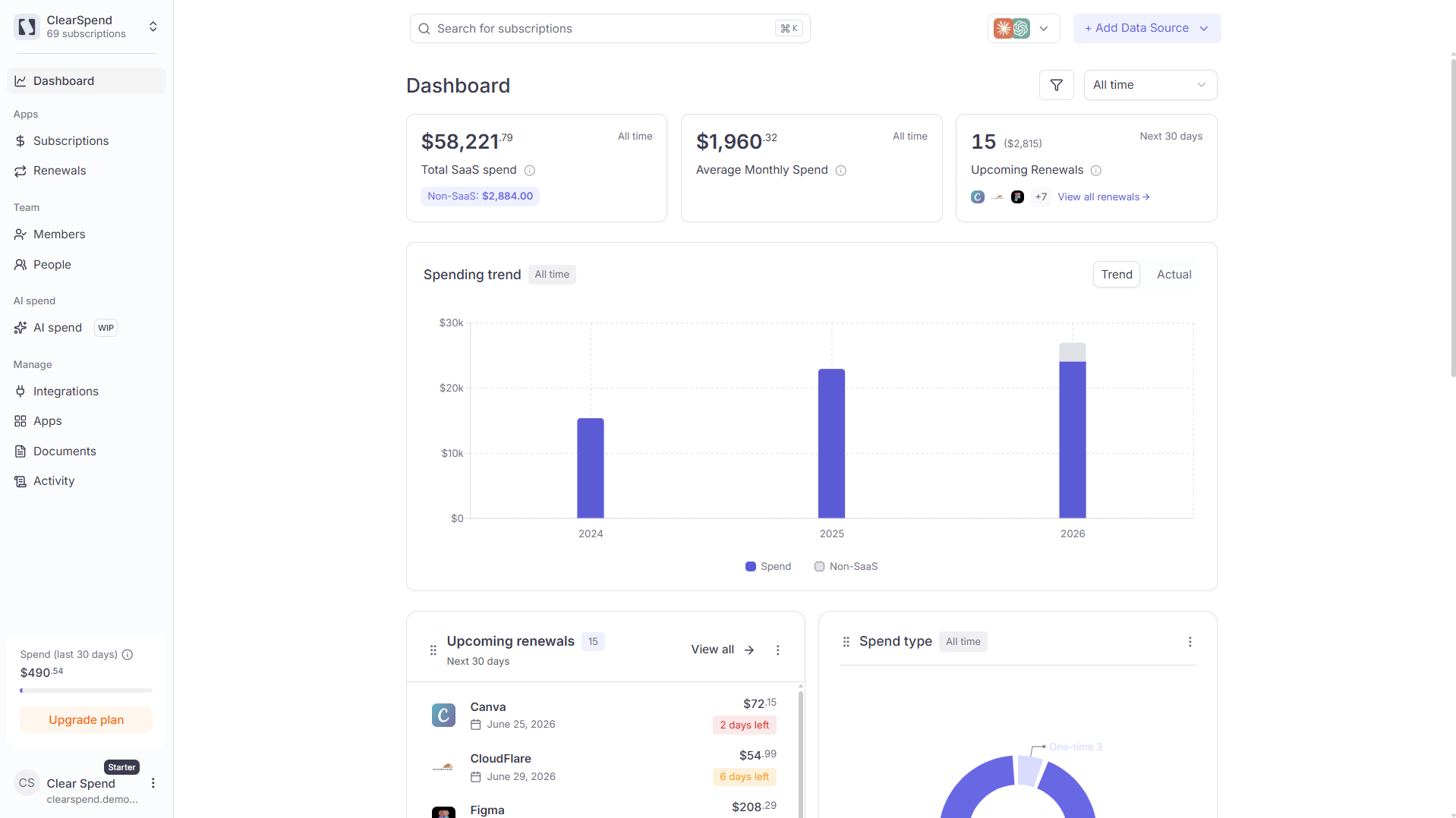
Your home page: total spend, renewal risk, and trends in one view.
## When to use the dashboard
* **Monday check-in** — KPI cards and upcoming renewals widget
* **Board or finance review** — spending trend (Trend vs Actual vs Reconciliation)
* **Customize your layout** — show only the widgets you need
 ## SaaS spend vs. Non-SaaS spend
ClearSpend splits every transaction into one of two buckets:
| Type | What it includes | Included in KPIs and charts? |
| ------------------ | -------------------------------------------------------------------------------------------------------------------------------------------------------------------------------------------------- | ------------------------------------------------- |
| **SaaS spend** | Subscriptions with a recognized software category (Figma, AWS, Cursor, Slack, etc.). Also includes subscriptions with an **empty or blank category** (treated as SaaS until classified otherwise). | ✅ Yes |
| **Non-SaaS spend** | Any subscription categorized as **"Others"**: hotels, flights, hardware, and anything that isn't software spend. | ❌ No (excluded from all KPIs, charts, and totals) |
**Non-SaaS amounts are excluded from every number you see on the platform:** total spend, average monthly spend, the spending trend chart, the spend-type donut, and all other widgets. If a subscription is in the "Others" category, its cost does not count toward any total.
If you see a subscription that should be SaaS but ended up under "Others" (or vice versa), fix it directly from the subscriptions list:
1. Go to the **Subscriptions** page
2. Find the subscription and click the **⋯** (three dots) menu on its row
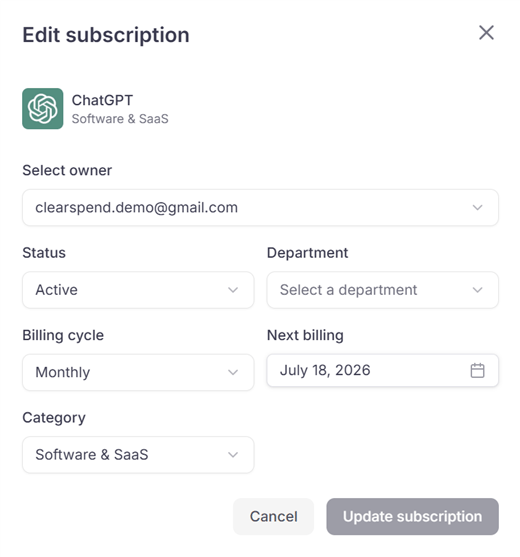
3. Click **Edit**. A pop-over appears.
4. Change the **Category** field to the correct software category (or to **Others** to exclude it)
5. Click **Update subscription**. The change takes effect immediately and the subscription's amount will start appearing in (or disappearing from) all KPIs and charts.
## SaaS spend vs. Non-SaaS spend
ClearSpend splits every transaction into one of two buckets:
| Type | What it includes | Included in KPIs and charts? |
| ------------------ | -------------------------------------------------------------------------------------------------------------------------------------------------------------------------------------------------- | ------------------------------------------------- |
| **SaaS spend** | Subscriptions with a recognized software category (Figma, AWS, Cursor, Slack, etc.). Also includes subscriptions with an **empty or blank category** (treated as SaaS until classified otherwise). | ✅ Yes |
| **Non-SaaS spend** | Any subscription categorized as **"Others"**: hotels, flights, hardware, and anything that isn't software spend. | ❌ No (excluded from all KPIs, charts, and totals) |
**Non-SaaS amounts are excluded from every number you see on the platform:** total spend, average monthly spend, the spending trend chart, the spend-type donut, and all other widgets. If a subscription is in the "Others" category, its cost does not count toward any total.
If you see a subscription that should be SaaS but ended up under "Others" (or vice versa), fix it directly from the subscriptions list:
1. Go to the **Subscriptions** page
2. Find the subscription and click the **⋯** (three dots) menu on its row
3. Click **Edit**. A pop-over appears.
4. Change the **Category** field to the correct software category (or to **Others** to exclude it)
5. Click **Update subscription**. The change takes effect immediately and the subscription's amount will start appearing in (or disappearing from) all KPIs and charts.
 Likewise, if a non-SaaS payment (e.g. a hotel booking charged to a company card) was auto-categorized as software, change its category to **Others** to remove it from your SaaS totals.
Subscriptions with a **blank or missing category** are counted as SaaS spend by default. Only the **"Others"** category excludes a subscription from calculations.
***
## Dashboard sections
Total SaaS spend, average monthly spend, and upcoming renewals — what each card shows and what counts toward the totals.
Trend, Actual Spend, and Reconciliation views — how to read each mode and toggle non-SaaS spend.
All four widgets, how to show/hide them, and how to customize your layout.
## Something wrong?
| Symptom | What to do |
| -------------------------- | ------------------------------------------------------------------------------------------------ |
| KPIs show \$0 | No data yet — [Add a data source](/connect/data-sources) or check [Activity](/features/activity) |
| Vendor missing from totals | Category is **Others** — [SaaS vs Non-SaaS](#saas-spend-vs-non-saas-spend) |
| Widget missing | Open **Customize charts** and enable it |
## Next steps
Upload invoices, forward statements by email, or connect an integration to start populating your dashboard.
Dig into your grouped subscription list with filters, billing cycles, and spend totals.
See every upcoming auto-renewal and act before it hits your card.
Link [Google Workspace](/connect/google-workspace), [Gmail](/connect/gmail), or [Google Drive](/connect/google-drive) to keep your data fresh automatically.
Likewise, if a non-SaaS payment (e.g. a hotel booking charged to a company card) was auto-categorized as software, change its category to **Others** to remove it from your SaaS totals.
Subscriptions with a **blank or missing category** are counted as SaaS spend by default. Only the **"Others"** category excludes a subscription from calculations.
***
## Dashboard sections
Total SaaS spend, average monthly spend, and upcoming renewals — what each card shows and what counts toward the totals.
Trend, Actual Spend, and Reconciliation views — how to read each mode and toggle non-SaaS spend.
All four widgets, how to show/hide them, and how to customize your layout.
## Something wrong?
| Symptom | What to do |
| -------------------------- | ------------------------------------------------------------------------------------------------ |
| KPIs show \$0 | No data yet — [Add a data source](/connect/data-sources) or check [Activity](/features/activity) |
| Vendor missing from totals | Category is **Others** — [SaaS vs Non-SaaS](#saas-spend-vs-non-saas-spend) |
| Widget missing | Open **Customize charts** and enable it |
## Next steps
Upload invoices, forward statements by email, or connect an integration to start populating your dashboard.
Dig into your grouped subscription list with filters, billing cycles, and spend totals.
See every upcoming auto-renewal and act before it hits your card.
Link [Google Workspace](/connect/google-workspace), [Gmail](/connect/gmail), or [Google Drive](/connect/google-drive) to keep your data fresh automatically.