> ## Documentation Index
> Fetch the complete documentation index at: https://docs.clearspend.ai/llms.txt
> Use this file to discover all available pages before exploring further.
# Subscriptions
> View, filter, sort, and export every subscription ClearSpend has detected.
One place to see every vendor you pay, when they renew, and who owns them.
## When to use this page
| Goal | Tab or action |
| ------------------------ | ------------------------------------------ |
| Portfolio overview | **Overview** |
| Audit individual charges | **Transactions** |
| Approve new detections | **Needs review** |
| Export for finance | **Export** (Overview or Transactions only) |
| Bulk request invoices | Toolbar **Request missing invoices** |
Not sure which tab? See [Choosing integrations — Subscriptions tabs](/connect/choosing-integrations#subscriptions-overview-vs-transactions-vs-needs-review).
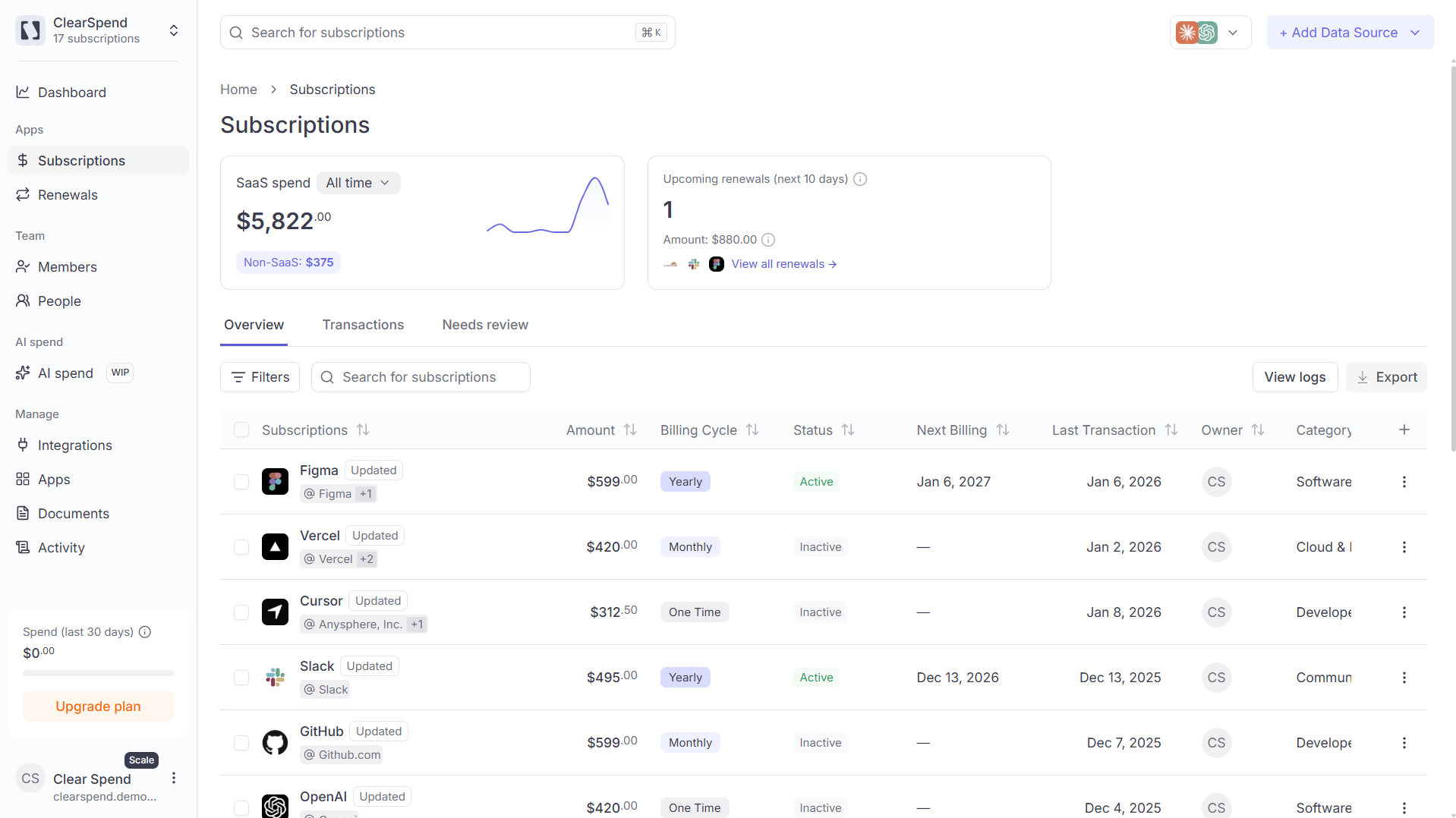 ## Header KPIs
Two summary cards anchor the top of the page:
## Header KPIs
Two summary cards anchor the top of the page:
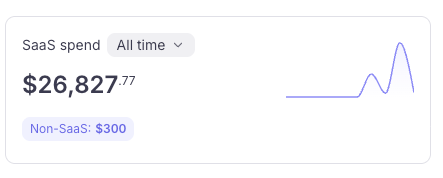 * **SaaS spend:** total SaaS spend over the selected window, with a sparkline trend. Directly below this figure you'll also see a **Non-SaaS** callout showing the total for subscriptions in the "Others" category. This amount is displayed for reference only and is **not** included in the SaaS spend total or any other platform calculation. See [SaaS vs. Non-SaaS spend](/features/dashboard#saas-spend-vs-non-saas-spend) for details.
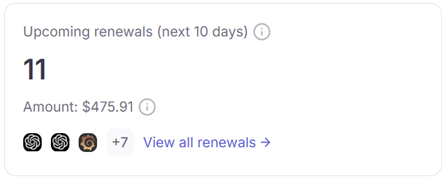 * **Upcoming renewals (next 10 days):** count, total amount, and a row of vendor logos. Click **View all renewals** to jump to the [Renewals](/features/renewals) page.
## Overview, Transactions, and Needs review
The page has three tabs:
### Overview
* **Upcoming renewals (next 10 days):** count, total amount, and a row of vendor logos. Click **View all renewals** to jump to the [Renewals](/features/renewals) page.
## Overview, Transactions, and Needs review
The page has three tabs:
### Overview
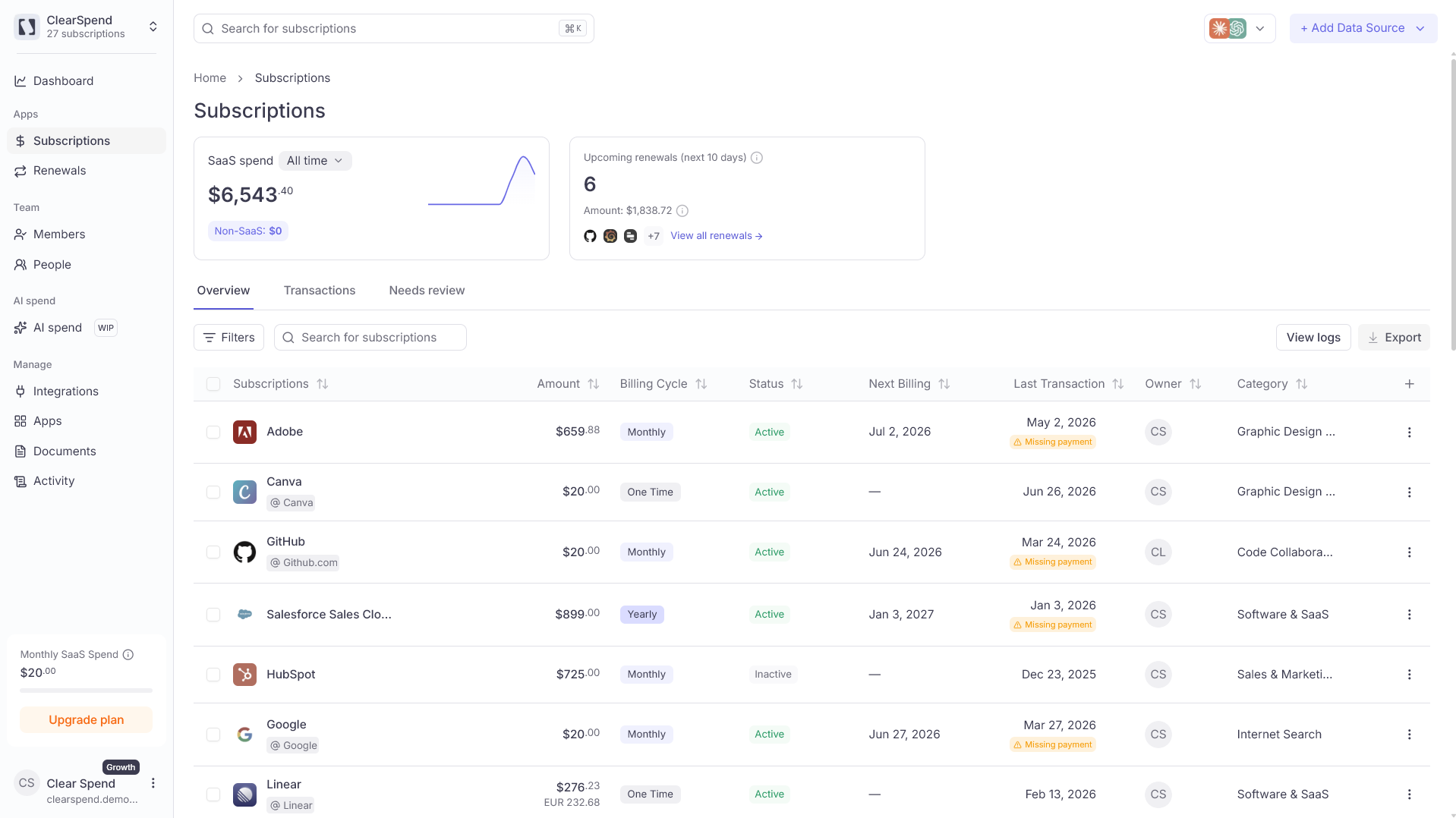 The default tab shows **one row per subscription**: a grouped summary of each vendor. Each row reflects the most recent transaction for that subscription, so you're always looking at the latest known billing amount, date, and status. Use this tab to get a quick picture of your full subscription portfolio: what you're paying, when renewals are due, who owns each tool, and how recently it was used.
**Missing Payment** means ClearSpend expected a charge for a billing period but did not find one on your card statement. If your last charge was in April and nothing appears in May, that gap is flagged. This looks at charges only — not invoices.
### Transactions
The default tab shows **one row per subscription**: a grouped summary of each vendor. Each row reflects the most recent transaction for that subscription, so you're always looking at the latest known billing amount, date, and status. Use this tab to get a quick picture of your full subscription portfolio: what you're paying, when renewals are due, who owns each tool, and how recently it was used.
**Missing Payment** means ClearSpend expected a charge for a billing period but did not find one on your card statement. If your last charge was in April and nothing appears in May, that gap is flagged. This looks at charges only — not invoices.
### Transactions
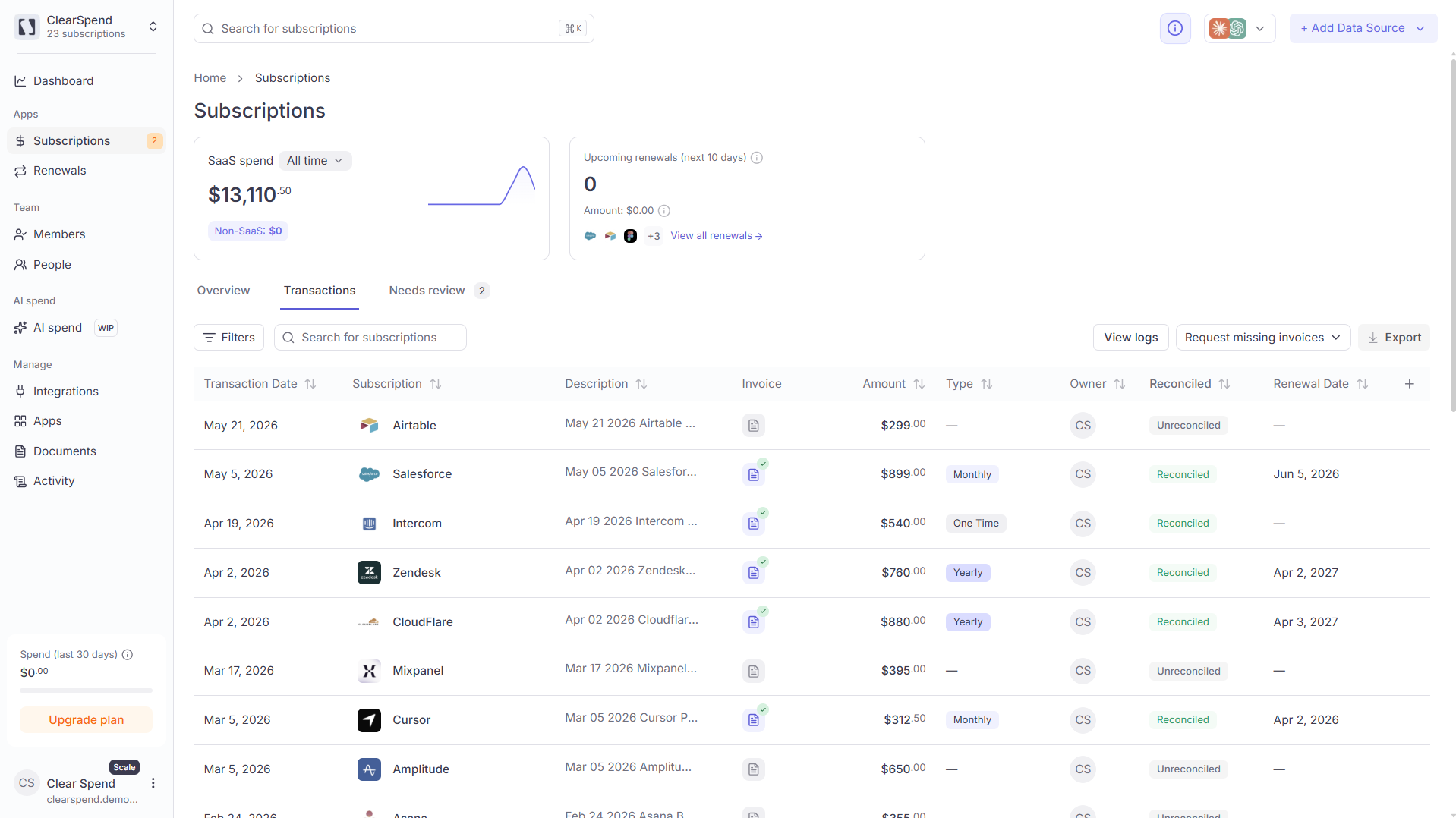 The Transactions tab shows **every individual charge** across all subscriptions, one row per payment. Use this tab to check specific payment dates, reconcile charges against invoices, or investigate an unexpected amount. Unlike the Overview, the same subscription can appear multiple times here, once per billing event.
Use **Filters → Reconcile** on this tab to show only matched or unmatched charges.
### Needs review
The **Needs review** tab lists subscriptions waiting for human approval before they appear in Overview. A badge on the sidebar **Subscriptions** item shows how many items are pending.
The Transactions tab shows **every individual charge** across all subscriptions, one row per payment. Use this tab to check specific payment dates, reconcile charges against invoices, or investigate an unexpected amount. Unlike the Overview, the same subscription can appear multiple times here, once per billing event.
Use **Filters → Reconcile** on this tab to show only matched or unmatched charges.
### Needs review
The **Needs review** tab lists subscriptions waiting for human approval before they appear in Overview. A badge on the sidebar **Subscriptions** item shows how many items are pending.
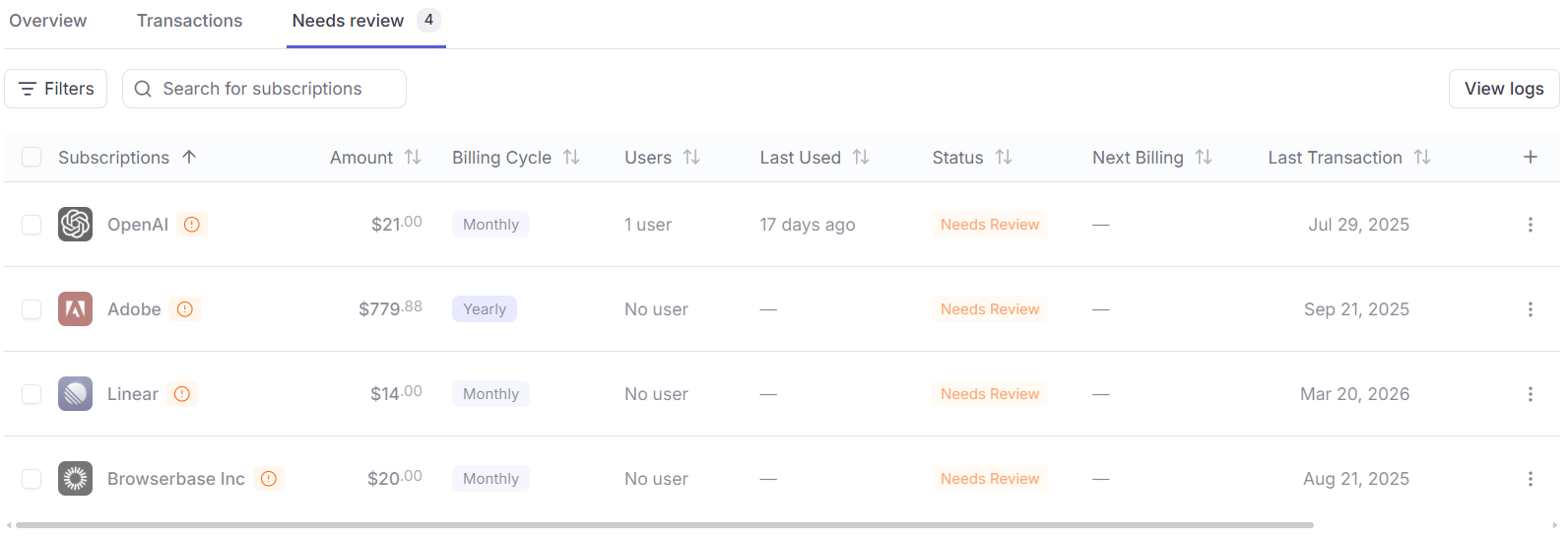 Use this tab to approve new detections, upload supporting documents, or remove bad matches. See [Needs review](/features/subscriptions#needs-review) for the full workflow.
**Export** is disabled on the Needs review tab. Switch to Overview or Transactions to download CSV.
## Table columns
| Column | Description |
| -------------------- | -------------------------------------------------------------------------------------- |
| **Subscriptions** | Vendor name and logo. Grouped subscriptions show an "X subs grouped" badge underneath. |
| **Amount** | Cost per billing cycle. |
| **Users** | Number of seat-holders (click the count to see the user list). |
| **Last Used** | How recently anyone used the tool (e.g. "3 hours ago", "2 weeks ago"). |
| **Status** | Active, Inactive, or Needs review. |
| **Next Billing** | The upcoming renewal date, color-coded red when it's within 5 days. |
| **Last Transaction** | Date of the most recent confirmed transaction. |
| **Owner** | The member responsible for this subscription (shown by **email address** in filters). |
## Filtering and columns
Click **Filters** to narrow by status, billing cycle, owner, category, tags, or transaction date. For **Transaction date**, pick a preset month range or choose **Custom date range** to select exact start and end dates on the calendar.
The owner filter lists each owner's **email address** (falling back to display name when no email is available). The `+` at the end of the column header lets you add additional fields. Sort any column by clicking its header.
## Bulk actions
Select one or more rows on the **Overview** tab to open the bulk action bar:
| Action | What it does |
| --------------------- | ------------------------------------------------------------------ |
| **Request documents** | Email owners for missing invoices across selected subscriptions |
| **Group** | Combine selected subscriptions under one parent vendor |
| **Change owner** | Assign a team member or external email as owner |
| **Delete** | Remove selected subscriptions (optionally delete linked documents) |
From any row **⋮** menu you can also **Mark for review** to send a subscription to the Needs review queue.
## Export
The **Export** button in the top-right downloads the current filtered view as CSV. Exports respect whichever tab you're on (Overview or Transactions) and any filters you've applied. Export is not available on the Needs review tab.
## Something wrong?
| Symptom | What to do |
| ------------------------- | ------------------------------------------------------------------------------------------ |
| Export disabled | You're on **Needs review** — switch tabs |
| Subscription missing | Check [Needs review](/features/subscriptions#needs-review) |
| Wrong totals on dashboard | Category may be **Others** — [Dashboard](/features/dashboard#saas-spend-vs-non-saas-spend) |
Sort the Subscriptions table by **Last Used** to find subscriptions no one has touched in months. These are usually the fastest candidates for cancellation review.
Use this tab to approve new detections, upload supporting documents, or remove bad matches. See [Needs review](/features/subscriptions#needs-review) for the full workflow.
**Export** is disabled on the Needs review tab. Switch to Overview or Transactions to download CSV.
## Table columns
| Column | Description |
| -------------------- | -------------------------------------------------------------------------------------- |
| **Subscriptions** | Vendor name and logo. Grouped subscriptions show an "X subs grouped" badge underneath. |
| **Amount** | Cost per billing cycle. |
| **Users** | Number of seat-holders (click the count to see the user list). |
| **Last Used** | How recently anyone used the tool (e.g. "3 hours ago", "2 weeks ago"). |
| **Status** | Active, Inactive, or Needs review. |
| **Next Billing** | The upcoming renewal date, color-coded red when it's within 5 days. |
| **Last Transaction** | Date of the most recent confirmed transaction. |
| **Owner** | The member responsible for this subscription (shown by **email address** in filters). |
## Filtering and columns
Click **Filters** to narrow by status, billing cycle, owner, category, tags, or transaction date. For **Transaction date**, pick a preset month range or choose **Custom date range** to select exact start and end dates on the calendar.
The owner filter lists each owner's **email address** (falling back to display name when no email is available). The `+` at the end of the column header lets you add additional fields. Sort any column by clicking its header.
## Bulk actions
Select one or more rows on the **Overview** tab to open the bulk action bar:
| Action | What it does |
| --------------------- | ------------------------------------------------------------------ |
| **Request documents** | Email owners for missing invoices across selected subscriptions |
| **Group** | Combine selected subscriptions under one parent vendor |
| **Change owner** | Assign a team member or external email as owner |
| **Delete** | Remove selected subscriptions (optionally delete linked documents) |
From any row **⋮** menu you can also **Mark for review** to send a subscription to the Needs review queue.
## Export
The **Export** button in the top-right downloads the current filtered view as CSV. Exports respect whichever tab you're on (Overview or Transactions) and any filters you've applied. Export is not available on the Needs review tab.
## Something wrong?
| Symptom | What to do |
| ------------------------- | ------------------------------------------------------------------------------------------ |
| Export disabled | You're on **Needs review** — switch tabs |
| Subscription missing | Check [Needs review](/features/subscriptions#needs-review) |
| Wrong totals on dashboard | Category may be **Others** — [Dashboard](/features/dashboard#saas-spend-vs-non-saas-spend) |
Sort the Subscriptions table by **Last Used** to find subscriptions no one has touched in months. These are usually the fastest candidates for cancellation review.