> ## Documentation Index
> Fetch the complete documentation index at: https://docs.clearspend.ai/llms.txt
> Use this file to discover all available pages before exploring further.
# Rules and Filters
> Auto-archive matching charges as they land on Transactions.
**Rules and filters** on [Transactions](/features/transactions) automates what happens to charges as they land.
Today the only action is **auto-archive**. New charges that match an enabled rule appear on the **Archived** tab instead of the main list.
Rules apply to **new** charges only. Charges already in the workspace are not re-processed.
## Open Rules and filters
1. Go to **Transactions**.
2. Click the sliders icon in the toolbar (**Rules and filters**).
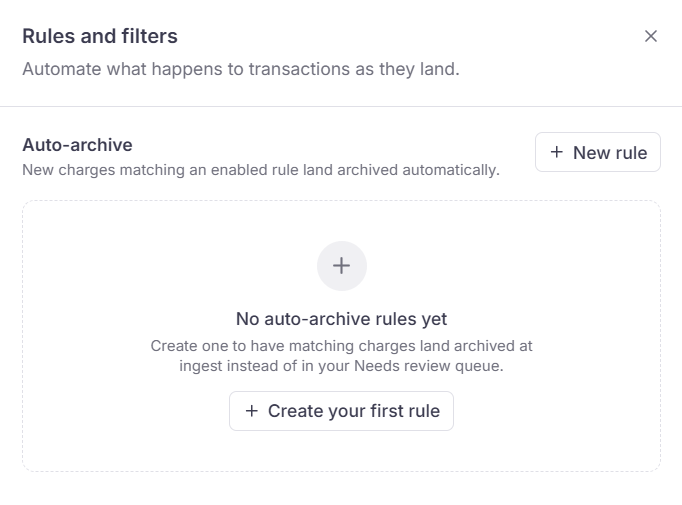
The drawer lists your **Auto-archive** rules. Each card shows the rule name, a short match summary, and an on/off switch.
 ## Create a rule
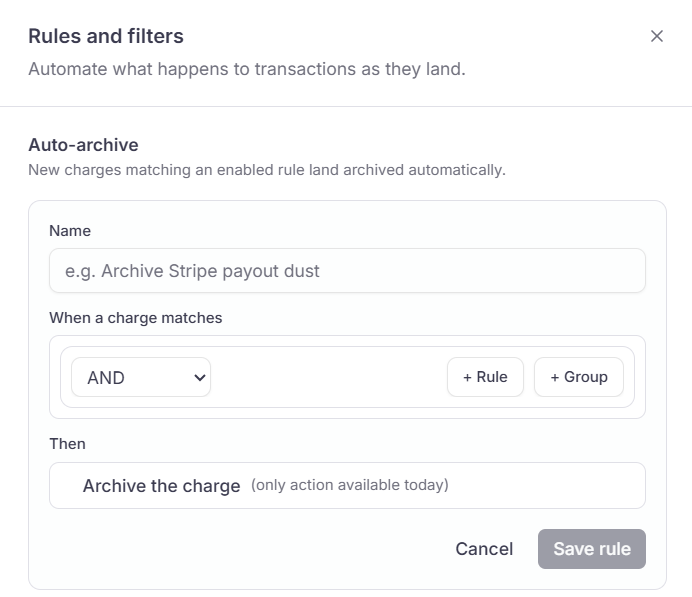 In the drawer, click **New rule**. If you have no rules yet, click **Create your first rule**.
Give it a name you will recognize later, for example `Archive Stripe payout dust`.
Build one or more conditions. The field available today is **Transaction Key**, the normalized vendor and description ClearSpend uses to group similar charges.
Combine conditions with **AND** or **OR**. Add another condition or a nested group from the builder.
**Then** is **Archive the charge**. That is the only action available today.
Click **Save rule**. Turn the switch on to enable it. New matching charges land archived automatically.
## Edit, turn off, or delete
On a rule card:
| Action | What it does |
| ---------- | ---------------------------------------------------------------------------- |
| **Switch** | Enable or disable the rule without deleting it |
| **Edit** | Change the name or conditions, then **Save rule** |
| **Delete** | Stop this rule for future imports. Charges it already archived stay archived |
## Archive similar from a charge
When you archive charges from the list, you can also check **Automatically archive similar transactions in the future**. That creates the same kind of auto-archive rule for those transaction keys, so later imports of the same merchant stay archived.
See [Archived tab](/features/transactions#archived-tab).
## Who can use it
**Contributors** and above can create, edit, and delete rules. **Viewers** cannot. Contributor is the same role as **Member**. See [Roles and permissions](/reference/roles-permissions).
Rules apply to the whole workspace.
## Related
* [Transactions](/features/transactions)
* [Filters & export](/features/transactions-filters-export)
* [Roles and permissions](/reference/roles-permissions)
In the drawer, click **New rule**. If you have no rules yet, click **Create your first rule**.
Give it a name you will recognize later, for example `Archive Stripe payout dust`.
Build one or more conditions. The field available today is **Transaction Key**, the normalized vendor and description ClearSpend uses to group similar charges.
Combine conditions with **AND** or **OR**. Add another condition or a nested group from the builder.
**Then** is **Archive the charge**. That is the only action available today.
Click **Save rule**. Turn the switch on to enable it. New matching charges land archived automatically.
## Edit, turn off, or delete
On a rule card:
| Action | What it does |
| ---------- | ---------------------------------------------------------------------------- |
| **Switch** | Enable or disable the rule without deleting it |
| **Edit** | Change the name or conditions, then **Save rule** |
| **Delete** | Stop this rule for future imports. Charges it already archived stay archived |
## Archive similar from a charge
When you archive charges from the list, you can also check **Automatically archive similar transactions in the future**. That creates the same kind of auto-archive rule for those transaction keys, so later imports of the same merchant stay archived.
See [Archived tab](/features/transactions#archived-tab).
## Who can use it
**Contributors** and above can create, edit, and delete rules. **Viewers** cannot. Contributor is the same role as **Member**. See [Roles and permissions](/reference/roles-permissions).
Rules apply to the whole workspace.
## Related
* [Transactions](/features/transactions)
* [Filters & export](/features/transactions-filters-export)
* [Roles and permissions](/reference/roles-permissions)