> ## Documentation Index
> Fetch the complete documentation index at: https://docs.clearspend.ai/llms.txt
> Use this file to discover all available pages before exploring further.
# Transactions
> Every charge in one list — match supporting documents, request what’s missing, and export when you’re done.
The **Transactions** page is where you reconcile spend. Each card or accounting charge is one row. ClearSpend links invoices and receipts when it can. You handle the rest.
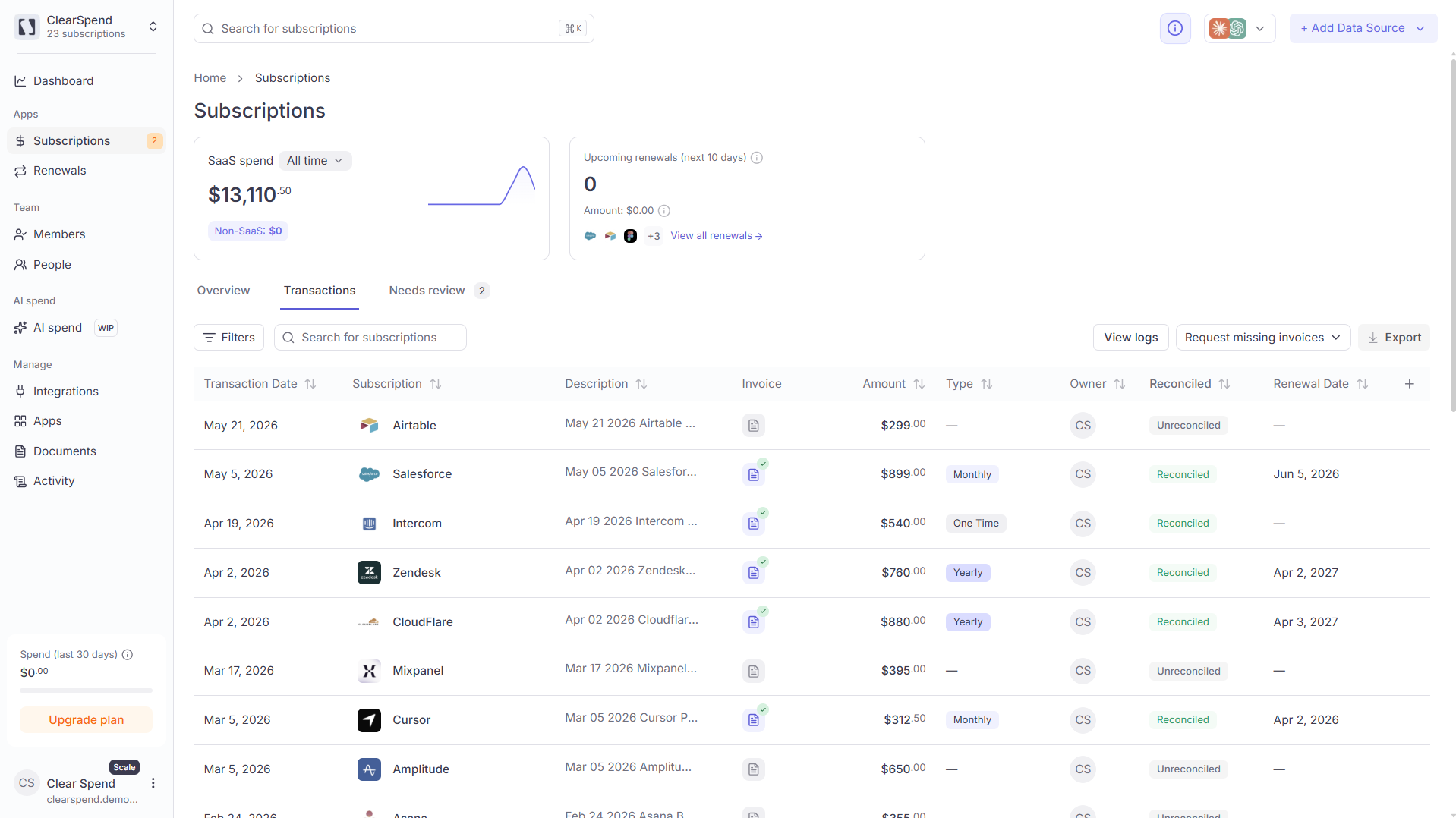 ## Two views
| View | Best for |
| ----------------------------------------------- | ------------------------------------------------------ |
| **[Overview](/features/transactions-overview)** | KPIs, reconciliation chart, and missing-invoice trends |
| **Transactions** | Working through individual charges |
## How charges appear
Rows come from imported **charges** — not from uploading an invoice alone.
| Source | What shows up |
| -------------------------------------------------------------------- | ----------------------------------- |
| **[Plaid](/connect/connect-your-bank)** | Ongoing card charges |
| **[Card statement CSV](/connect/data-sources#import-subscriptions)** | Charges from a statement you import |
| **[Xero](/connect/xero)** | Bills and bank or card spend |
| **[QuickBooks](/connect/quickbooks)** | Expenses, bills, and bill payments |
Vendors are grouped on **[Subscriptions](/features/subscriptions)**. This list is charge by charge.
## Type and subscription
The **Type** column shows whether a charge is **SaaS** or **Non-SaaS**.
* **SaaS**: ClearSpend treats it as software spend and creates a **Subscription** for that vendor.
* **Non-SaaS**: ClearSpend does not create a subscription. The charge stays as one-off or non-software spend.
**Non-SaaS** amounts are still shown on the transaction row, but they are **excluded** from KPI cards, charts, and **Total spend**.
## Invoice column
| Status | What it means |
| ------------- | -------------------------------------------------------------------------------------------------- |
| **Missing** | No document linked — click to attach one |
| **Requested** | Someone has been asked to upload — see [Request invoices](/features/transactions-request-invoices) |
| **Attached** | Document linked — click to open the file |
Reconcile badges and match scores are covered in [Matching invoices](/features/transactions-matching).
## Guides
| Topic | Page |
| -------------------------------------- | ------------------------------------------------------------------ |
| Match, upload, unlink, and match score | [Matching invoices](/features/transactions-matching) |
| Automatic and manual invoice requests | [Request invoices](/features/transactions-request-invoices) |
| Assign who receives requests | [Change owner](/features/transactions-owners) |
| Filter, export, archive, and delete | [Filters, export & archive](/features/transactions-filters-export) |
## Row shortcuts
| What | How |
| ------------------------- | ---------------------------------------------------------------------------- |
| Attach or pick a document | Click **Missing**, or **⋮ → Upload invoice** |
| Fix vendor name | Sparkles icon next to **Product** — [details below](#match-or-change-vendor) |
| See invoice line items | Arrow next to the date on a **matched** row |
| Row menu | **⋮** — upload, request, unlink, or delete |
Select multiple rows for bulk **archive** or **delete**. See [Filters, export & archive](/features/transactions-filters-export).
### Match or change vendor
Click the sparkles icon next to the vendor in **Product**. Pick from suggestions or search. Use this to set a missing vendor or fix a wrong one — including on rows that already have a vendor.
### Line items
On a matched charge, click the arrow next to the transaction date to expand the row and see line items from the linked invoice.
## Two views
| View | Best for |
| ----------------------------------------------- | ------------------------------------------------------ |
| **[Overview](/features/transactions-overview)** | KPIs, reconciliation chart, and missing-invoice trends |
| **Transactions** | Working through individual charges |
## How charges appear
Rows come from imported **charges** — not from uploading an invoice alone.
| Source | What shows up |
| -------------------------------------------------------------------- | ----------------------------------- |
| **[Plaid](/connect/connect-your-bank)** | Ongoing card charges |
| **[Card statement CSV](/connect/data-sources#import-subscriptions)** | Charges from a statement you import |
| **[Xero](/connect/xero)** | Bills and bank or card spend |
| **[QuickBooks](/connect/quickbooks)** | Expenses, bills, and bill payments |
Vendors are grouped on **[Subscriptions](/features/subscriptions)**. This list is charge by charge.
## Type and subscription
The **Type** column shows whether a charge is **SaaS** or **Non-SaaS**.
* **SaaS**: ClearSpend treats it as software spend and creates a **Subscription** for that vendor.
* **Non-SaaS**: ClearSpend does not create a subscription. The charge stays as one-off or non-software spend.
**Non-SaaS** amounts are still shown on the transaction row, but they are **excluded** from KPI cards, charts, and **Total spend**.
## Invoice column
| Status | What it means |
| ------------- | -------------------------------------------------------------------------------------------------- |
| **Missing** | No document linked — click to attach one |
| **Requested** | Someone has been asked to upload — see [Request invoices](/features/transactions-request-invoices) |
| **Attached** | Document linked — click to open the file |
Reconcile badges and match scores are covered in [Matching invoices](/features/transactions-matching).
## Guides
| Topic | Page |
| -------------------------------------- | ------------------------------------------------------------------ |
| Match, upload, unlink, and match score | [Matching invoices](/features/transactions-matching) |
| Automatic and manual invoice requests | [Request invoices](/features/transactions-request-invoices) |
| Assign who receives requests | [Change owner](/features/transactions-owners) |
| Filter, export, archive, and delete | [Filters, export & archive](/features/transactions-filters-export) |
## Row shortcuts
| What | How |
| ------------------------- | ---------------------------------------------------------------------------- |
| Attach or pick a document | Click **Missing**, or **⋮ → Upload invoice** |
| Fix vendor name | Sparkles icon next to **Product** — [details below](#match-or-change-vendor) |
| See invoice line items | Arrow next to the date on a **matched** row |
| Row menu | **⋮** — upload, request, unlink, or delete |
Select multiple rows for bulk **archive** or **delete**. See [Filters, export & archive](/features/transactions-filters-export).
### Match or change vendor
Click the sparkles icon next to the vendor in **Product**. Pick from suggestions or search. Use this to set a missing vendor or fix a wrong one — including on rows that already have a vendor.
### Line items
On a matched charge, click the arrow next to the transaction date to expand the row and see line items from the linked invoice.