> ## Documentation Index
> Fetch the complete documentation index at: https://docs.clearspend.ai/llms.txt
> Use this file to discover all available pages before exploring further.
# Onboarding
> Complete the onboarding wizard and land on the dashboard for the first time.
After your first login, ClearSpend opens a short onboarding wizard. The whole flow takes about a minute and only runs once; you'll land directly on the dashboard on subsequent logins.
## Step 1: Your profile and organization
Fill in four quick fields:
* **Full name:** how you'll appear to teammates
* **Work email:** pre-filled and read-only; your domain (`@yourcompany.com`) is used to group your team
* **Your role:** Finance, IT, Founder, Engineering, etc.
* **Organization name:** defaults from your domain; edit it if needed
Hit **Continue** and ClearSpend creates your workspace. Any future signup with the same company domain is automatically routed to join your org rather than starting a new one.
**Already part of an existing organization?** If a colleague has already signed up with the same domain, you'll be routed to [Request to join](/request-to-join) before reaching this step.
## Step 2: Your goals
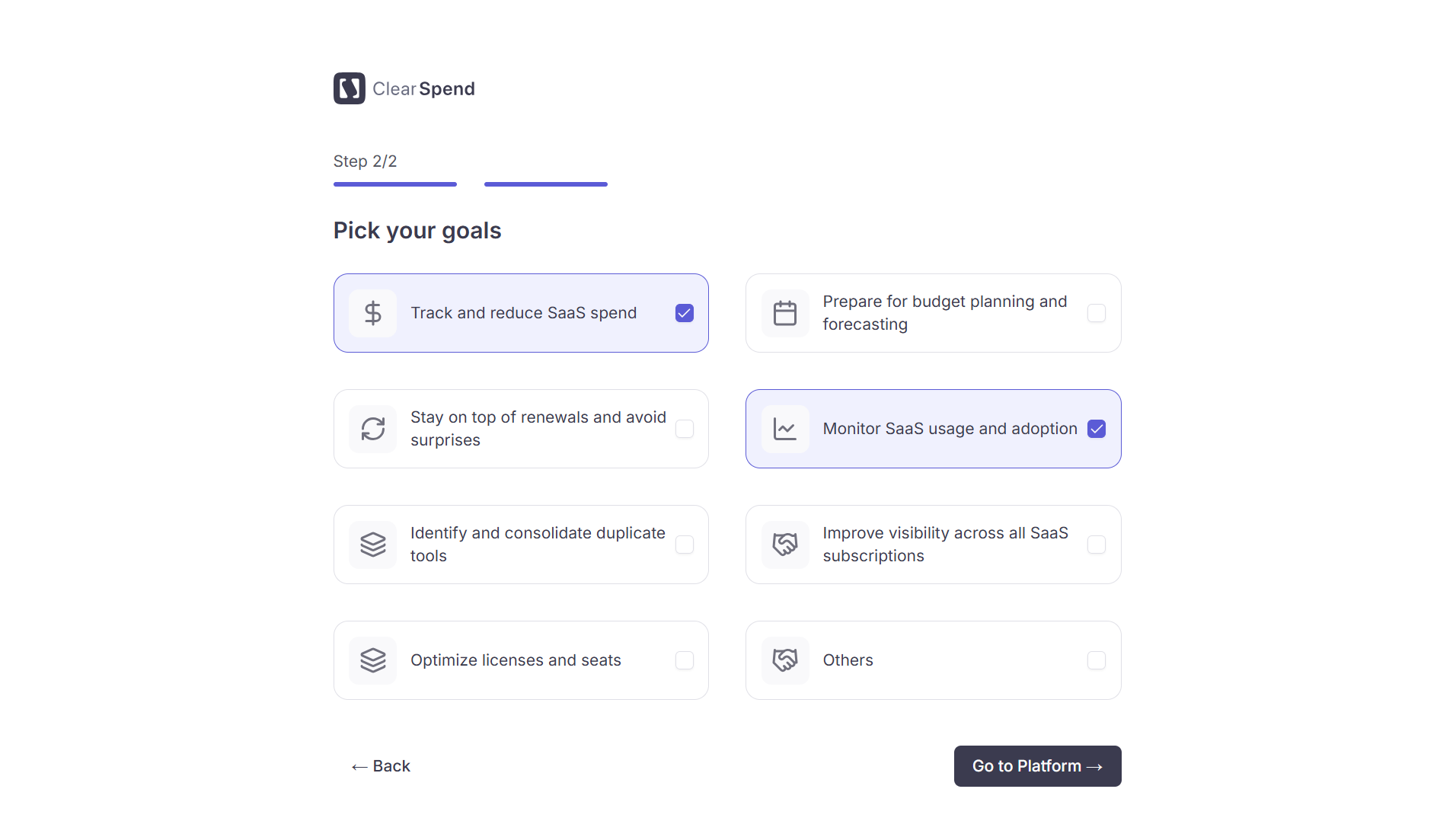 Pick one or more goals that best describe what you want to get out of ClearSpend: reducing SaaS waste, tracking renewals, centralizing invoices, or getting visibility into shadow IT. You can select multiple or skip this step and go directly to the platform.
Click **Go to Platform** to land on the dashboard and start adding your data.
## Re-running onboarding
Onboarding only runs once per user. To change your name, role, or organization name later, go to [Settings → Profile](/settings/profile). Goals aren't editable in the UI; contact support if you'd like them updated.
Pick one or more goals that best describe what you want to get out of ClearSpend: reducing SaaS waste, tracking renewals, centralizing invoices, or getting visibility into shadow IT. You can select multiple or skip this step and go directly to the platform.
Click **Go to Platform** to land on the dashboard and start adding your data.
## Re-running onboarding
Onboarding only runs once per user. To change your name, role, or organization name later, go to [Settings → Profile](/settings/profile). Goals aren't editable in the UI; contact support if you'd like them updated.