> ## Documentation Index
> Fetch the complete documentation index at: https://docs.clearspend.ai/llms.txt
> Use this file to discover all available pages before exploring further.
# Get started
> Add a data source and see your first subscriptions appear on the dashboard.
The fastest way to see value in ClearSpend is to add a data source right after you log in. An invoice or card statement is all it takes; once parsed, your subscriptions and spend appear on the dashboard automatically.
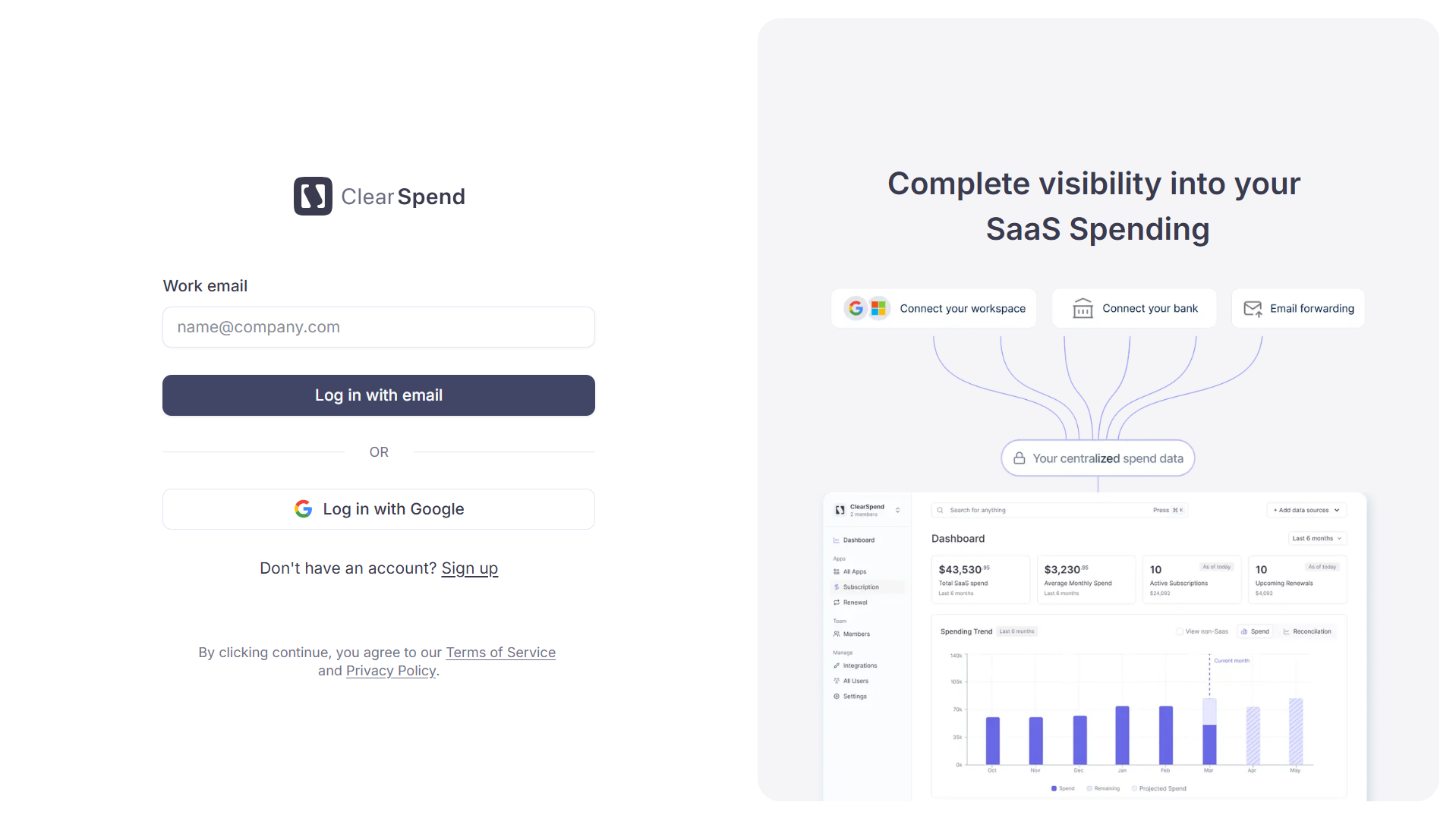
Log in to [app.clearspend.ai](https://app.clearspend.ai). The login screen offers two options:
* **Login with email**: enter your email and receive a magic link
* **Login with Google**: sign in via your Google account
 **Signing up for the first time?** Personal Gmail accounts are supported so you can try ClearSpend out, but we **recommend signing up with your work email**: it lets us auto-claim your company domain so teammates land in the same workspace instead of creating duplicates. After signing up you'll go through a short [onboarding flow](/onboarding) (name, role, organization, goals) before landing on the dashboard. If a colleague has already signed up your company, you'll be routed to [Request to join](/request-to-join).
Once logged in, your organization name and total subscription count appear at the top-left of the sidebar.
If your workspace is empty, the dashboard shows a **"Connect or add your first subscription"** screen with two buttons:
**Signing up for the first time?** Personal Gmail accounts are supported so you can try ClearSpend out, but we **recommend signing up with your work email**: it lets us auto-claim your company domain so teammates land in the same workspace instead of creating duplicates. After signing up you'll go through a short [onboarding flow](/onboarding) (name, role, organization, goals) before landing on the dashboard. If a colleague has already signed up your company, you'll be routed to [Request to join](/request-to-join).
Once logged in, your organization name and total subscription count appear at the top-left of the sidebar.
If your workspace is empty, the dashboard shows a **"Connect or add your first subscription"** screen with two buttons:
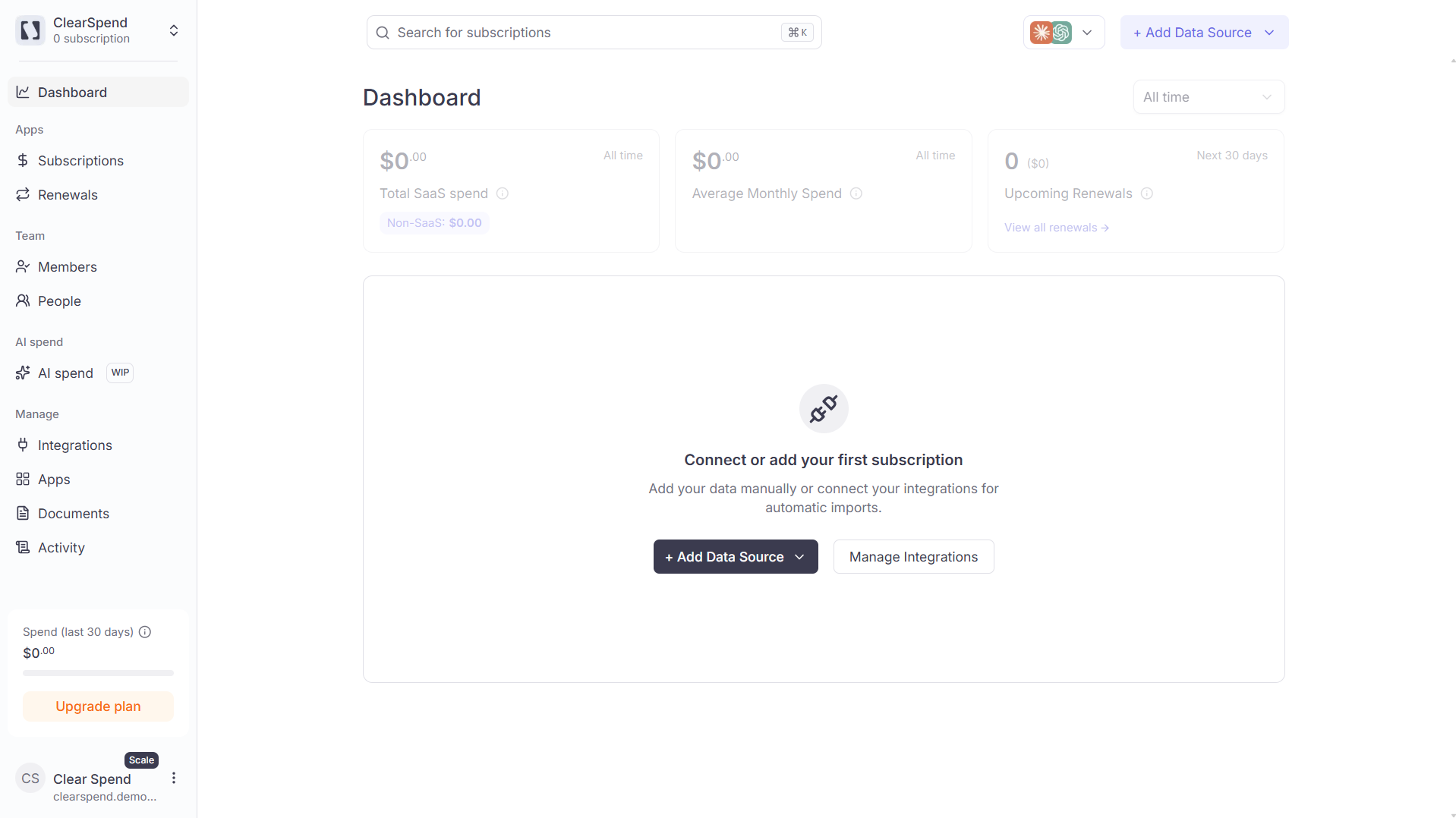 * **+ Add Data Source**: upload an invoice PDF, card statement, or receipt directly. Once the file is parsed, subscriptions and spend figures appear on the dashboard and in the Subscriptions list within minutes.
* **Manage Integrations**: set up a continuous source such as Google Drive, Gmail inbox, or Google Workspace. These run in the background and keep your data fresh automatically.
**Start with "+ Add Data Source".** Uploading an invoice or card statement takes under a minute and gives you an instant preview of how ClearSpend organizes your SaaS spend, with no integration setup required. You can connect integrations afterwards for ongoing, hands-free discovery.
As soon as a document is processed, ClearSpend extracts vendor names, amounts, billing periods, and renewal dates. You'll see:
* **Dashboard**: KPI cards (Total SaaS Spend, Average Monthly Spend, Upcoming Renewals) update with real numbers
* **Subscriptions**: each identified service appears as a line item with its billing cycle, amount, and status
* **Renewals**: Upcoming renewals come from invoices and statement charges; charge-based dates are estimated and refined when invoice data is available
If you connected an integration instead, the initial discovery pass typically takes a couple of minutes. Apps appear under **Apps** as they're found, and known SaaS tools are converted into **Subscriptions**.
Once you've seen the basics, head to **Manage → Integrations** to connect additional sources:
| Integration | What it adds |
| --------------------------------------------------- | ---------------------------------------------------------------------- |
| **[Google Workspace](/connect/google-workspace)** | Discovers all OAuth-connected apps and active users across your domain |
| **[Gmail](/connect/gmail)** | Auto-imports invoice emails and attachments from your inbox |
| **[Google Drive](/connect/google-drive)** | Syncs invoice PDFs from a Drive folder on an ongoing basis |
| **[Connect your card](/connect/connect-your-bank)** | Detects SaaS charges from linked card accounts via Plaid |
Each new source fills in gaps: amounts from invoices, usage signals from OAuth, and charge dates from card data all combine into one unified view.
Press ⌘K (or Ctrl K) anywhere in the app to open the global search and jump to any subscription instantly.
## Next steps
Subscription, app, document, renewal: what each one means.
Deep-dive into every integration ClearSpend supports.
Capture in-browser app usage and one-click invoice downloads.
Send a public upload link to app owners and vendors.
* **+ Add Data Source**: upload an invoice PDF, card statement, or receipt directly. Once the file is parsed, subscriptions and spend figures appear on the dashboard and in the Subscriptions list within minutes.
* **Manage Integrations**: set up a continuous source such as Google Drive, Gmail inbox, or Google Workspace. These run in the background and keep your data fresh automatically.
**Start with "+ Add Data Source".** Uploading an invoice or card statement takes under a minute and gives you an instant preview of how ClearSpend organizes your SaaS spend, with no integration setup required. You can connect integrations afterwards for ongoing, hands-free discovery.
As soon as a document is processed, ClearSpend extracts vendor names, amounts, billing periods, and renewal dates. You'll see:
* **Dashboard**: KPI cards (Total SaaS Spend, Average Monthly Spend, Upcoming Renewals) update with real numbers
* **Subscriptions**: each identified service appears as a line item with its billing cycle, amount, and status
* **Renewals**: Upcoming renewals come from invoices and statement charges; charge-based dates are estimated and refined when invoice data is available
If you connected an integration instead, the initial discovery pass typically takes a couple of minutes. Apps appear under **Apps** as they're found, and known SaaS tools are converted into **Subscriptions**.
Once you've seen the basics, head to **Manage → Integrations** to connect additional sources:
| Integration | What it adds |
| --------------------------------------------------- | ---------------------------------------------------------------------- |
| **[Google Workspace](/connect/google-workspace)** | Discovers all OAuth-connected apps and active users across your domain |
| **[Gmail](/connect/gmail)** | Auto-imports invoice emails and attachments from your inbox |
| **[Google Drive](/connect/google-drive)** | Syncs invoice PDFs from a Drive folder on an ongoing basis |
| **[Connect your card](/connect/connect-your-bank)** | Detects SaaS charges from linked card accounts via Plaid |
Each new source fills in gaps: amounts from invoices, usage signals from OAuth, and charge dates from card data all combine into one unified view.
Press ⌘K (or Ctrl K) anywhere in the app to open the global search and jump to any subscription instantly.
## Next steps
Subscription, app, document, renewal: what each one means.
Deep-dive into every integration ClearSpend supports.
Capture in-browser app usage and one-click invoice downloads.
Send a public upload link to app owners and vendors.