> ## Documentation Index
> Fetch the complete documentation index at: https://docs.clearspend.ai/llms.txt
> Use this file to discover all available pages before exploring further.
# Request to join
> Request access to an existing organization and understand what happens while you wait for approval.
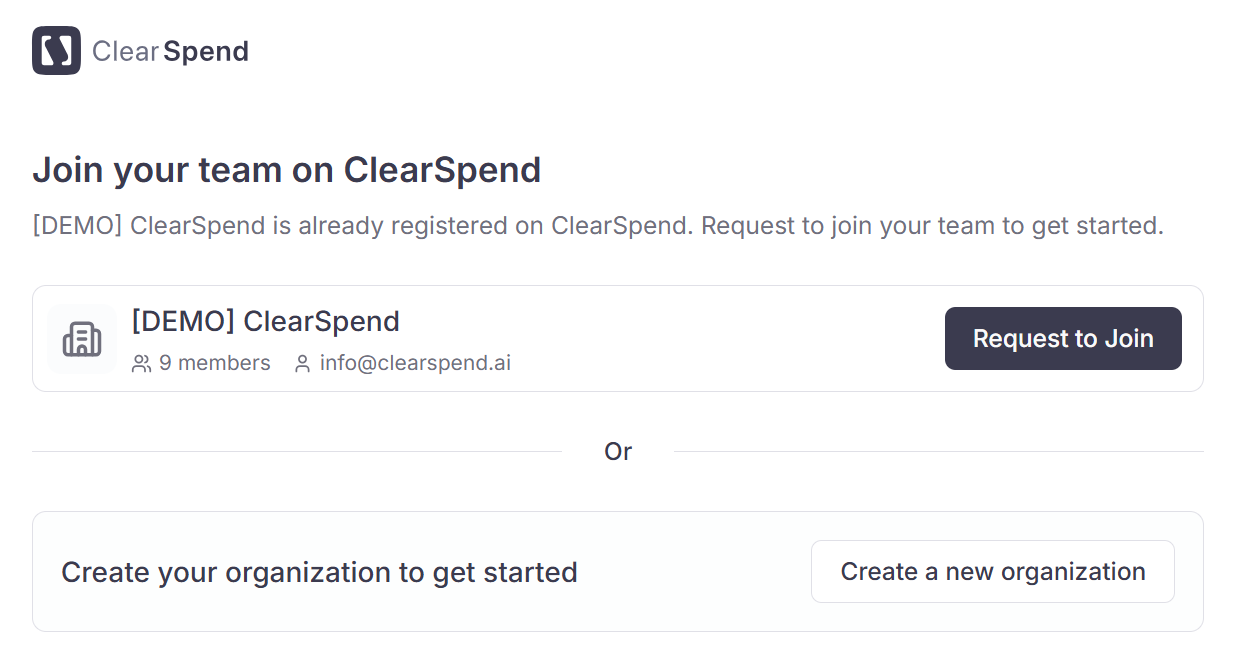
If a colleague has already signed your company up for ClearSpend, your first login goes to the **Request to join** screen instead of [onboarding](/onboarding). This protects an existing organization from accidentally getting split into two workspaces.
ClearSpend identifies the match by the domain in your email (e.g. anyone signing up with `@yourcompany.com` after the first person from that domain). Public domains like `gmail.com` and `outlook.com` are excluded from this check, so personal-email signups always create their own workspace.
## What you'll see
The page shows the existing organization's name and member count so you can confirm it's the right one. You then have two options:
* **Request to Join**: sends a join request to your org's admins; they review and approve it from **Team → Members → Requests**
* **Create a new organization**: spins up a separate workspace under the same domain, useful for separate business units or sandboxes
 ## After requesting
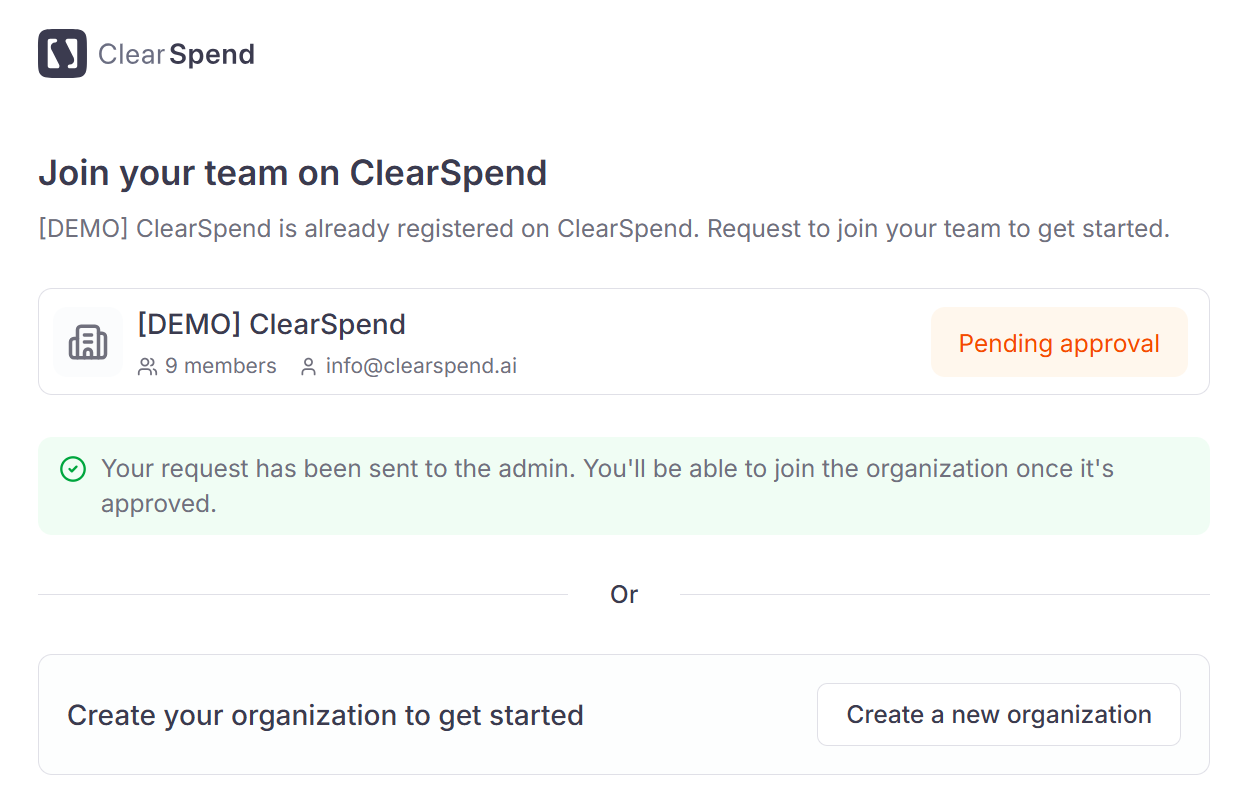 Once you submit, the page enters a **Pending approval** state. As soon as an admin approves you, the page redirects you straight into the organization.
While you wait, you can safely close the tab. The next time you log in, ClearSpend remembers your pending request and you'll either go to:
* The **dashboard** (if you were approved), or
* This **Request to join** page (if still pending or declined)
## What admins see
Requests appear under **Team → Members → Requests**. Each row shows the requester's email, the date they requested, and two action buttons:
* **Approve** (blue checkmark): the user joins as a Member; their role can be changed afterwards
* **Decline** (red ✕): the requester sees "Request not approved" on their next login and can submit a new request or create a separate workspace
Admins can also filter by status using the **All Status** dropdown, or search by name to find a specific request.
## Edge cases
Yes. Open the page again and submit a fresh request; declined requests don't block future ones. Alternatively, ask the admin to invite you directly from **Team → Members → + Invite team member**.
Two companies that share a domain (rare but it happens with `.co` or shared subdomains) can collide here. Click **Create a new organization** to set up your own workspace and contact support if you need the domain split.
Ask the current Owner to remove you from **Team → Members**, then sign back in. The next session will route you to **Request to join** if a sibling org exists, or [Onboarding](/onboarding) if you're the only one again.
Once you submit, the page enters a **Pending approval** state. As soon as an admin approves you, the page redirects you straight into the organization.
While you wait, you can safely close the tab. The next time you log in, ClearSpend remembers your pending request and you'll either go to:
* The **dashboard** (if you were approved), or
* This **Request to join** page (if still pending or declined)
## What admins see
Requests appear under **Team → Members → Requests**. Each row shows the requester's email, the date they requested, and two action buttons:
* **Approve** (blue checkmark): the user joins as a Member; their role can be changed afterwards
* **Decline** (red ✕): the requester sees "Request not approved" on their next login and can submit a new request or create a separate workspace
Admins can also filter by status using the **All Status** dropdown, or search by name to find a specific request.
## Edge cases
Yes. Open the page again and submit a fresh request; declined requests don't block future ones. Alternatively, ask the admin to invite you directly from **Team → Members → + Invite team member**.
Two companies that share a domain (rare but it happens with `.co` or shared subdomains) can collide here. Click **Create a new organization** to set up your own workspace and contact support if you need the domain split.
Ask the current Owner to remove you from **Team → Members**, then sign back in. The next session will route you to **Request to join** if a sibling org exists, or [Onboarding](/onboarding) if you're the only one again.