> ## Documentation Index
> Fetch the complete documentation index at: https://docs.clearspend.ai/llms.txt
> Use this file to discover all available pages before exploring further.
# Billing
> Compare plans, track usage limits, and manage payment through Stripe.
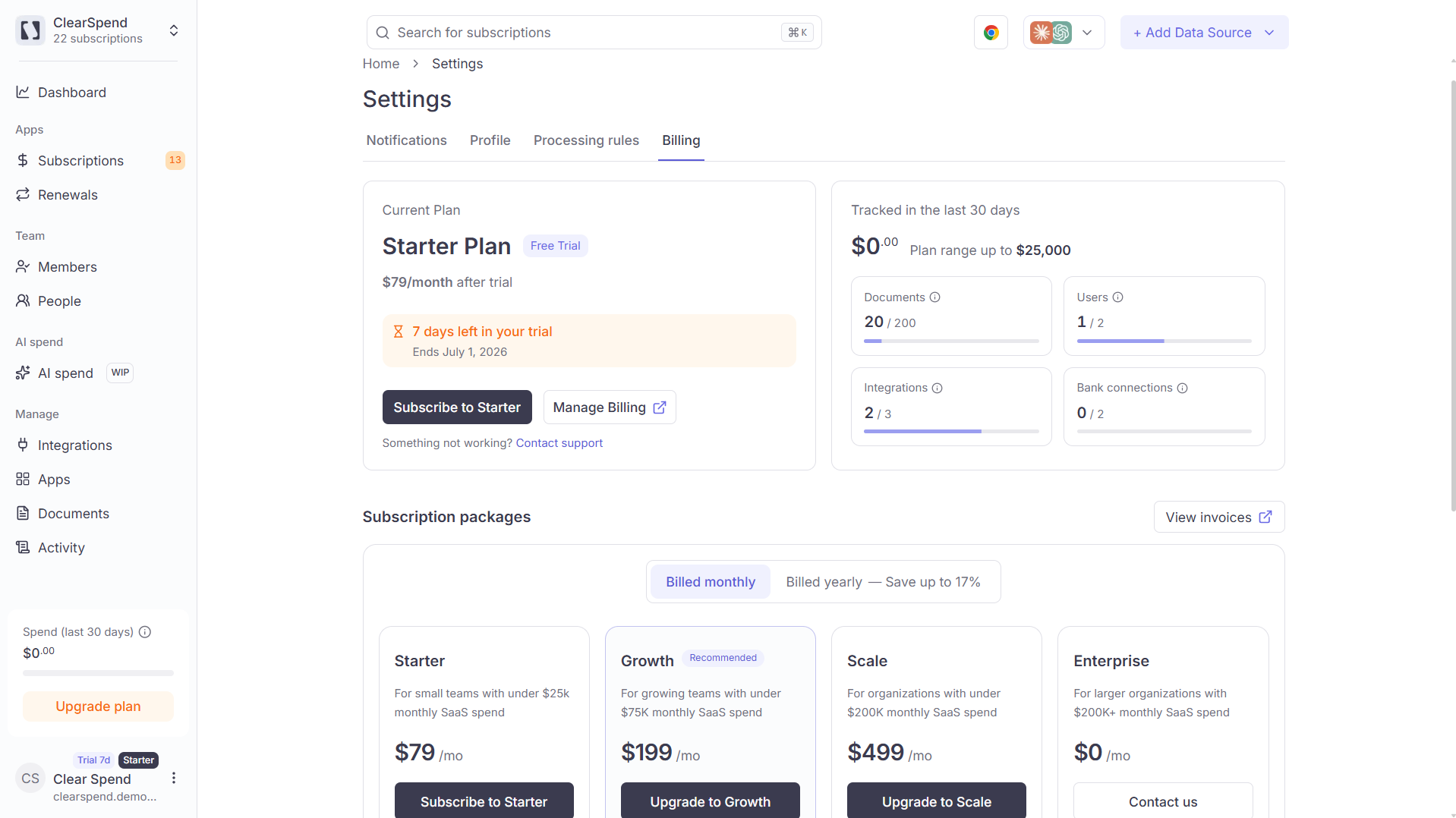
Manage your ClearSpend subscription from **Settings → Billing**. Owners can upgrade, switch billing cycle, and open the Stripe portal; Admins can view usage but cannot change payment.
 ## When to use this page
* See which **plan** your workspace is on and whether you're in **trial**
* Check if you're **over limit** on integrations or other meters
* **Upgrade** or open **Manage Billing** (Stripe) for invoices and payment method
***
## Plans
| Plan | Best for | Highlights |
| -------------- | -------------------------------------------- | ----------------------------------------------------------------------------------------- |
| **Starter** | Small teams starting with spend visibility | Core subscriptions, renewals, documents, invoice requests, renewal notifications |
| **Growth** | Teams adding integrations and AI workflows | Everything in Starter plus MCP (Ask Claude), AI spend insights, advanced processing rules |
| **Scale** | Larger orgs needing full history and support | Everything in Growth plus full history retention, priority support |
| **Enterprise** | Custom contracts | SOC 2 review, dedicated CSM — contact sales |
Each plan card on the Billing tab lists **marketing features** with tooltips. Exact caps (integrations, documents, etc.) appear in the **usage meters** below your current plan badge.
### Self-serve vs Enterprise
* **Starter, Growth, Scale** — upgrade via **Upgrade** buttons (Stripe Checkout)
* **Enterprise** — **Contact us** / sales; not self-serve in the app
### Trial
New workspaces may start on a **trial** of a paid tier. When the trial ends, features may lock until you add a payment method or choose a plan.
***
## Usage limits
Below your plan badge, **usage meters** show consumption vs limit:
| Meter | What counts |
| -------------------- | ------------------------------------------------------- |
| **Integrations** | Each connected OAuth or Plaid link |
| **Documents** | Stored invoices and statements (per plan) |
| **SaaS spend range** | Total tracked SaaS spend (warning when approaching cap) |
* **Over limit** badges appear when you've exceeded a cap.
* **Unlimited** meters show no progress bar.
* When integrations are at capacity, **Connect** on new integrations is blocked until you upgrade or remove a connection.
If **Renewals** or other pages show an **upgrade overlay**, your plan may be inactive or over limit. Owners should resolve billing here first.
***
## Manage Billing (Stripe)
Click **Manage Billing** to open the **Stripe Customer Portal** in a new tab:
* Update payment method
* Download ClearSpend subscription invoices
* Review billing history
Close the portal tab to return to ClearSpend Settings.
***
## Where to upgrade
| Entry point | Who |
| ------------------------------------------------------------ | ----- |
| **Settings → Billing** upgrade cards | Owner |
| **Sidebar → Upgrade plan** (Starter/Growth/Scale workspaces) | Owner |
| `/upgrade?plan=&cycle=` checkout URL | Owner |
Only **Owners** can start upgrades and open Manage Billing. **Admins** have read-only access to the Billing tab.
***
## Something wrong?
| Symptom | What to do |
| --------------------------- | ----------------------------------------------------------------------------------------- |
| Can't click Upgrade | You may not be Owner — see [Roles](/reference/roles-permissions) |
| Integration Connect blocked | Check **Integrations** meter — [Troubleshooting](/reference/troubleshooting#integrations) |
| Renewals page blocked | Plan inactive — complete checkout here |
The user menu in the sidebar also links to **Profile**, **Settings**, **Billing**, **Notifications**, and **Log out**.
## When to use this page
* See which **plan** your workspace is on and whether you're in **trial**
* Check if you're **over limit** on integrations or other meters
* **Upgrade** or open **Manage Billing** (Stripe) for invoices and payment method
***
## Plans
| Plan | Best for | Highlights |
| -------------- | -------------------------------------------- | ----------------------------------------------------------------------------------------- |
| **Starter** | Small teams starting with spend visibility | Core subscriptions, renewals, documents, invoice requests, renewal notifications |
| **Growth** | Teams adding integrations and AI workflows | Everything in Starter plus MCP (Ask Claude), AI spend insights, advanced processing rules |
| **Scale** | Larger orgs needing full history and support | Everything in Growth plus full history retention, priority support |
| **Enterprise** | Custom contracts | SOC 2 review, dedicated CSM — contact sales |
Each plan card on the Billing tab lists **marketing features** with tooltips. Exact caps (integrations, documents, etc.) appear in the **usage meters** below your current plan badge.
### Self-serve vs Enterprise
* **Starter, Growth, Scale** — upgrade via **Upgrade** buttons (Stripe Checkout)
* **Enterprise** — **Contact us** / sales; not self-serve in the app
### Trial
New workspaces may start on a **trial** of a paid tier. When the trial ends, features may lock until you add a payment method or choose a plan.
***
## Usage limits
Below your plan badge, **usage meters** show consumption vs limit:
| Meter | What counts |
| -------------------- | ------------------------------------------------------- |
| **Integrations** | Each connected OAuth or Plaid link |
| **Documents** | Stored invoices and statements (per plan) |
| **SaaS spend range** | Total tracked SaaS spend (warning when approaching cap) |
* **Over limit** badges appear when you've exceeded a cap.
* **Unlimited** meters show no progress bar.
* When integrations are at capacity, **Connect** on new integrations is blocked until you upgrade or remove a connection.
If **Renewals** or other pages show an **upgrade overlay**, your plan may be inactive or over limit. Owners should resolve billing here first.
***
## Manage Billing (Stripe)
Click **Manage Billing** to open the **Stripe Customer Portal** in a new tab:
* Update payment method
* Download ClearSpend subscription invoices
* Review billing history
Close the portal tab to return to ClearSpend Settings.
***
## Where to upgrade
| Entry point | Who |
| ------------------------------------------------------------ | ----- |
| **Settings → Billing** upgrade cards | Owner |
| **Sidebar → Upgrade plan** (Starter/Growth/Scale workspaces) | Owner |
| `/upgrade?plan=&cycle=` checkout URL | Owner |
Only **Owners** can start upgrades and open Manage Billing. **Admins** have read-only access to the Billing tab.
***
## Something wrong?
| Symptom | What to do |
| --------------------------- | ----------------------------------------------------------------------------------------- |
| Can't click Upgrade | You may not be Owner — see [Roles](/reference/roles-permissions) |
| Integration Connect blocked | Check **Integrations** meter — [Troubleshooting](/reference/troubleshooting#integrations) |
| Renewals page blocked | Plan inactive — complete checkout here |
The user menu in the sidebar also links to **Profile**, **Settings**, **Billing**, **Notifications**, and **Log out**.