> ## Documentation Index
> Fetch the complete documentation index at: https://docs.clearspend.ai/llms.txt
> Use this file to discover all available pages before exploring further.
# Members & roles
> Invite teammates, assign roles, and manage membership for your ClearSpend workspace.
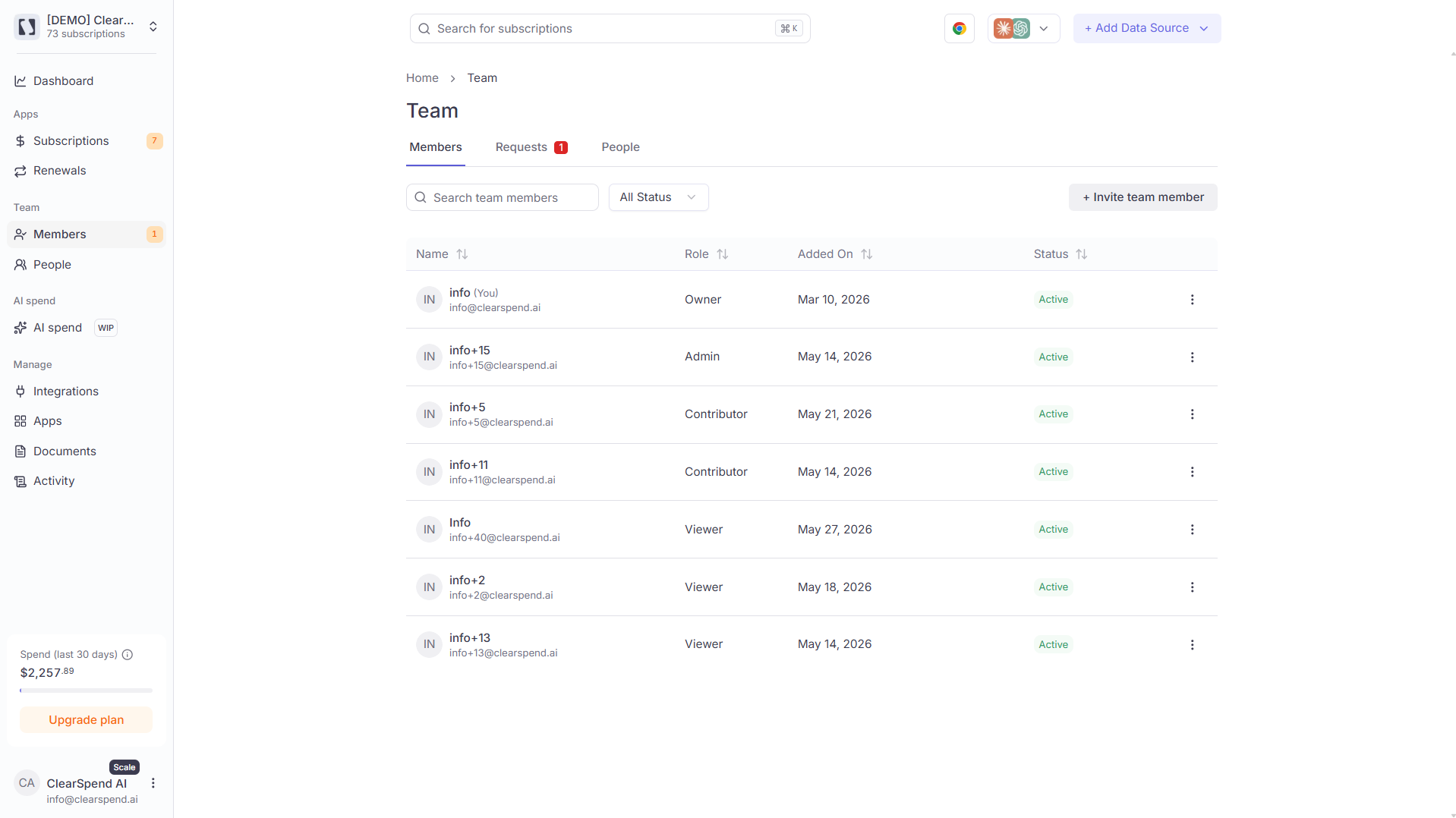
Manage who can sign in to ClearSpend from **Team → Members**.
 ## Roles
| Role | Permissions |
| ------------------------------------------------ | ------------------------------------------------------------------------------------------------------------------------------------------------- |
| **Owner** | Full access. Can manage members, billing, integrations, and processing rules. Only one Owner per workspace. |
| **Admin** | Can view and edit all spend data, manage subscriptions, invite members, and manage integrations. Cannot change billing. |
| **Member** (shown as **Contributor** in Profile) | Day-to-day access. Can create and edit subscriptions, upload documents, and trigger syncs. Cannot manage integrations, billing, or invite others. |
| **Viewer** | Read-only access. Can view dashboards, subscriptions, and renewals but cannot make changes or invite others. |
## Members table
The **Members** tab lists all users with active logins. Columns include:
| Column | Description |
| ------------ | ------------------------------------ |
| **Name** | Display name and email address |
| **Role** | Owner, Admin, Member, or Viewer |
| **Added On** | Date the member joined the workspace |
| **Status** | Current membership status |
### Member status values
| Status | Meaning |
| ----------- | ------------------------------------------------------- |
| **Active** | Member is actively using the workspace |
| **Invited** | Invitation has been sent; the user has not yet accepted |
| **Removed** | Member has been removed from the workspace |
## Inviting
Go to **Team → Members**.
Enter the new member's email and pick a role: **Admin**, **Member**, or **Viewer**.
The invitee gets an email with a link to set up their login. Their row appears in the table with an **Invited** status badge until they accept.
## Changing a member's role
Owners and Admins can update another member's role from **Team → Members**. Use the row actions for the member you want to change.
## Requests tab
If someone in your domain tries to join the workspace before being invited, their request appears in the **Requests** tab.
The tab shows:
* **Name**: the requester's email
* **Requested on**: the date of the request
* **Action**: a checkmark button to approve or an ✕ button to decline
Approving a request sends the user an invitation and moves them to the Members list.
## Filtering
Use the **All Status** filter to show only Active, Invited, or Removed members. You can also search by name or email using the search field.
## Roles
| Role | Permissions |
| ------------------------------------------------ | ------------------------------------------------------------------------------------------------------------------------------------------------- |
| **Owner** | Full access. Can manage members, billing, integrations, and processing rules. Only one Owner per workspace. |
| **Admin** | Can view and edit all spend data, manage subscriptions, invite members, and manage integrations. Cannot change billing. |
| **Member** (shown as **Contributor** in Profile) | Day-to-day access. Can create and edit subscriptions, upload documents, and trigger syncs. Cannot manage integrations, billing, or invite others. |
| **Viewer** | Read-only access. Can view dashboards, subscriptions, and renewals but cannot make changes or invite others. |
## Members table
The **Members** tab lists all users with active logins. Columns include:
| Column | Description |
| ------------ | ------------------------------------ |
| **Name** | Display name and email address |
| **Role** | Owner, Admin, Member, or Viewer |
| **Added On** | Date the member joined the workspace |
| **Status** | Current membership status |
### Member status values
| Status | Meaning |
| ----------- | ------------------------------------------------------- |
| **Active** | Member is actively using the workspace |
| **Invited** | Invitation has been sent; the user has not yet accepted |
| **Removed** | Member has been removed from the workspace |
## Inviting
Go to **Team → Members**.
Enter the new member's email and pick a role: **Admin**, **Member**, or **Viewer**.
The invitee gets an email with a link to set up their login. Their row appears in the table with an **Invited** status badge until they accept.
## Changing a member's role
Owners and Admins can update another member's role from **Team → Members**. Use the row actions for the member you want to change.
## Requests tab
If someone in your domain tries to join the workspace before being invited, their request appears in the **Requests** tab.
The tab shows:
* **Name**: the requester's email
* **Requested on**: the date of the request
* **Action**: a checkmark button to approve or an ✕ button to decline
Approving a request sends the user an invitation and moves them to the Members list.
## Filtering
Use the **All Status** filter to show only Active, Invited, or Removed members. You can also search by name or email using the search field.