

Who can connect
Owners, Admins, and Contributors can connect Slack from Integrations.Connect Slack
1
Open Integrations
In the sidebar, go to Integrations.
2
Find Slack
Locate the Slack card under Workflows.
3
Click Connect
ClearSpend redirects you to Slack’s authorization screen. Review the permissions Slack requests for your workspace.
4
Approve
Approve the installation. You are redirected back to ClearSpend with a success confirmation when the connection completes.
One Slack workspace per ClearSpend org
Each Slack workspace can connect to one ClearSpend organization only. If you try to connect the same Slack workspace to a second org, ClearSpend blocks it.Who gets Slack messages
When Slack is connected, alerts appear in the ClearSpend app in Slack. Who sees each alert depends on the notification type:
Recipients only see alerts that apply to them. Invoice recipients do not need a ClearSpend account — they can respond from the Slack message or upload link.
What you receive in Slack
Examples (see screenshots on the Slack notifications page):- Upcoming subscription renewals — table with days until due
- Monthly renewal digest — upcoming renewals for the month with vendor, amount, and owner
- Invoice upload request — when someone uses Request invoice or Request missing invoices on Transactions
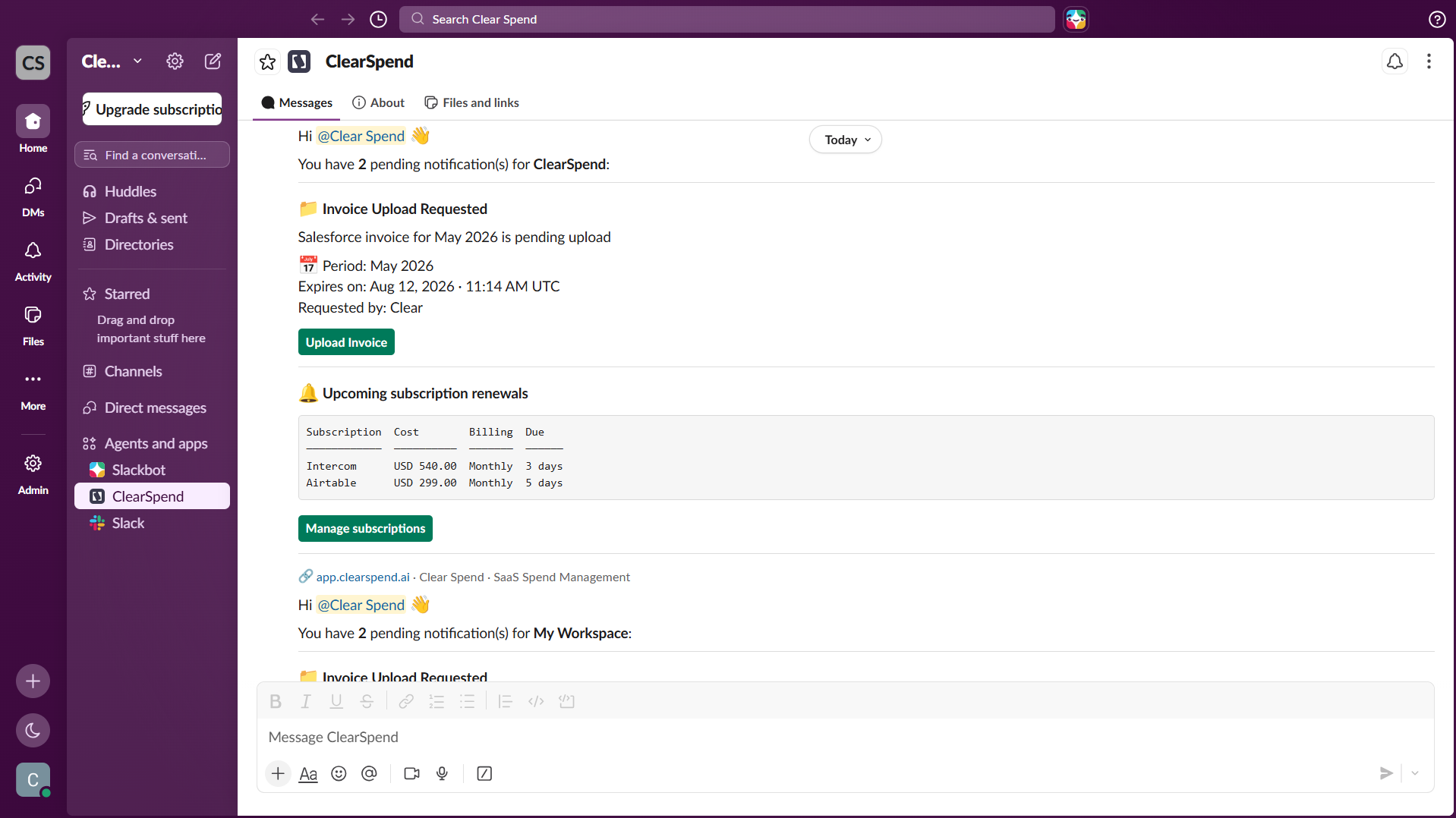
Slack notifications: invoice upload requests and upcoming subscription renewals reminders.