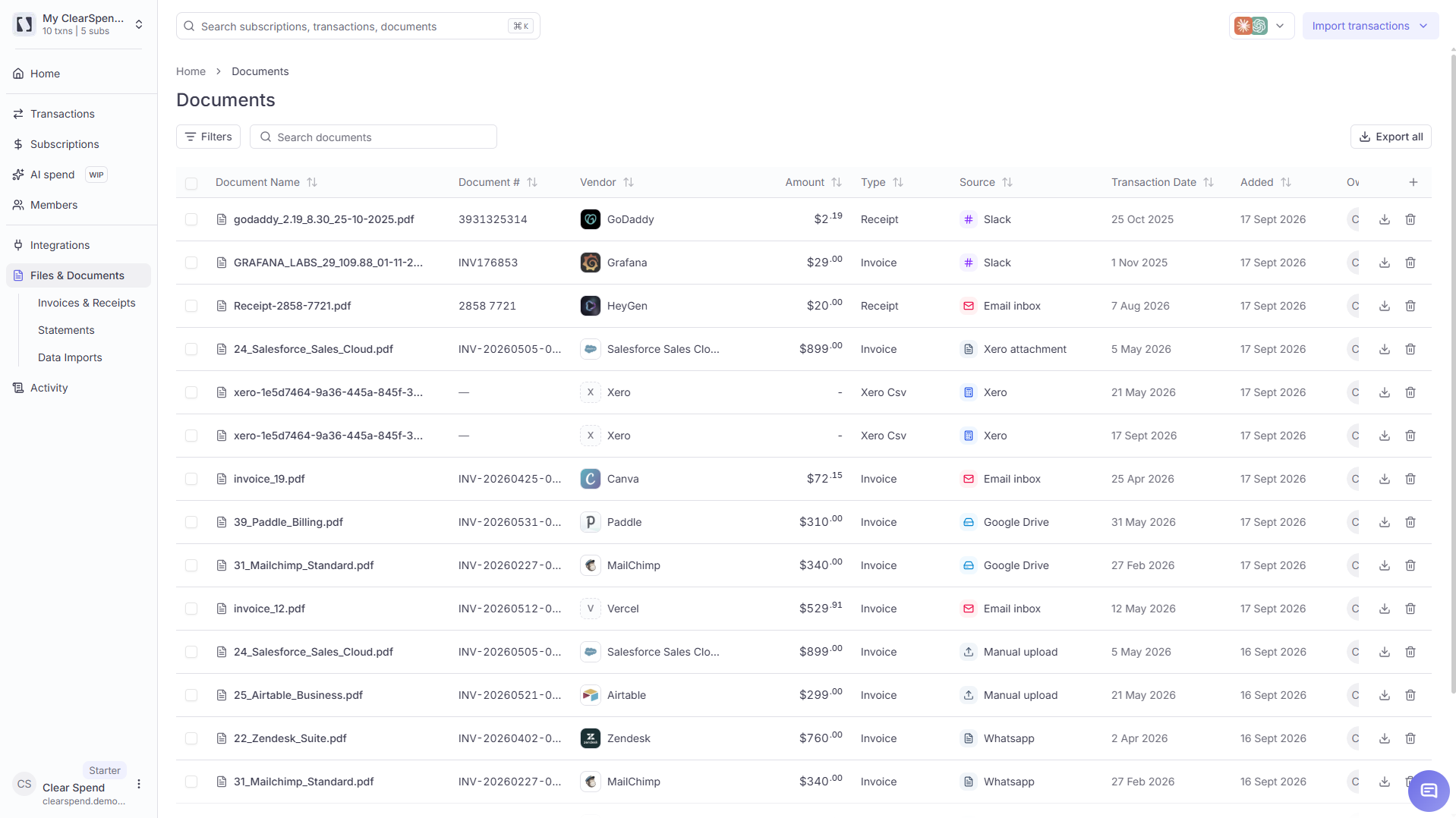
The Documents page lists every invoice and statement in your workspace so you can search, download, and audit what backed each charge. Sources include manual upload, forwarded email, Gmail/Drive, the Chrome extension, and public upload links. Each row shows a Source label (with icon) so you can see where a file originated.
Documents page

Table columns

ColumnDescription
DocumentsFile name
SubscriptionsThe vendor/subscription this document is matched to
AmountThe amount on the document
TypeDocument type: Invoice or Card Statement
SourceHow the file arrived (manual upload, Gmail, extension, etc.)
Transaction dateThe date of the transaction or invoice
AddedDate the document was added to ClearSpend
Each row has Download (↓) and Delete (🗑) action icons on the right. Use the Filters button to narrow by document type or other attributes. The search field accepts both document names and subscription names.

Bulk actions

Select multiple documents to Delete or Reparse. Reparse re-runs OCR and extraction on the selected files — useful when a document failed to match initially or after you update processing rules.

Bulk export

Click Export all in the top-right to download all documents in the current view, convenient at month-end close.