Documentation Index

Fetch the complete documentation index at: https://docs.clearspend.ai/llms.txt

Use this file to discover all available pages before exploring further.

The ClearSpend Chrome extension closes two big gaps in SaaS visibility:
  1. Usage signals from your browser — apps that don’t expose login data via an integration still get a “Last used” timestamp.
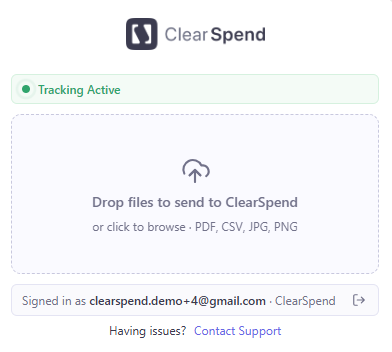
  2. One-click invoice capture — when you download a PDF from a vendor portal, a small banner offers to send it straight to ClearSpend.
It runs locally in your browser and only reports data for users who have signed into ClearSpend in the same browser profile.

Install

1

Get the extension

Ask your admin for the latest extension package, or download it from the link shared in your welcome email.
2

Load it into Chrome

  1. Open chrome://extensions/
  2. Toggle Developer mode (top-right)
  3. Click Load unpacked
  4. Select the unzipped chrome_extension folder
The ClearSpend icon appears in your toolbar.
3

Sign in

Open app.clearspend.ai and sign in normally. The extension automatically picks up your session — there’s no separate login.
Pin the extension to your toolbar (click the puzzle icon → pin) so the icon is always visible. The popup shows your most-used apps and lets you reload service data.

What gets tracked

Browser visits

As you navigate the web, the extension matches the current domain to ClearSpend’s catalog of 8,800+ SaaS services. For example, a visit to companyname.atlassian.net/jira/... is matched to Atlassian (or Jira Software when the URL clearly points to Jira). Each match increments the visit counter for that service, with a 24-hour cooldown — multiple visits to the same app within a day count as one. This keeps the data clean while still capturing daily-active behaviour.

Downloaded invoices

When you download a PDF or image from a known vendor domain, a “Send to ClearSpend?” banner appears in the corner of the page. Click Send and the file is uploaded to your workspace as a document, just like an emailed invoice. The banner only appears for file types ClearSpend can process (PDF, JPG, PNG). Click ✕ to dismiss; the file still saves to your downloads folder normally.

What data is sent

SentNot sent
The matched service name and your visit countPage contents, page titles, form data
Files you explicitly approve via the “Send to ClearSpend” bannerFiles you download but don’t approve
Your ClearSpend user identity (email + org)Browsing history outside matched services
The full URL never leaves your browser. The extension only sends the service it identified and a visit count — not where on that service you were.

Permissions

The manifest requests the following permissions, each with a specific purpose:
PermissionWhy it’s needed
tabsDetect when you switch tabs so the right service is associated with the visit.
storageCache visit counts and your ClearSpend identity locally.
cookiesRead the Supabase auth cookie set by app.clearspend.ai so the extension knows you’re signed in. Cookies for other sites are never read.
alarmsSchedule periodic flushes of visit data to the ClearSpend API.
contextMenusReserved for future right-click actions; not used today.
notificationsShow download / send confirmations.
downloadsDetect when you save a file from a vendor domain so the “Send to ClearSpend” banner can offer it.
scriptingInject the download banner into the page.
<all_urls>Required so the extension can match visits and detect downloads on any vendor site.

Privacy

  • Data is associated with your ClearSpend identity only after you’ve signed in to the webapp in the same browser.
  • If you sign out, the extension stops reporting usage until you sign back in.
  • Visit counts are flushed to the API on a short interval and stored against your user record — admins see aggregate usage on the Workspace and People pages, never individual URLs.

Manage from the webapp

You can see the impact of the extension across two places:
  • Apps → Last used — populated from extension visits when no integration provides login data
  • Team → People → Apps used by — shows the per-user app list combining workspace integrations and extension data
If you don’t want a teammate’s extension activity tracked, ask them to either sign out of ClearSpend in that browser profile or remove the extension.

Troubleshooting

The extension reads the same cookie the webapp does. Sign out of ClearSpend, sign back in, then click the extension icon to pair again. If you use Chrome profiles, make sure the extension and the webapp are in the same profile.
Remember the 24-hour cooldown — additional visits to the same app within a day don’t increment the counter. Also check that you’ve granted the extension access to “all sites” in chrome://extensions/.
It only appears for supported file types (PDF / JPG / PNG) from a recognized vendor domain. Some sites that wrap downloads in JavaScript may not trigger the banner — use + Add Data Sources → Upload document in the webapp as a fallback.
Go to chrome://extensions/, find ClearSpend Service Tracker, and click Remove. Removing the extension does not delete the usage data already sent — contact your admin if you need that scrubbed.