Documentation Index

Fetch the complete documentation index at: https://docs.clearspend.ai/llms.txt

Use this file to discover all available pages before exploring further.

When ClearSpend is missing invoices for a subscription — for example, the vendor only emails them to the app owner — you can send a public upload link that lets anyone upload the right files from the browser. No ClearSpend account needed. Each link is a unique, token-protected URL of the form https://app.clearspend.ai/p/<token>. It expires when the request is closed or when all the requested invoices have been received.

Sending a request

There are two ways to generate a public upload link:
1

From a subscription detail page

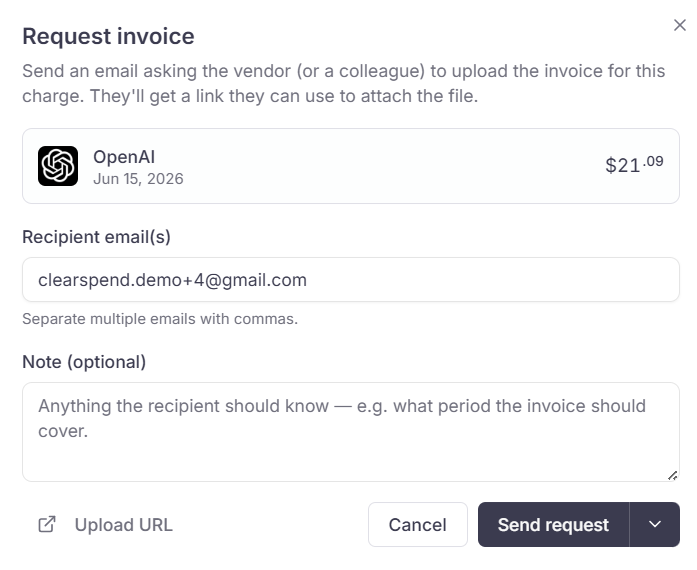
Open the subscription, click Request invoice, pick which months you need, then enter the recipient’s email and an optional note. ClearSpend emails them a link and tracks the request under Documents → Requests.
2

From the bulk requests flow

From the subscriptions list, select multiple rows → Request invoices. You can request from many app owners at once; each recipient gets their own scoped link that only exposes the apps they own.
The recipient does not see your other subscriptions, vendors, or pricing — only the apps and months you’ve explicitly requested.

What the recipient sees

The link opens a focused upload page with:
  • A left sidebar listing each subscription you’ve requested invoices for, with a progress badge (e.g. 2 / 3)
  • A main area showing one row per missing period (e.g. “Invoice for September 2026”)
  • A drag-and-drop zone for each row, accepting PDFs and images (JPG / PNG)
Each row supports a single file per requested date. If you asked for two months of invoices, the row has two slots — the recipient drops one file per slot.

Upload limits

LimitValue
Maximum file size8 MB per file
Maximum files per session20
Supported typesapplication/pdf, image/jpeg, image/jpg, image/png
When a file is dropped, ClearSpend validates it inline:
  • All invoices matched and submitted — the file matched the vendor and period and was attached to a transaction
  • Duplicate — the same invoice was already uploaded; we keep the first copy and surface this so the recipient knows
  • Failed — the file couldn’t be parsed; the recipient gets a specific error (wrong vendor, unreadable, etc.)

What happens after upload

Each successful upload behaves exactly like a document the team uploaded directly:
  1. Goes through OCR + line-item extraction
  2. Matches against open transactions for that subscription
  3. Updates the subscription’s reconciled spend on the dashboard
  4. Closes the corresponding row on the request page
Once every row is completed, the recipient sees a success state and the request is auto-closed on your side. You’ll get a notification (if you’ve enabled invoice notifications under Settings → Notifications).

Tracking requests on your side

Open Documents → Requests to see every public upload request you’ve sent, with:
  • Recipient email
  • Apps and months requested
  • Status (Pending, Partially received, Received, Expired, Cancelled)
  • The number of files received vs. requested
From there you can Resend the email, Cancel the request, or click into a request to see exactly which periods are still missing.

Security

  • Tokens are random and unguessable; the URL is the only thing the recipient needs (and the only thing they can use)
  • Uploaded files use short-lived, signed S3 URLs — they never traverse a public bucket
  • Cancelling a request immediately invalidates the link
  • We log every successful upload against the request so you have an audit trail under Documents → Requests
Treat public upload links like any other unauthenticated URL — share them via email or chat, not a public channel. If a link is leaked, cancel the request from Documents → Requests to immediately invalidate it.