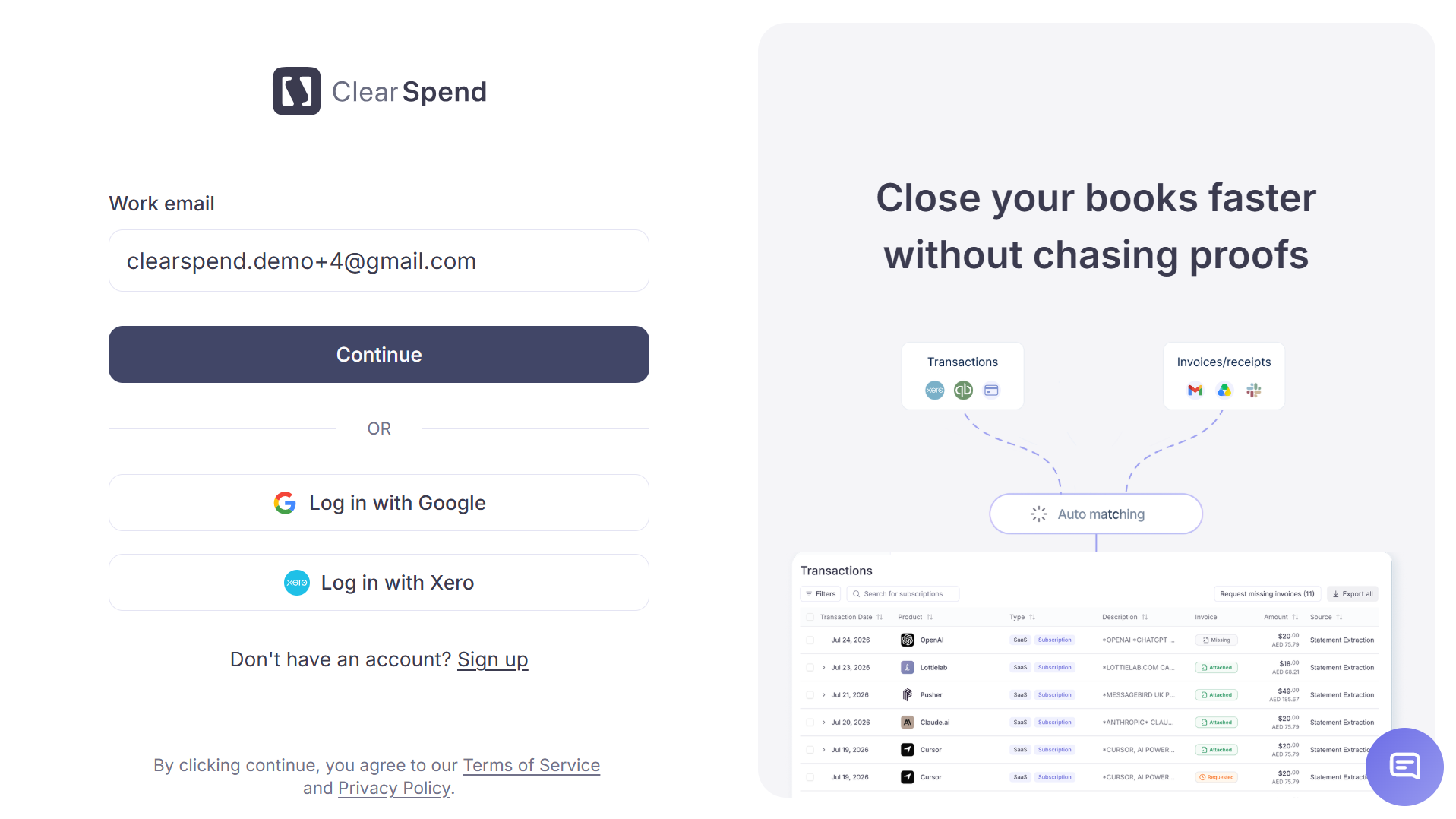
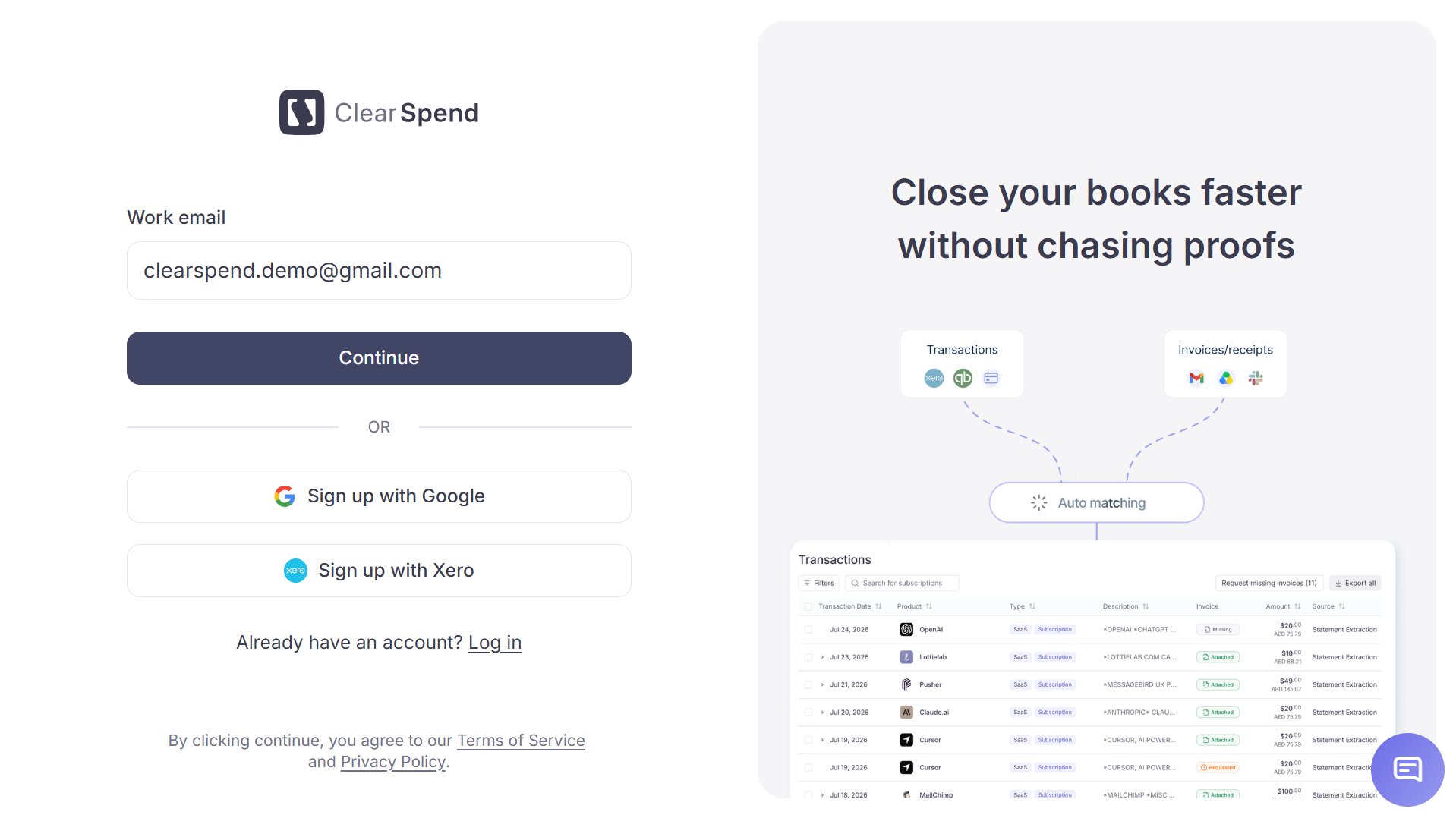
You need a ClearSpend account before you can open a workspace. Sign-up and sign-in both happen on app.clearspend.ai.Documentation Index
Fetch the complete documentation index at: https://docs.clearspend.ai/llms.txt
Use this file to discover all available pages before exploring further.
Sign in options
| Method | What happens |
|---|---|
| Email magic link | Enter your work email. ClearSpend emails a one-time link. Click it to land in the app. |
| Use Continue with Google to authenticate with your Google account. |
New account (sign up)
- Open app.clearspend.ai/signup or choose Sign up from the login page.
- Prefer your work email so teammates with the same domain can join one workspace instead of creating duplicates.
- Complete authentication (magic link or Google).
- ClearSpend routes you to:
- Onboarding if you are the first person from your domain, or
- Request to join if a workspace for your domain already exists, or
- Straight to the dashboard if you arrived via an invite link.
gmail.com, outlook.com, etc.) always create a separate workspace.
Returning users
- Open Login and use the same method you used originally.
- If you see Session expired, sign in again; your workspace data is unchanged.
- Multi-org users pick the correct organization from the workspace switcher in the sidebar after login.
SSO and OAuth callbacks
ClearSpend uses Supabase Auth for sessions. Additional redirects you may see in the browser (normal and safe):/auth/callback: finishes magic-link or OAuth sign-in/auth/sso-callback: enterprise SSO when enabled for your domain/oauth/consent: approving third-party access (for example AI assistants MCP)
After login
Get started
Add your first data source and see subscriptions populate.
Invite teammates
Send invites once your workspace is ready.