

https://app.clearspend.ai/invite/<token>. Open that link, log in with the same email, and accept to join their workspace.
How to accept
1
Open the email link
Click Accept invitation in the invite email. The link opens in your browser.
2
Check the details
ClearSpend shows the workspace name, your role (Admin, Contributor, or Viewer), and who invited you.
3
Log in or create an account
Use the same email the invite was sent to.
- Already have ClearSpend? Log in with that email (magic link, Google, or Xero).
- New here? Sign up with that email, then continue.
4
Accept the invitation
Confirm Accept invitation. ClearSpend adds you to the workspace and opens the app. You usually skip full onboarding because the workspace already exists.
If the invite does not work
The page explains what went wrong. Common reasons:- The invite expired or was revoked
- The invite was already accepted
- You are logged in with a different email than the one invited
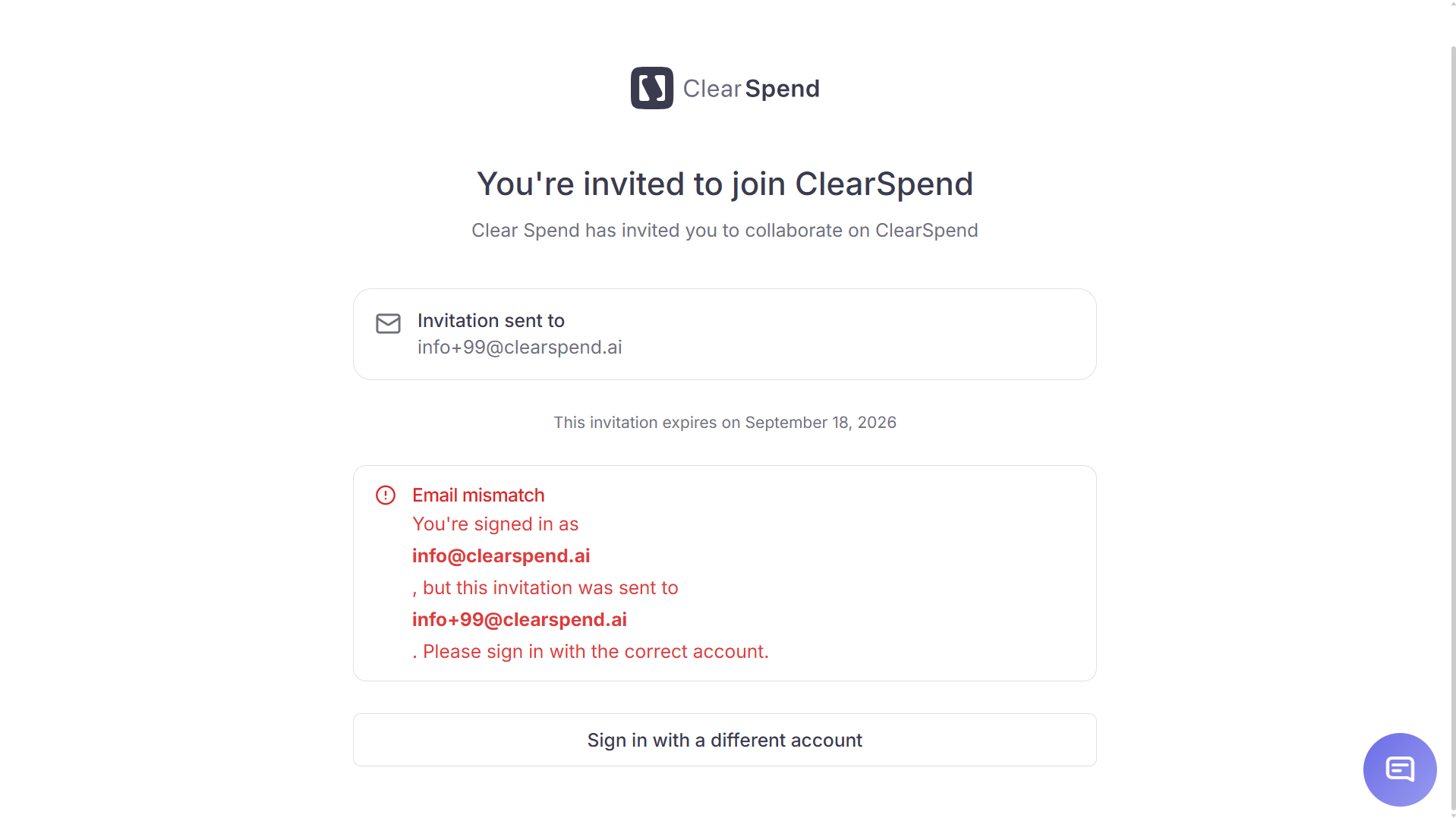
Invalid invite: you are logged in with a different email than the invitation.