

Rules apply to new charges only. Charges already in the workspace are not re-processed.
Open Rules and filters
- Go to Transactions.
- Click the sliders icon in the toolbar (Rules and filters).
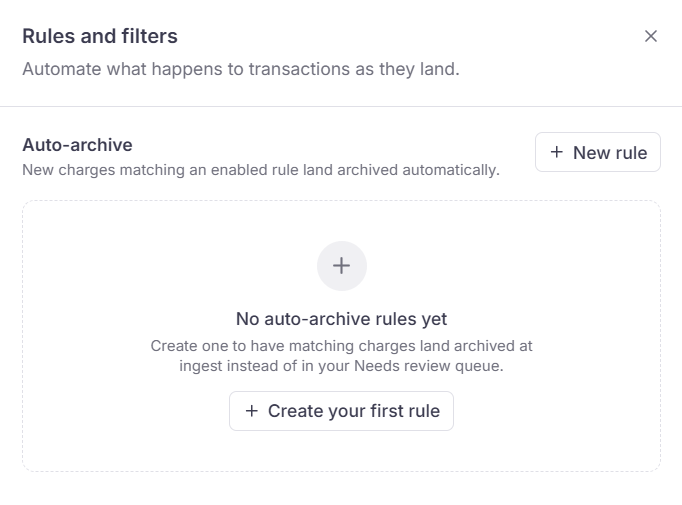
Rules and filters: no auto-archive rules yet. Click New rule or Create your first rule.
Create a rule
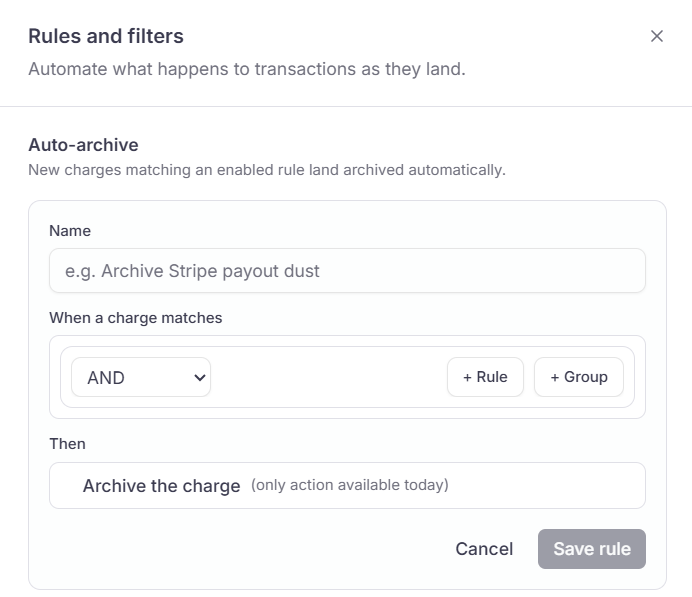
New rule: name the rule, set when a charge matches, then Archive the charge.
1
Click New rule
In the drawer, click New rule. If you have no rules yet, click Create your first rule.
2
Name the rule
Give it a name you will recognize later, for example
Archive Stripe payout dust.3
Set when a charge matches
Build one or more conditions. The field available today is Transaction Key, the normalized vendor and description ClearSpend uses to group similar charges.Combine conditions with AND or OR. Add another condition or a nested group from the builder.
4
Confirm the action
Then is Archive the charge. That is the only action available today.
5
Save
Click Save rule. Turn the switch on to enable it. New matching charges land archived automatically.