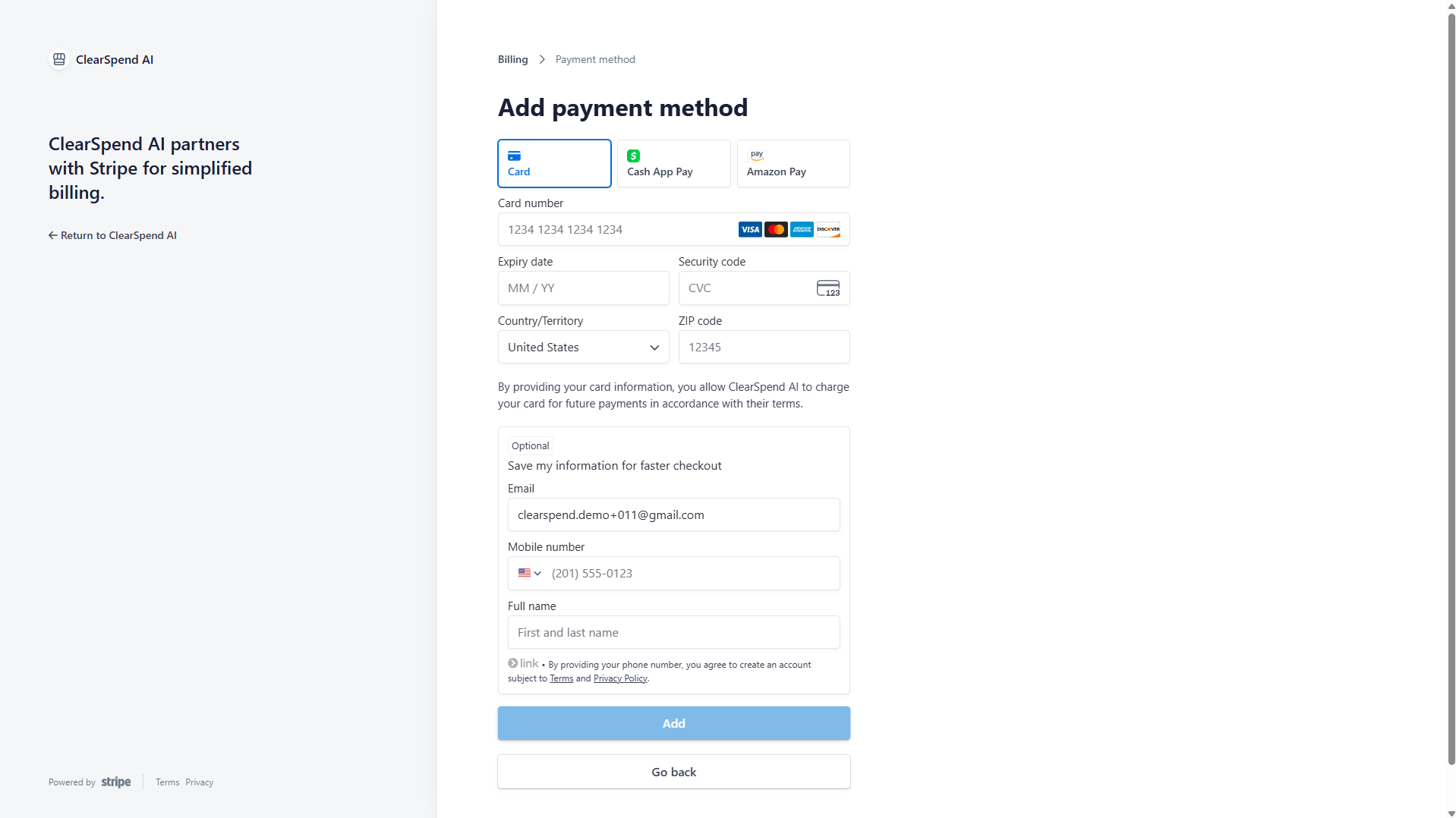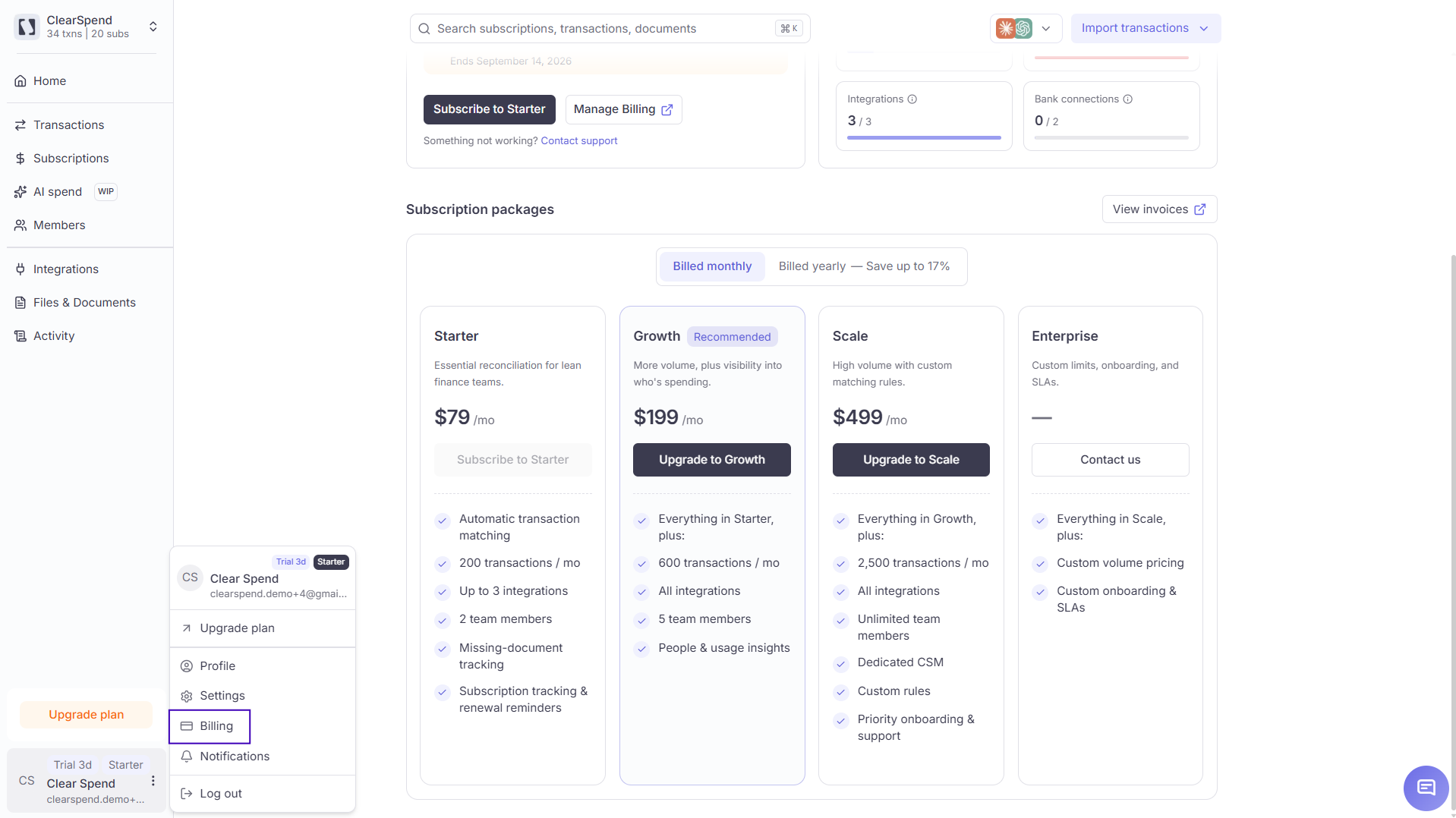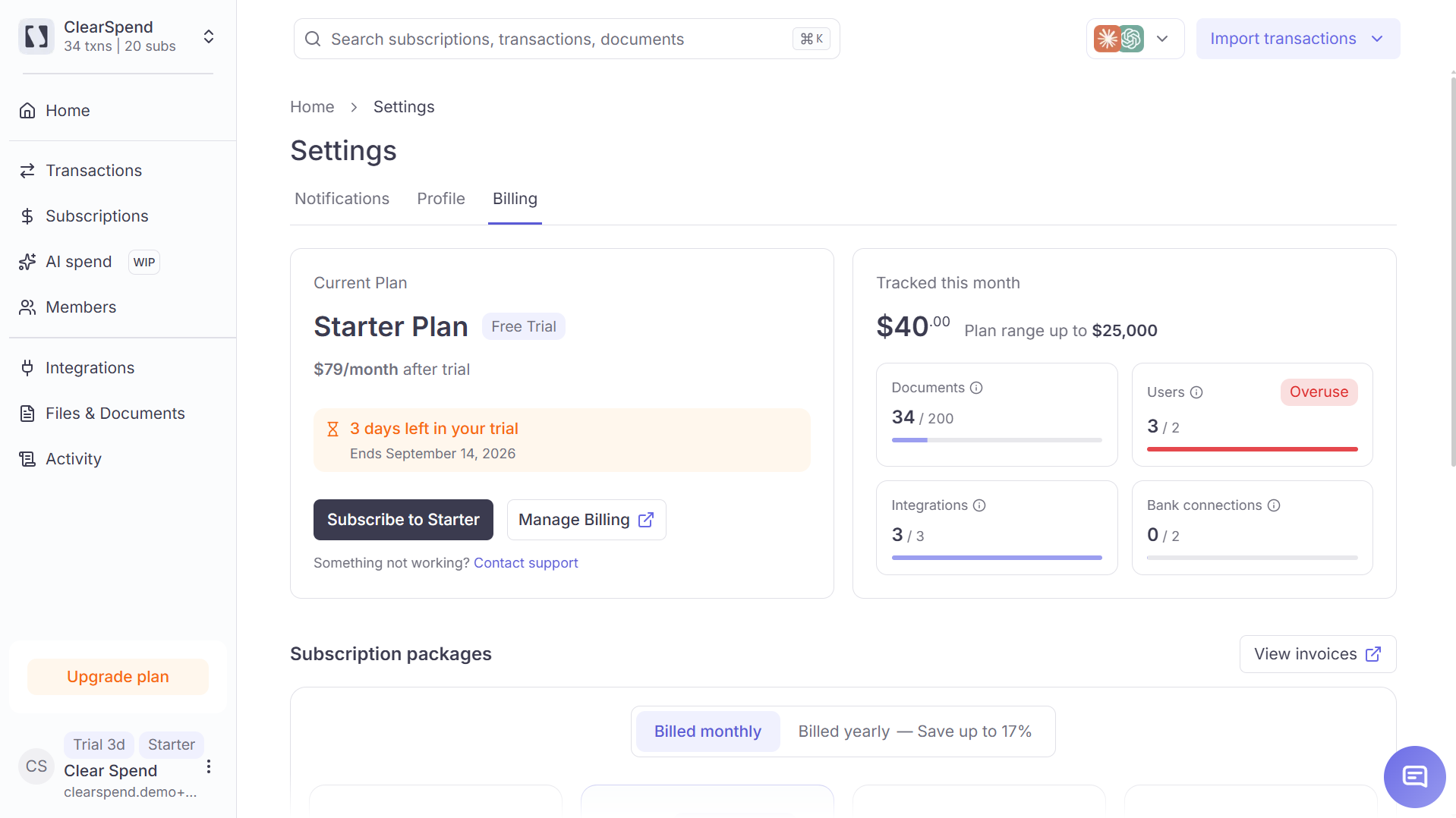
Manage your ClearSpend subscription from Settings → Billing. Owners can upgrade, switch billing cycle, and open the Stripe portal; Admins can view usage but cannot change payment.
When to use this page
- See which plan your workspace is on and whether you’re in trial
- Check if you’re over limit on integrations or other meters
- Upgrade or open Manage Billing (Stripe) for invoices and payment method
Plans
| Plan | Best for | Highlights |
|---|
| Starter | Small teams starting with spend visibility | Core subscriptions, renewals, documents, invoice requests, renewal notifications |
| Growth | Teams adding integrations and AI workflows | Everything in Starter plus MCP (Ask Claude), AI spend insights, advanced processing rules |
| Scale | Larger orgs needing full history and support | Everything in Growth plus full history retention, priority support |
| Enterprise | Custom contracts | SOC 2 review, dedicated CSM — contact sales |
Each plan card on the Billing tab lists marketing features with tooltips. Exact caps (integrations, documents, etc.) appear in the usage meters below your current plan badge.
Self-serve vs Enterprise
- Starter, Growth, Scale — upgrade via Upgrade buttons (Stripe Checkout)
- Enterprise — Contact us / sales; not self-serve in the app
Trial
New workspaces may start on a trial of a paid tier. When the trial ends, features may lock until you add a payment method or choose a plan.
Usage limits
Below your plan badge, usage meters show consumption vs limit:
| Meter | What counts |
|---|
| Integrations | Each connected OAuth or Plaid link |
| Documents | Stored invoices and statements (per plan) |
| SaaS spend range | Total tracked SaaS spend (warning when approaching cap) |
- Over limit badges appear when you’ve exceeded a cap.
- Unlimited meters show no progress bar.
- When integrations are at capacity, Connect on new integrations is blocked until you upgrade or remove a connection.
If Renewals or other pages show an upgrade overlay, your plan may be inactive or over limit. Owners should resolve billing here first.
Manage Billing (Stripe)
Click Manage Billing to open the Stripe Customer Portal in a new tab:
- Update payment method
- Download ClearSpend subscription invoices
- Review billing history
Close the portal tab to return to ClearSpend Settings.
Where to upgrade
| Entry point | Who |
|---|
| Settings → Billing upgrade cards | Owner |
| Sidebar → Upgrade plan (Starter/Growth/Scale workspaces) | Owner |
/upgrade?plan=&cycle= checkout URL | Owner |
Only Owners can start upgrades and open Manage Billing. Admins have read-only access to the Billing tab.
Something wrong?
| Symptom | What to do |
|---|
| Can’t click Upgrade | You may not be Owner — see Roles |
| Integration Connect blocked | Check Integrations meter — Troubleshooting |
| Renewals page blocked | Plan inactive — complete checkout here |
The user menu in the sidebar also links to Profile, Settings, Billing, Notifications, and Log out.