

Home: KPI cards, spending trend, and widgets.
Before charges arrive
Home embeds Get started until a transaction is in the workspace. Complete two steps: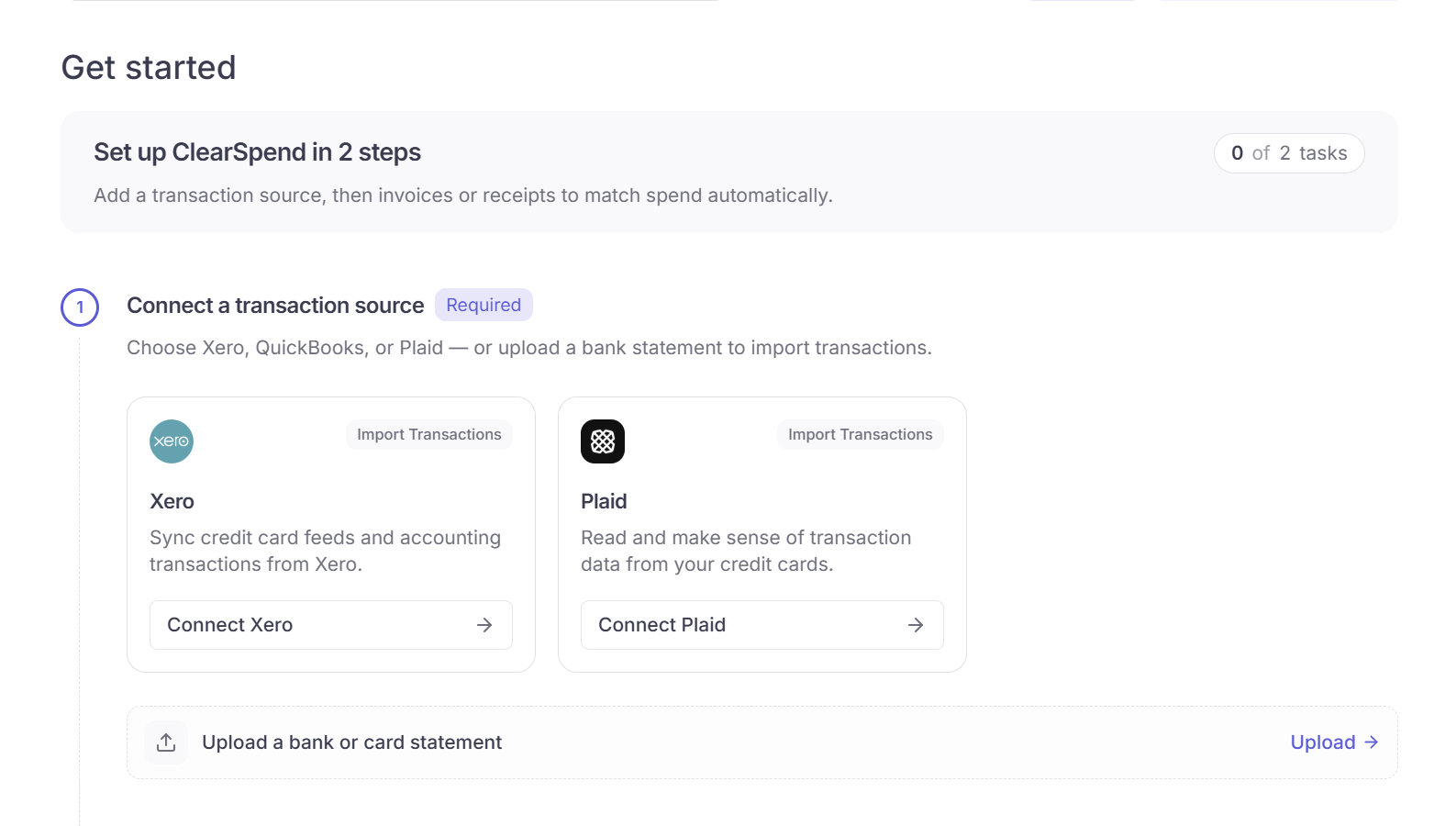
Get started step 1: connect Plaid or Xero, or upload a card statement.
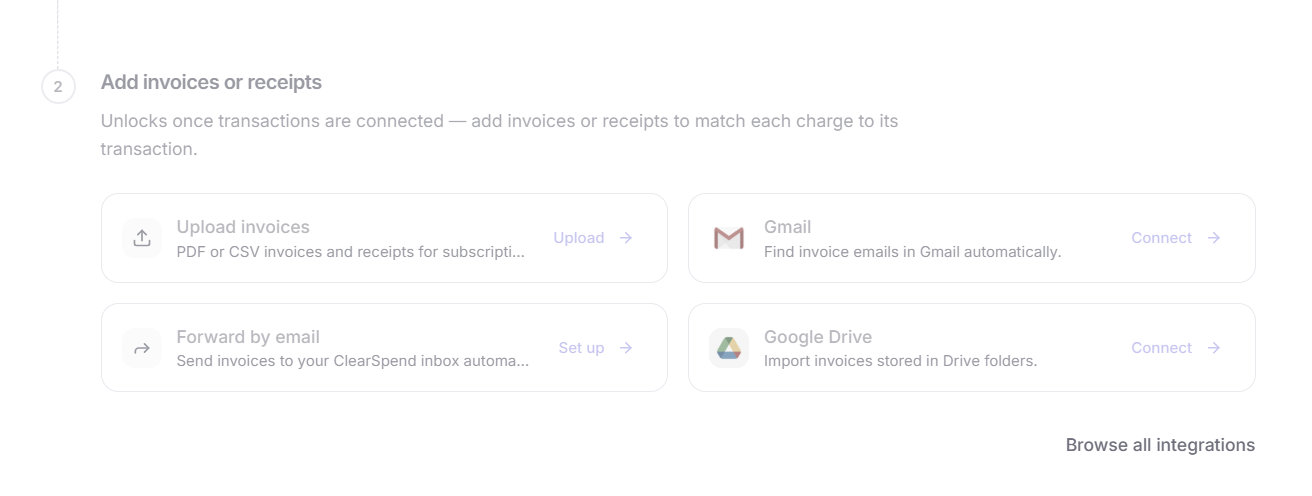
Get started step 2: upload invoices, or connect Gmail, email forward, or Google Drive.
After charges arrive
The page switches to the dashboard layout:- Header with a date filter and a Show/Hide Charts control
- Optional setup reminder if invoices or receipts are still missing
- Three KPI cards
- Spending trend
- Widget grid

Home setup reminder: transactions imported, then add invoices or receipts.
KPI cards
Three equal cards at the top. They follow the date filter in the header.
Home KPI cards: Total charges, Reconciliation, and Upcoming Renewals.
Spending trend
The bar chart under the KPIs shows spend by month for the selected window.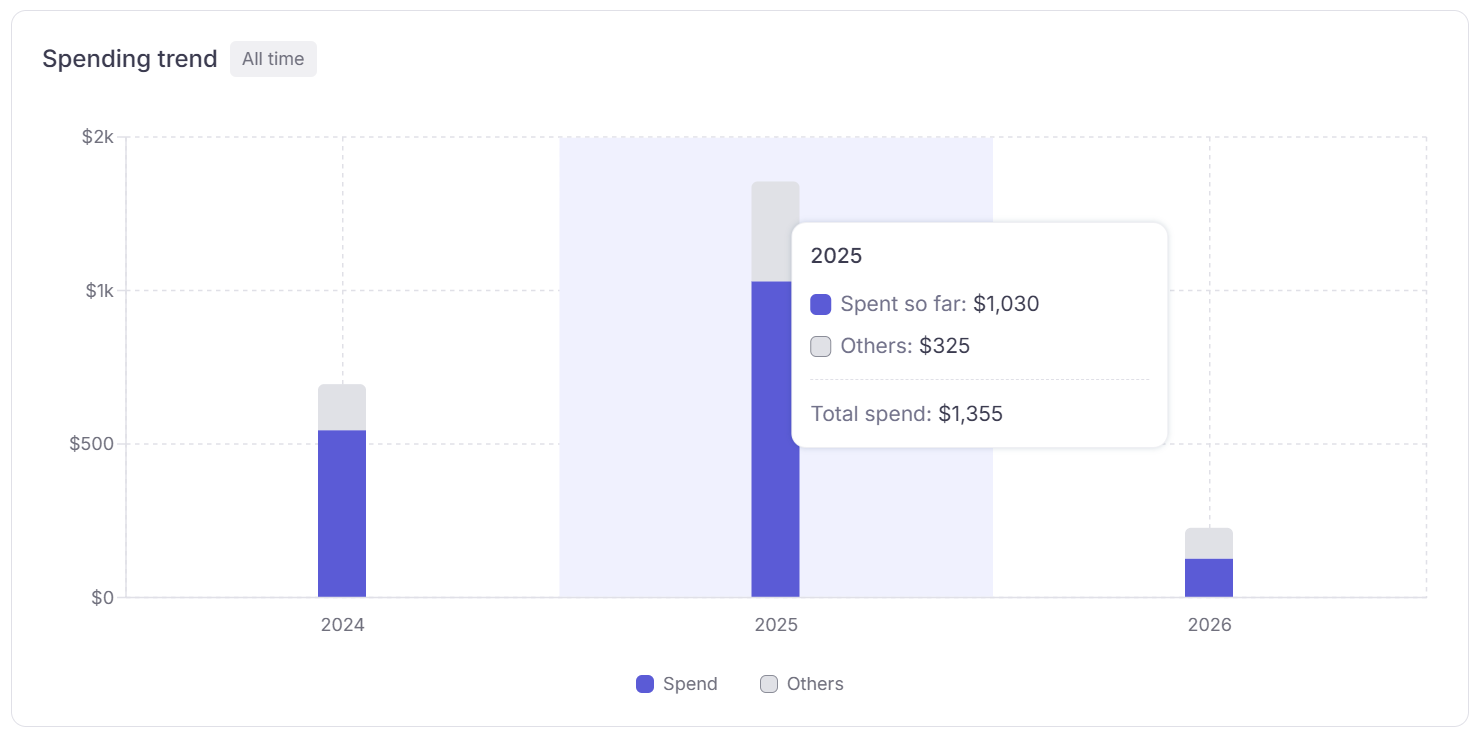
Spending trend: All time Spend and Others by year.
Widgets
Below the trend chart, widgets sit in a grid. Drag a widget to reorder. Use the ⋯ menu on a widget to hide it. Use the filter button in the header (Show/Hide Charts) to turn widgets back on. Layout is saved per workspace.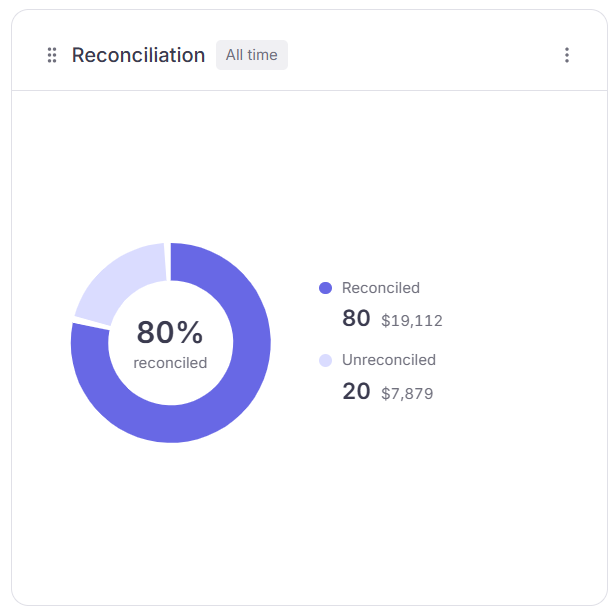
Reconciliation: matched vs unmatched charge counts for the selected period.
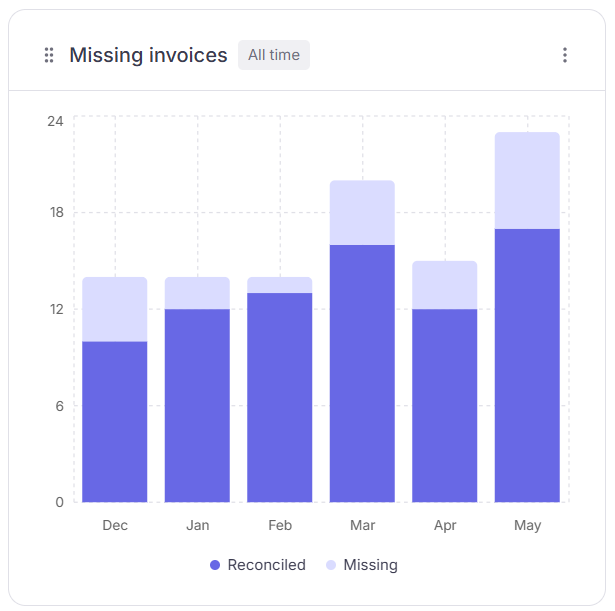
Missing invoices: reconciled vs missing proof by month.
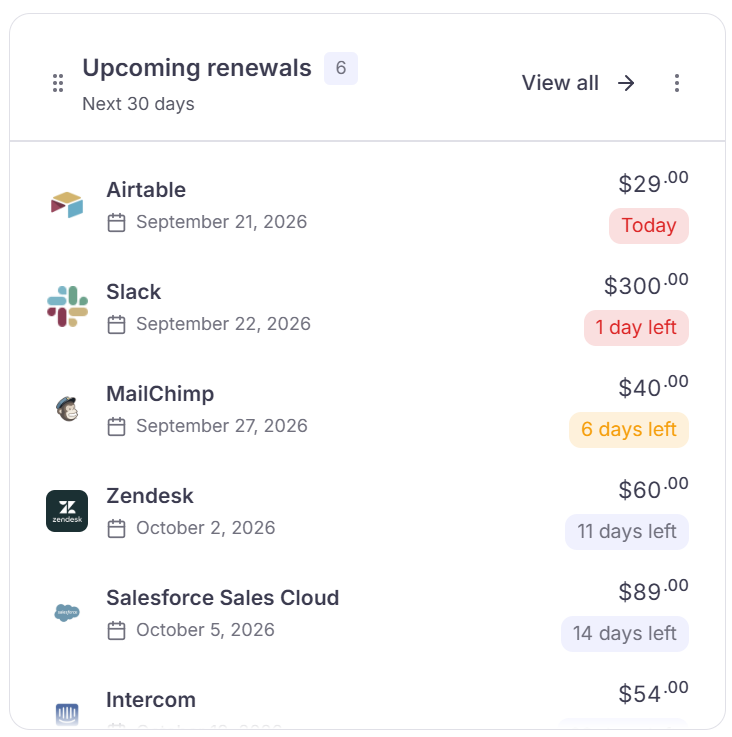
Upcoming renewals: subscriptions renewing in the next 30 days.
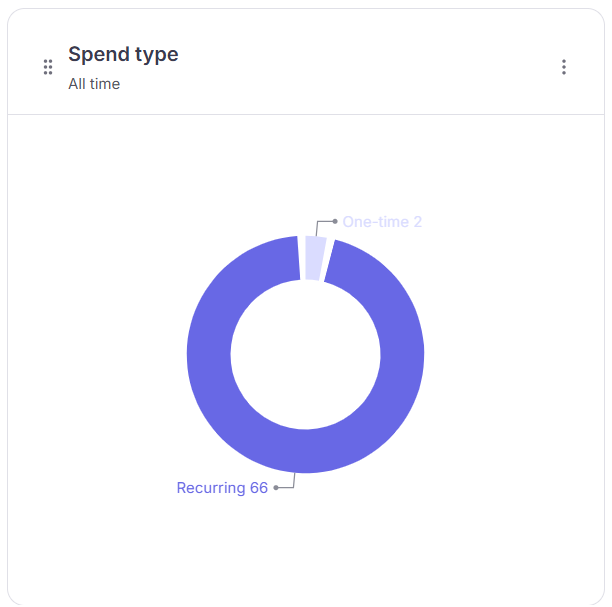
Spend type: recurring vs one-time subscriptions.
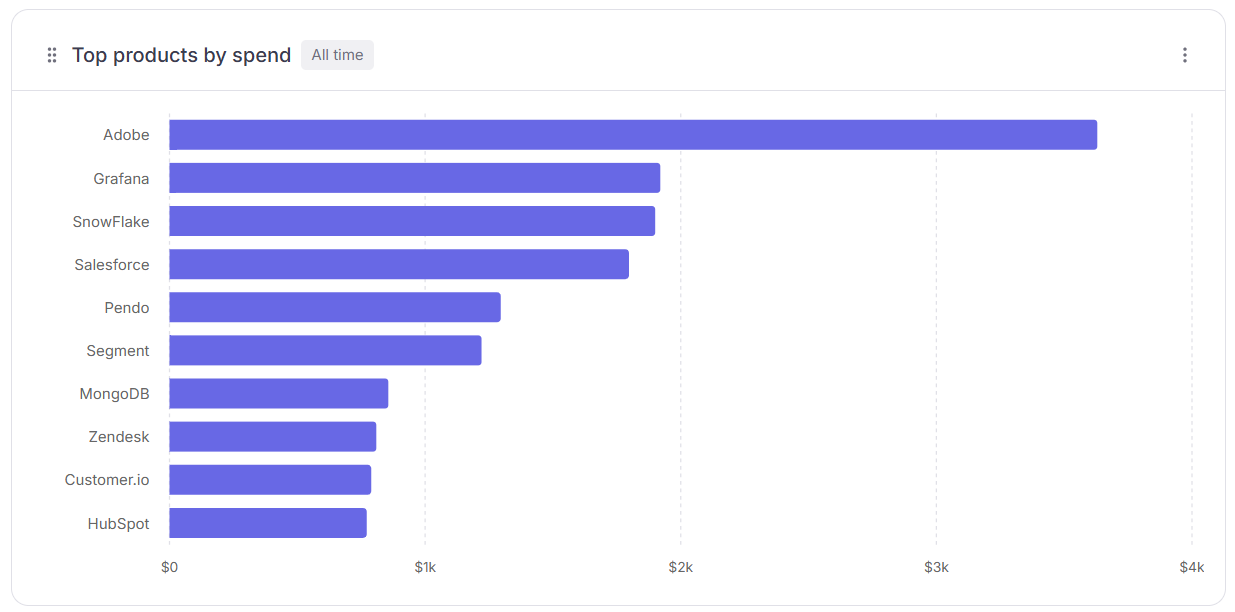
Top products by spend: highest-cost vendors in the selected period.
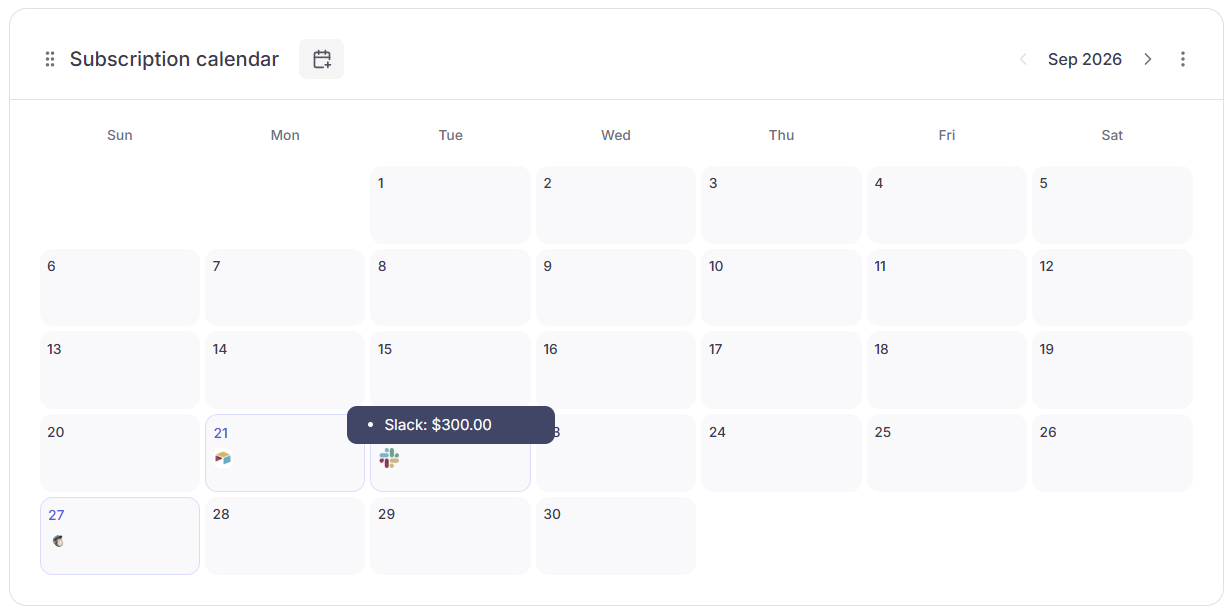
Subscription calendar: vendor logos on renewal dates.
Date filter
Top right of Home. Default is All time. The filter applies to KPIs, spending trend, and widgets.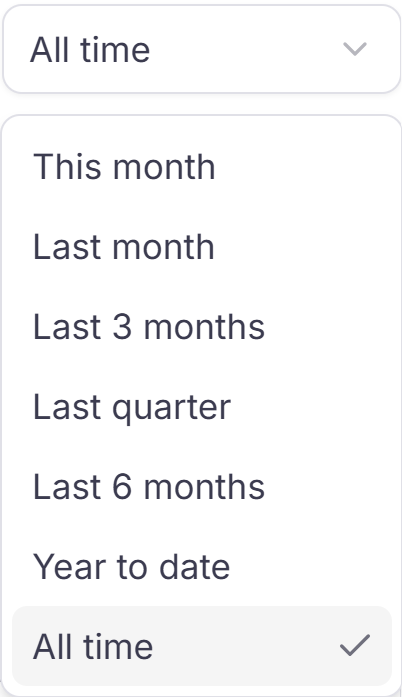
Home date filter: This month through All time.