

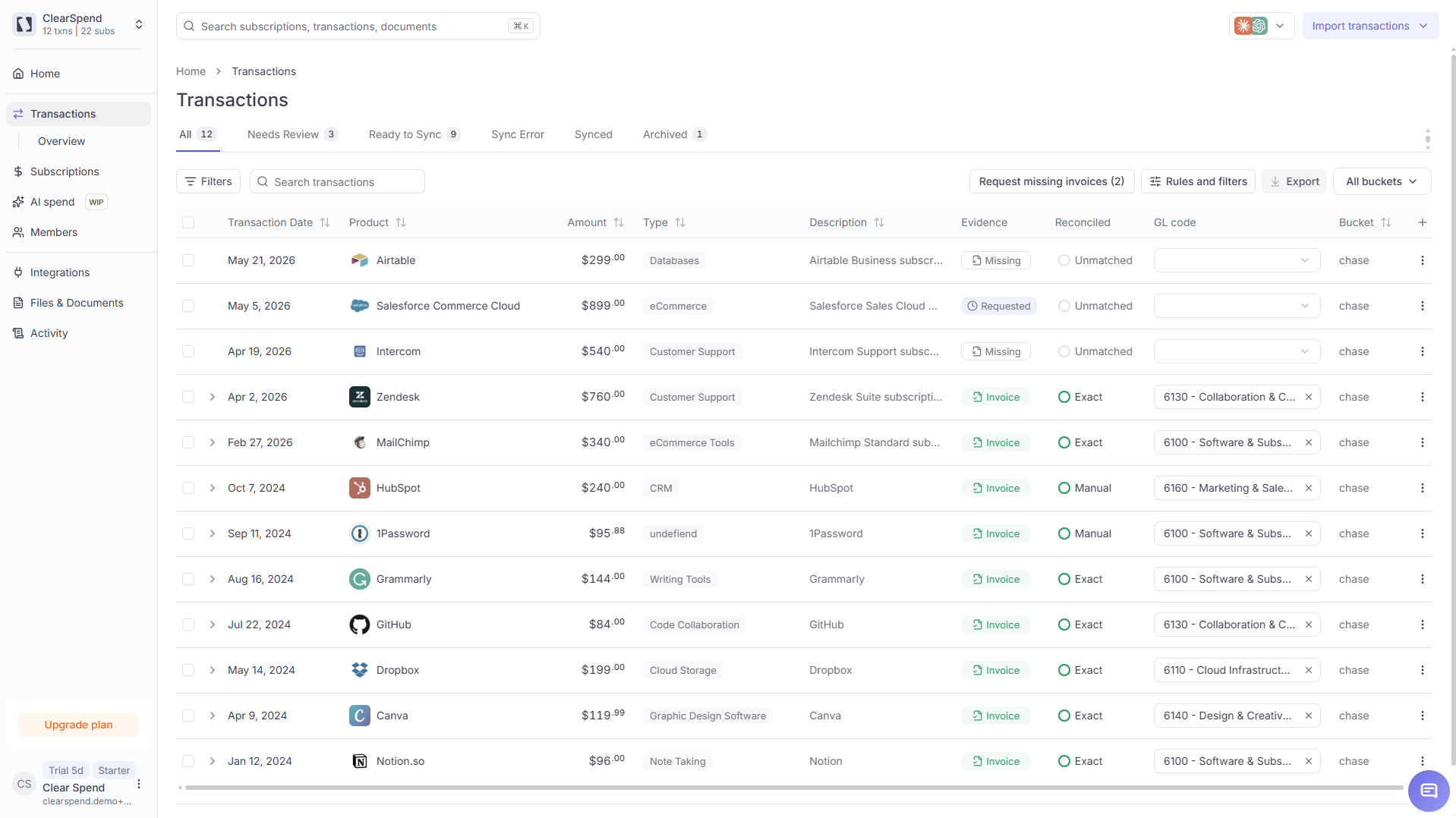
Transactions: one row per charge with evidence status and reconciliation badges.
Transactions and Overview
Two views under Transactions in the sidebar:
Use Overview for a quick status check. Use Transactions to work through charges one by one.
Vendors can also appear on Subscriptions for renewals. Transactions stays one row per charge so each payment can be reconciled on its own.
Sync status tabs
On Transactions, tabs above the table filter charges by accounting sync status when Xero is connected: All, Needs Review, Ready to Sync, Sync Error, and Synced. These tabs track progress from reconciled charge in ClearSpend to pushed record in Xero. They are separate from the Evidence and Reconciled columns, which show documentation and match quality. Full details are on Sync to accounting.Archived tab
The Archived tab shows charges you have hidden from the main list. Use it when you want to:- Review charges you archived earlier
- Unarchive selected rows to bring them back
- Keep working on evidence for archived charges without cluttering All