

Plaid creates transactions. Dashboard totals and matching use these charges. Pair Plaid with Gmail, Google Drive, or a file upload for proof.
When to use Plaid
- You want ongoing card charges without uploading statements
- Some vendors only charge a card (no invoice email)
- You want charge dates and amounts that match your card statement
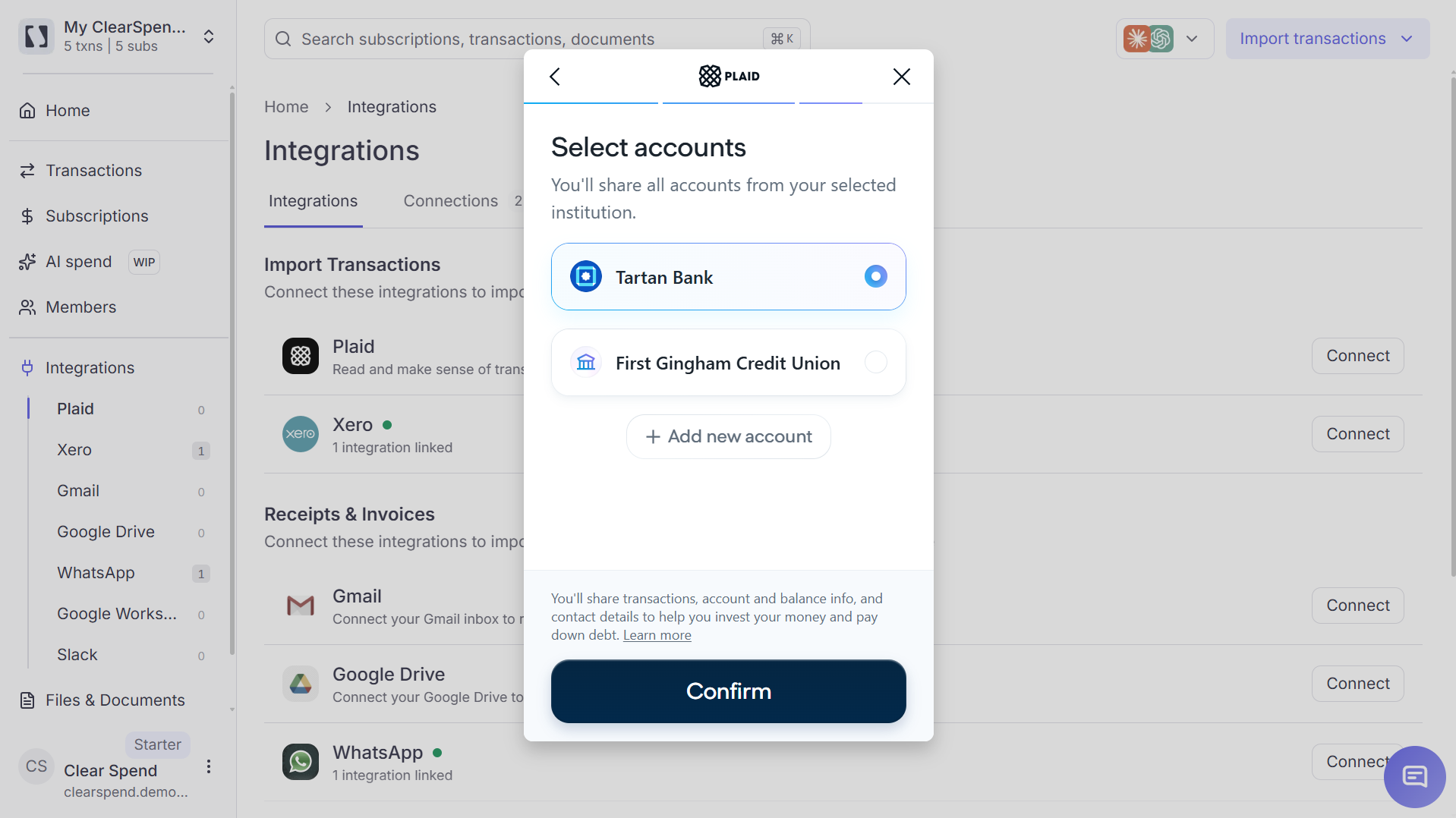
Plaid: select the accounts to share with ClearSpend.
What it does
Plaid brings charges into your workspace. You work those charges on Transactions.
Plaid syncs in the background. New charges appear on Transactions without another upload.
How it works
ClearSpend uses Plaid Link:- You choose your institution in Plaid’s secure modal.
- You sign in with your card issuer. ClearSpend never sees your login.
- Plaid returns a read-only token. ClearSpend stores it encrypted.
- ClearSpend syncs charges onto Transactions and matches invoices when proof is available.
Who can connect
Owners, Admins, and Contributors can connect and disconnect Plaid. See Roles and permissions.Connect Plaid
1
Open Integrations
In the sidebar, go to Integrations.
2
Open the Plaid card
Under Import Transactions, find Plaid and click Connect.
3
Choose your institution
A Plaid modal opens. Pick the bank or card issuer you want to link.
4
Sign in with your card issuer
Finish Plaid’s sign-in. You can link more than one institution over time.
5
Wait for the first sync
ClearSpend imports recent charges onto Transactions. The card on Integrations shows the institution and last sync time.
Security
- Read-only access. Transaction history only. No ability to move money.
- Credentials stay with Plaid. ClearSpend receives an encrypted token, not your card password.
- Disconnect anytime from Integrations, or from your issuer’s connected-apps settings.
- Per-org isolation. Your charges stay in your ClearSpend workspace.
Pair with other sources
Plaid shows what was charged and when. Invoices and receipts are the proof. Most teams use both:- Upload statement: backfill older charges before Plaid finishes
- Gmail: ongoing invoices and receipts from billing email
- Forward invoices by email: send one-off invoices without OAuth
- Xero: Xero → ClearSpend to import charges. ClearSpend → Xero to push reconciled charges back
Common questions
Will ClearSpend see my full card number?
Will ClearSpend see my full card number?
No. Plaid provides merchant, amount, and date. ClearSpend never receives or stores full account or card numbers.
Can I link multiple accounts?
Can I link multiple accounts?
Yes. Link more than one card when spend is split across a company card and departmental cards. All imported charges show on Transactions.
Does this replace Gmail or invoice uploads?
Does this replace Gmail or invoice uploads?
No. Plaid creates charges. Gmail and uploads collect proof so you can match each charge on Transactions.