Documentation Index

Fetch the complete documentation index at: https://docs.clearspend.ai/llms.txt

Use this file to discover all available pages before exploring further.

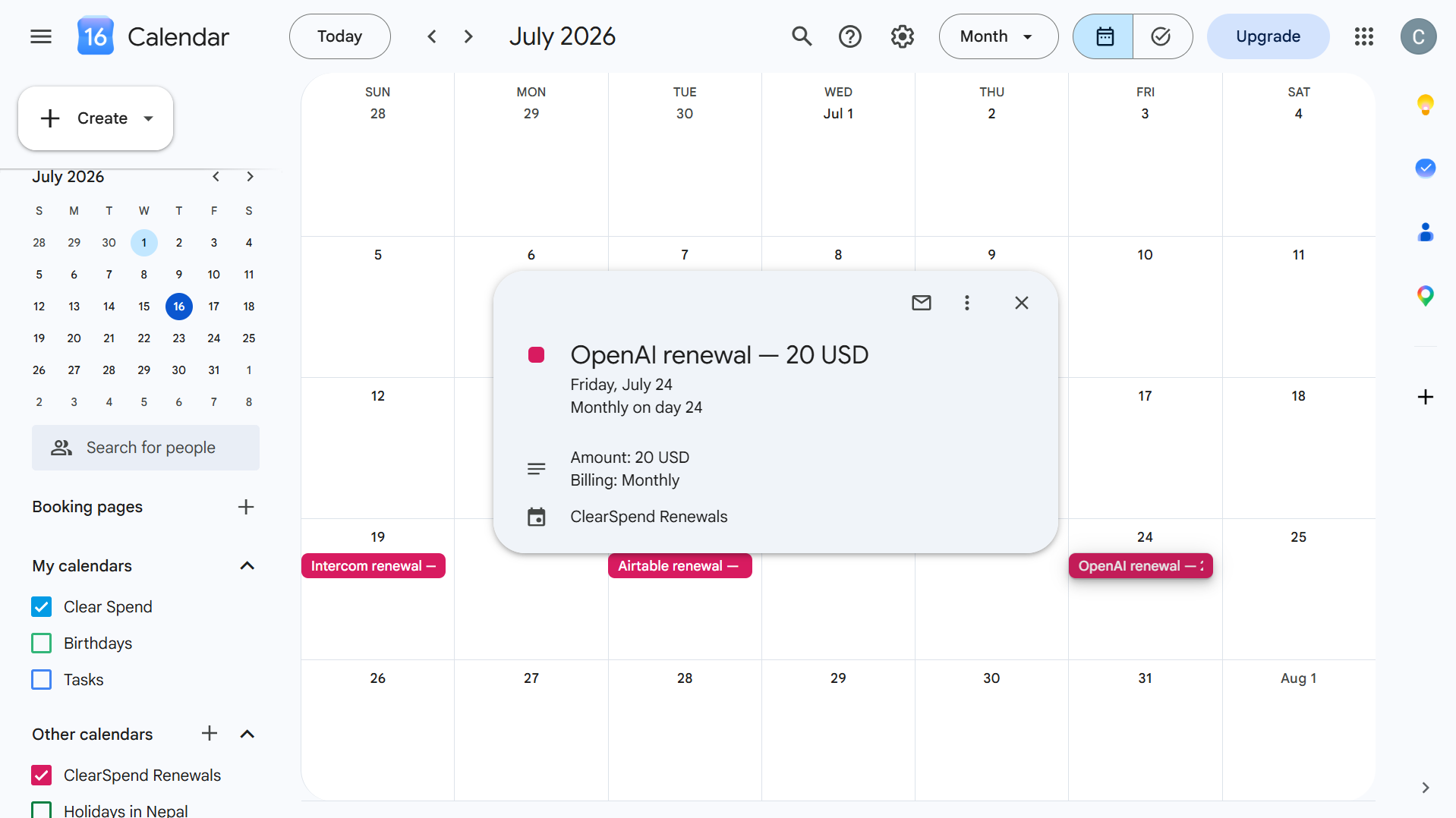
ClearSpend generates a personal calendar feed of all your upcoming subscription renewals. Subscribe to it once and every renewal date appears in your calendar app automatically — no manual entry, and the feed refreshes itself as renewals are added, updated, or removed in ClearSpend.

Why subscribe

  • Never miss a renewal date. Your calendar already reminds you of meetings and deadlines. Adding renewals to the same place means you see them as part of your normal planning view.
  • No manual maintenance. The feed is live. When a renewal date changes in ClearSpend, your calendar picks up the change on its next refresh — usually within 24 hours.
  • Works with any calendar app. The feed is a standard .ics URL. Google Calendar, Outlook, Apple Calendar, and any other app that supports calendar subscriptions can use it.
  • Read-only and safe to share. The feed only shows renewal events. It doesn’t write to ClearSpend or expose any account data beyond vendor names and dates.

How to subscribe

1

Open the Subscribe dialog

From the Renewals page, click the Subscribe button in the top-right of the page header.You can also open the same dialog by hovering over Renewals in the left sidebar — a calendar icon appears on the right of the row. Click it to open the dialog directly without navigating to the Renewals page first.
2

Copy your feed URL or add directly to your calendar

The dialog shows your personal Calendar feed URL — a unique, token-protected .ics link.You have two options:Option A — One-click add (recommended): Click Google, Outlook, or Apple to open your calendar app directly with the feed pre-filled. Confirm the subscription inside your calendar app and you’re done.
ButtonWhat it opens
GoogleOpens Google Calendar’s “Add from URL” flow with the feed pre-filled
OutlookOpens Outlook’s “Add calendar from web” flow with the feed pre-filled
AppleOpens the webcal:// link, which Apple Calendar (macOS/iOS) handles automatically
Option B — Copy the URL manually: Click Copy to copy the feed URL to your clipboard, then paste it into any calendar app that accepts a subscription URL. Look for “Add calendar from URL”, “Subscribe to calendar”, or similar in your app’s settings.
3

Confirm the subscription in your calendar app

Your calendar app will ask you to confirm. Accept the subscription. Renewal events will appear within a few minutes for most calendar apps.Once subscribed, click Done to close the dialog.

What appears in your calendar

Each event in the feed represents one subscription renewal. Events include:
  • The vendor name (e.g. “Adobe Design Inc. renewal”)
  • The renewal date as the event date
  • A link back to the subscription in ClearSpend
All-day events are used so they don’t block time on your calendar.

How updates work

The feed is live and generated fresh each time your calendar client fetches it. Most calendar apps refresh subscribed feeds every 24 hours automatically. You don’t need to re-subscribe when renewals change — changes appear on the next refresh.
If you need a renewal to show up immediately, you can manually trigger a refresh in your calendar app. In Google Calendar: open Settings → Other calendars → find the ClearSpend feed → click the three-dot menu → Refresh. In Apple Calendar: right-click the calendar → Refresh.

Security and access

The feed URL contains a unique token that acts as the credential. Keep this URL the same way you’d treat a password-reset link:
  • Don’t post it publicly. Anyone with the URL can read your renewal dates.
  • It’s read-only. The feed cannot modify ClearSpend data or your calendar app’s other calendars.
  • If you believe the URL has been leaked, contact your ClearSpend admin to revoke and regenerate the feed.

Supported calendar apps

AppMethod
Google CalendarOne-click via the Google button, or paste the URL under Settings → Other calendars → Add from URL
Outlook (web/desktop)One-click via the Outlook button, or paste the URL under Add calendar → Subscribe from web
Apple Calendar (macOS)One-click via the Apple button, or use File → New Calendar Subscription
Apple Calendar (iOS)Paste the webcal:// URL into Safari and tap “Subscribe”
Any other appUse the copied HTTPS URL in the app’s “Subscribe to calendar” or “Add from URL” setting
Once subscribed, you can rename the calendar inside your calendar app to something like “ClearSpend renewals” so it’s easy to find and toggle on or off.