

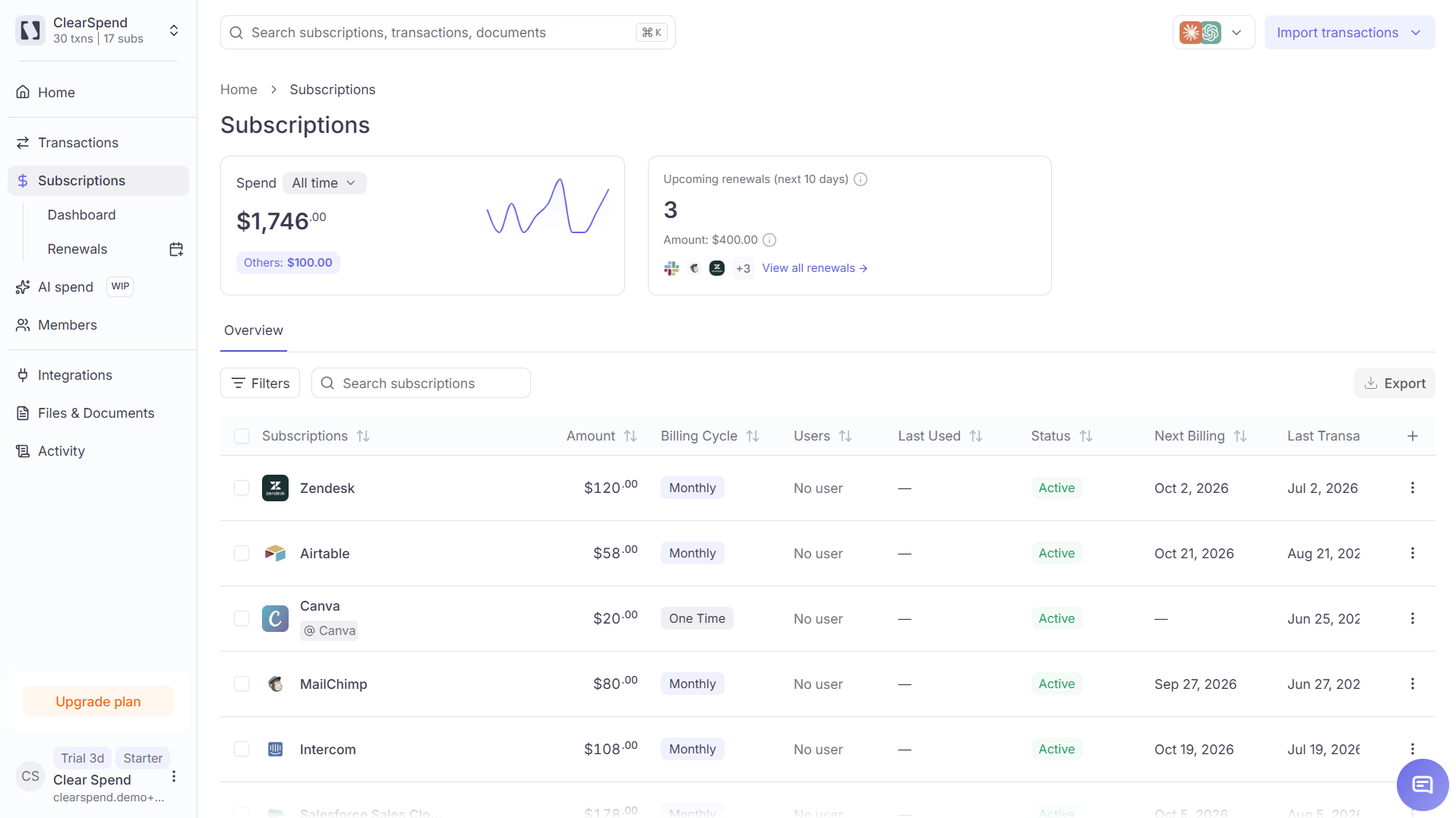
The Subscriptions table: sortable columns, Filters, and Export.
Subscriptions and transactions
Only charges classified as Subscription create subscriptions. Others charges (meals, travel, one-off purchases) stay on Transactions and do not count in subscription KPIs. See Subscription spend vs. Others.
How subscriptions are created
When a charge arrives from Plaid, a statement upload, or another transaction source, ClearSpend checks whether it is subscription spend.- If yes, it creates or updates a subscription for that vendor.
- If ClearSpend is unsure, the item goes to Review first.
- Invoices and receipts do not create subscriptions on their own. They attach as proof and can update billing cycle when linked.
Summary KPIs
Two cards at the top summarize spend and near-term renewals for your current date filter. Subscription spend is total subscription spend for the selected window. An Others callout may appear for reference, but those amounts are not included in subscription totals. Upcoming renewals (next 10 days) shows how many subscriptions renew soon and the total amount. Click View all renewals to open Renewals.
Subscriptions KPIs: subscription spend for the selected window, and upcoming renewals in the next 10 days.
Table columns
Use + in the column header to show optional fields such as Department or Category.
Filters
Click Filters to narrow the list.
Spend and KPI figures follow the Transaction date window.
Use the search bar for vendor or plan text.