

Reconciliation status
The Reconciled column shows how closely the charge and document align.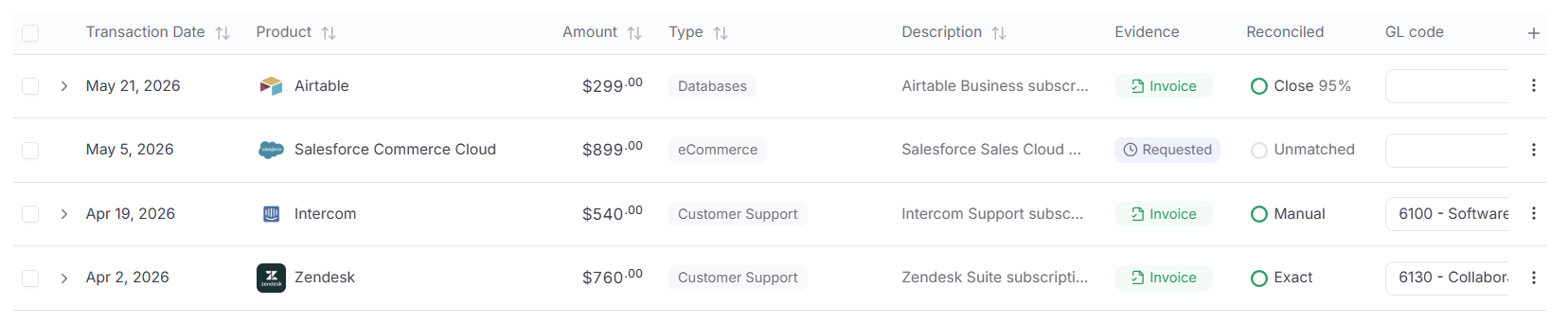
The Reconciled column on Transactions: Exact, Close, Manual, and Unreconciled badges with match scores.
Automatic matching
When an invoice or receipt arrives from Gmail, Google Drive, Slack, WhatsApp, upload, or a public link, the file lands in Files & Documents. ClearSpend then looks for a charge that fits Exact or Close.- Match found: the charge on Transactions shows Evidence: Invoice and a Reconciled status.
- No match yet: the file stays in Files & Documents. The charge stays Unreconciled with Missing until you link it, a later document matches, or someone uploads through an invoice request.
Match invoice dialog
Link proof to one charge from Missing in Evidence or ⋮ → Upload invoice. The dialog shows that charge’s vendor, date, and amount. Any file you link applies to that charge only. ClearSpend suggests files from Files & Documents within 5% on amount and 3 days on date. Pick one and click Match selected. If none qualify, upload a file or use Request Invoice in the footer.After a match
- Evidence shows Invoice. Click to open the file.
- Reconciled shows Exact, Close, or Manual.
- An open Requested status clears when the match is complete.
Remove a wrong match
Open ⋮ → Unlink invoice and confirm.- The charge returns to Unreconciled.
- Evidence goes back to Missing, or Requested if a request is still open.
- The document stays in Files & Documents. Only the link is removed.