Documentation Index

Fetch the complete documentation index at: https://docs.clearspend.ai/llms.txt

Use this file to discover all available pages before exploring further.

Click any subscription row on the Subscriptions page to open its detail view. This gives you a complete picture of one vendor: how much you’ve spent, who’s using it, every billing event, and any missing documents.
Subscription detail page

KPIs

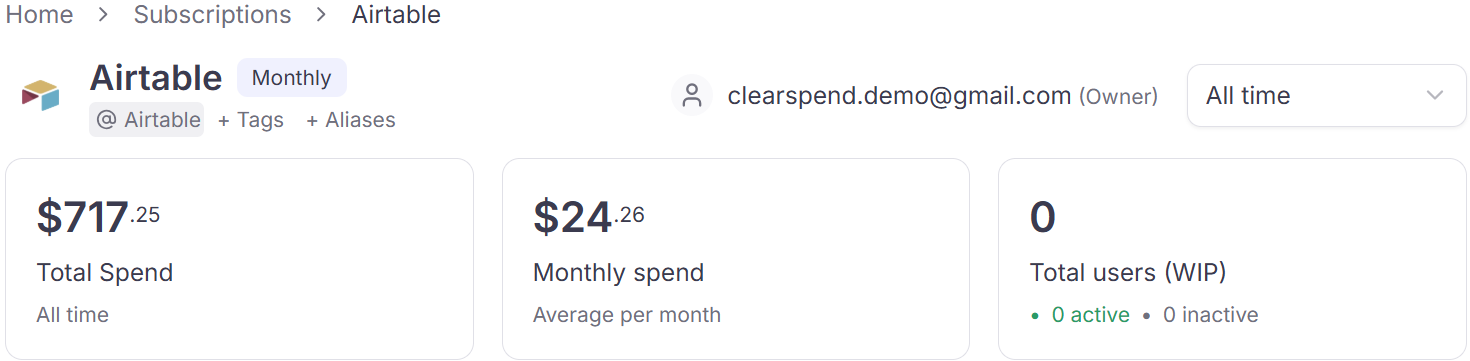
Three summary cards at the top:
KPIWhat it shows
Total spendCumulative spend on this subscription over the selected date window
Average monthly spendMean monthly cost, with a trend vs. the prior period
Total usersNumber of seat-holders, broken down into active vs. inactive

Spending trend

A line chart showing monthly spend for this subscription over time. Use this to spot price increases, usage spikes, or gaps where no charges were recorded.

Usage

Toggle between two views:
  • Usage — a chart showing activity volume over time (logins, OAuth events, etc.)
  • Users — a list of every person using this subscription with their last activity date

History

A per-month list of every charge, with columns:
ColumnDescription
MonthThe billing period
Transaction dateThe date the charge was processed
AmountThe amount charged
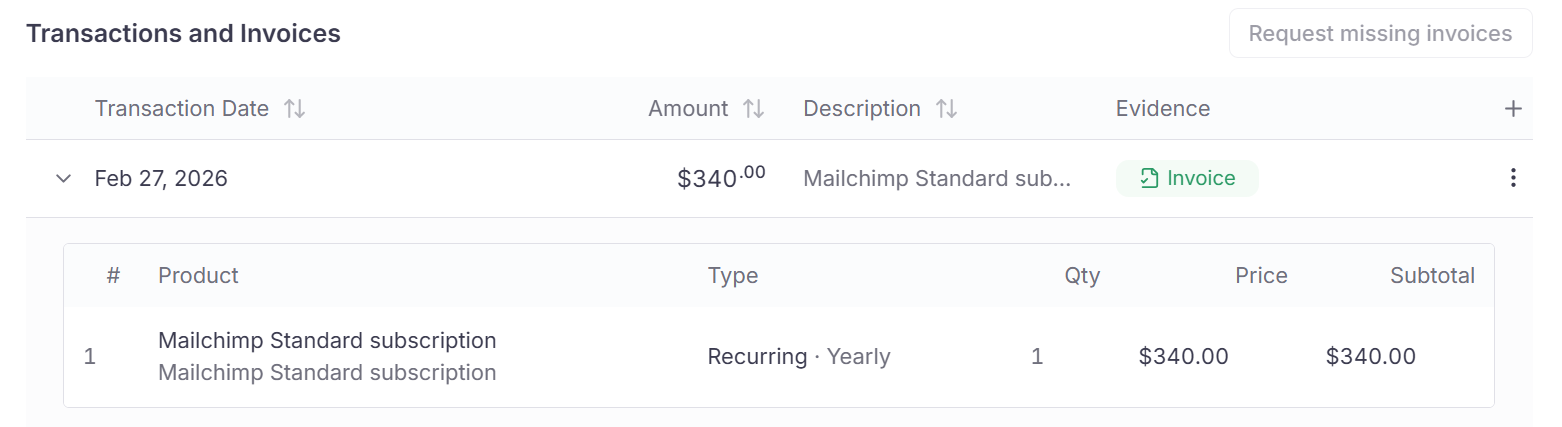
DocumentsInvoices or receipts matched to this charge
Reconcile statusWhether the charge has been matched to a document
ActionRequest a document, view matched files, etc.

Reconcile status

StatusMeaning
Matched (100%)Every document for this period has been matched to a transaction
PendingDocuments are present but not yet fully reconciled

Editing the subscription

From any row in the Subscriptions table, the menu has an Edit option. The edit dialog lets you update:
  • Owner — the person responsible for the subscription
  • Status — Active or Inactive
  • Department — for departmental rollups
  • Billing Cycle — Monthly, Yearly, or One-time
  • Next Billing — the date used for renewal alerts
  • Category — changing this from Others to any other category will include the subscription’s spend in all platform KPIs and charts; changing it to Others removes it from all totals
Click Update Subscription to save or Cancel to discard. Members and above can edit; Viewers cannot.

Requesting missing invoices

The Request documents button opens a modal where you can request missing invoices from the subscription owner.
Request documents modal
  • Choose a notification frequency (e.g. Once a day)
  • Select the invoice date(s) via a year/month calendar — pick individual months or click Select all for a full year
  • Add an optional note for the recipient
Click Send request to notify the owner by email with a link to a secure upload portal scoped to that vendor.

Reviewing duplicate entries

When ClearSpend detects the same charge arriving from more than one source (e.g. a manually uploaded invoice and a bank statement), a Review Duplicate Entries panel appears on this page.
Review Duplicate Entries panel
Each entry shows the document type, ID, source (Manual upload, Plaid, etc.), and file name. You have two actions per entry:
  • Remove Duplicate — discard the extra entry
  • + Create New Transaction — keep it as a separate charge
Resolving duplicates prevents the same payment from being counted twice when it arrives via multiple integrations.