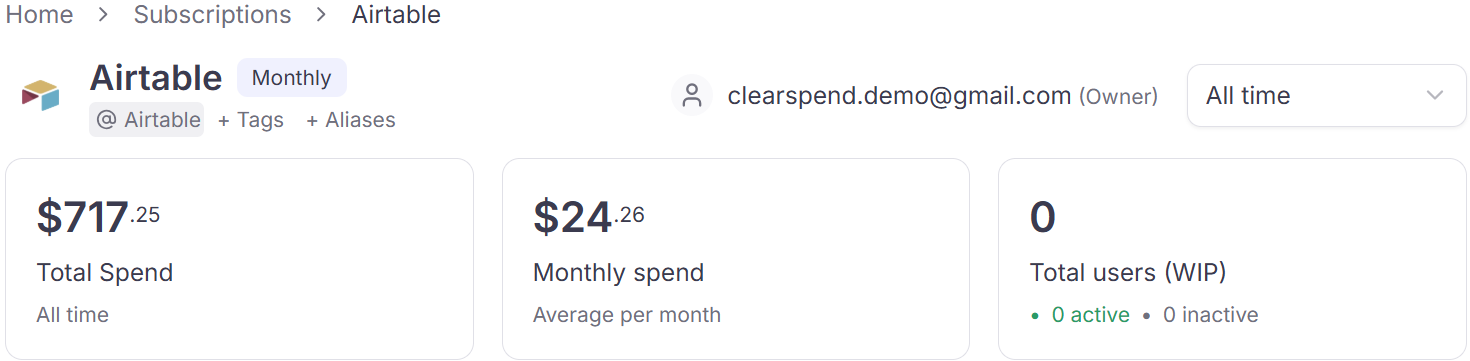
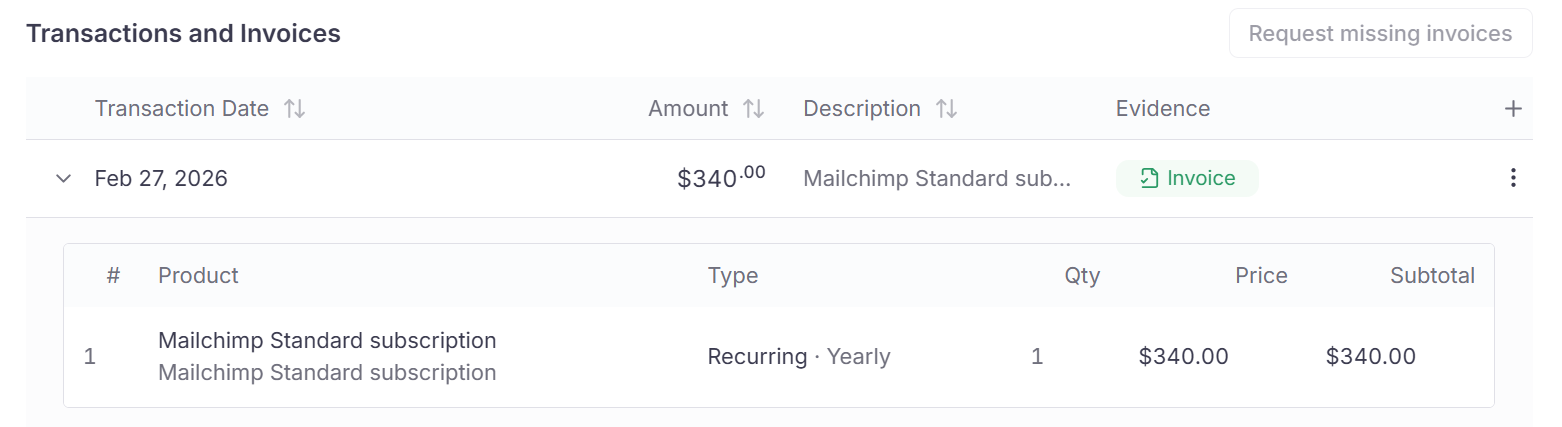
Keep spend and reconciliation accurate when the same payment appears twice. On subscription detail, open the duplicate drawer to mark an extra record as a duplicate or promote it to its own transaction.Documentation Index
Fetch the complete documentation index at: https://docs.clearspend.ai/llms.txt
Use this file to discover all available pages before exploring further.
When the duplicate drawer appears
Open subscription detail for a subscription that has overlapping documents or charges for the same period. If ClearSpend detects duplicates, you will see Review Duplicate Entries on the page or from a billing period in History.Review each entry
The drawer lists every candidate record with:- Type: invoice or charge
- Source: manual upload, integration, statement extraction, etc.
- File name and amount
- View: open the underlying document when available
| Action | When to use it |
|---|---|
| Mark as Duplicate | The extra record is the same payment; keep one copy and discard the duplicate from spend totals. |
| Create a Transaction (mark as transaction) | The record is a legitimate separate charge, not a duplicate of the primary line. |
Mark as transaction in practice
Use Create a Transaction when:- Two real charges landed in the same month (for example a true-up fee plus the regular seat charge).
- A statement line and an invoice both represent valid payments, not double-counting of one invoice.
Reconciliation status
| Status | Meaning |
|---|---|
| Matched (100%) | Documents and charges align for that period |
| Pending | Documents exist but matching is incomplete |
Permissions
Members and above can open the duplicate drawer and take action. Viewers see history read-only.Related
- Subscription detail
- Documents: source column shows where each file originated