

Settings also sends document request notifications to recipients when someone asks an owner to upload a missing invoice. See Request missing invoices.
Upcoming renewal
Trigger: the renewal date is 1, 3, 7, or 15 days away (whichever cadences you’ve enabled).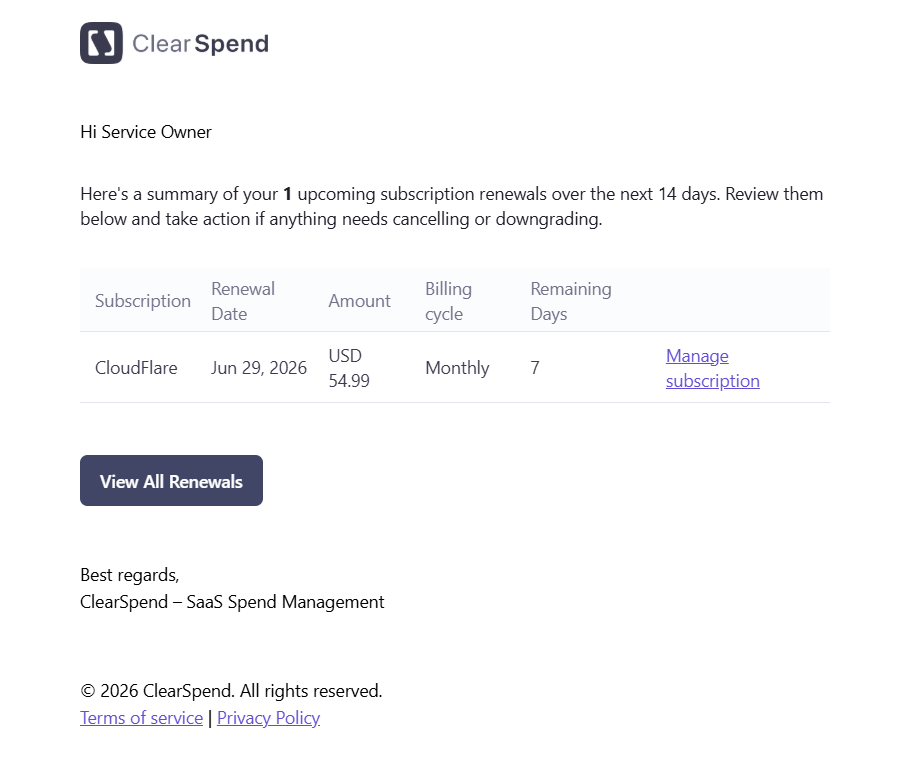
Upcoming renewal email: subscription name, renewal date, amount, billing cycle, and a View all Upcoming Renewals button.
- Subscription: the subscription name
- Amount: the expected charge
- Billing Cycle: Monthly, Quarterly, Semi-Annually, Yearly, or One-time
- Remaining Days: days until the renewal date
- View all Upcoming Renewals button: links directly to the Renewals page in ClearSpend
Monthly summary
Trigger: sent on the 1st of each month.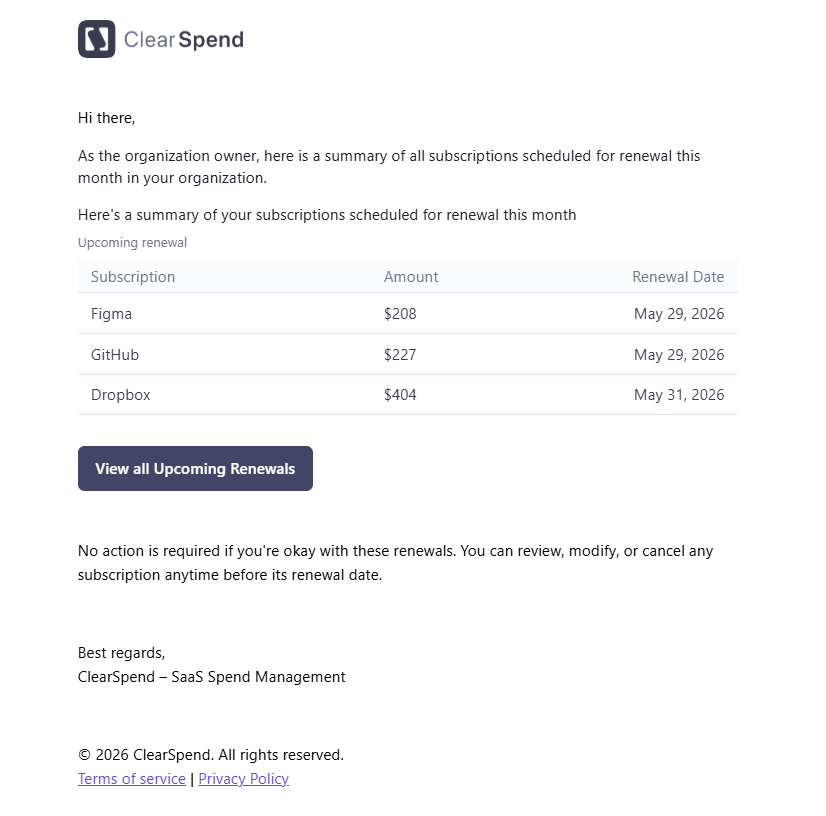
Monthly summary email: table of all upcoming renewals with subscription name, amount, and renewal date.
- A table of renewals scheduled for that month with subscription name, amount, and renewal date